Vizz 1.0
Getting started
From first launch to a look that reacts to the music, saved on a pad and showing in Resolume, in ten steps.
This takes about fifteen minutes. You need Vizz installed and some music playing on the same computer or through an audio interface.
1. Open Vizz and start the trial
Open Vizz from Applications. A copy with no licence opens on the Licence section, and nothing is sent out until a trial or a key is in.
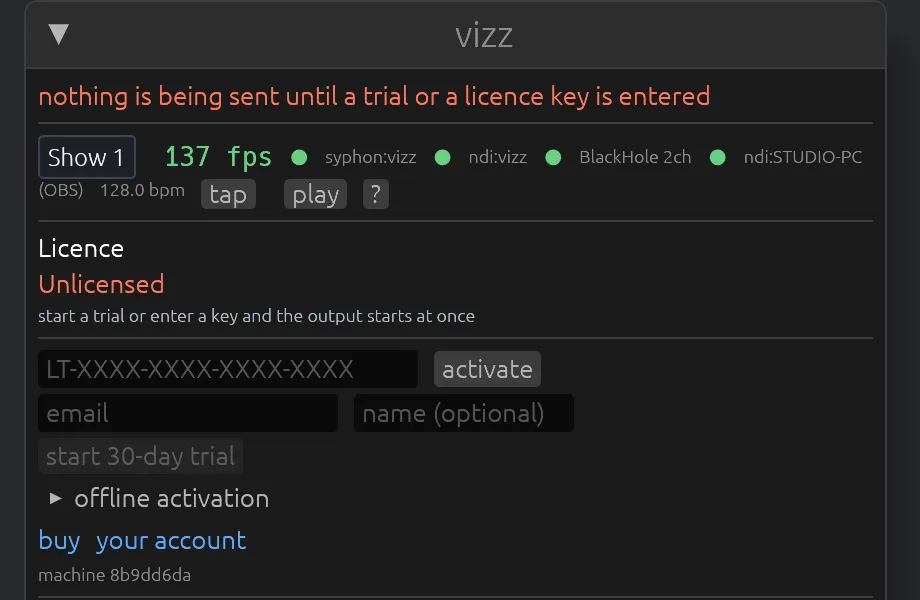
Type your email and press start 30-day trial. The output starts at once, and the trial key is emailed to you. If you have a key already, paste it in the top field and press activate. More about the trial and keys.
2. Read the welcome card
The first time, a card sits over the picture. It lists the four things worth knowing: 1 to 9 fire a look, Space flashes, P is the screen you play from, and ? lists every key. Press any key or click the card to carry on.
Behind it, the field is already moving. Vizz opens on the Tunnel look.
3. Fire the built-in looks
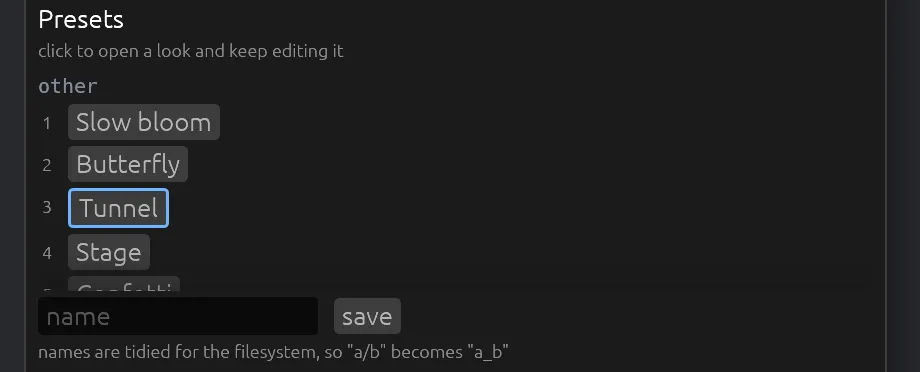
Press 1 to 9. Each number fires a built-in look: Slow bloom, Butterfly, Tunnel, Stage, Confetti, Ribbon, Interference, Poster and Signal. The field glides from one to the next.
Press Tab to hide the panel and see the whole picture. Press it again to bring the panel back.
4. Pick the audio input
Open audio under SIGNAL, and choose your input from the list.
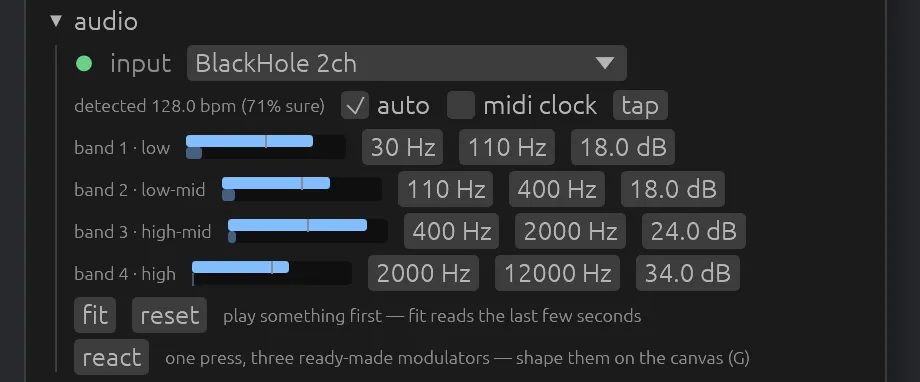
The built-in microphone hears the room, not the mix. For the music itself, pick an audio interface fed from the mixer, or a loopback device such as BlackHole carrying what your DJ software plays.
The four meters should now move with the music.
5. Fit the bands and press react
With the music playing, press fit. Vizz sets each band's sensitivity from the last few seconds of audio, so none of them is stuck at full or silent.
Then press react. The kick now moves the particle size, the loudness moves the glow, and the snare moves the brightness. More about audio.
6. Set the tempo
Tick auto and Vizz follows the tempo it hears, once it's sure. Or tap T three times on the beat. The tempo shows in the status strip at the top of the panel.
7. Change the look
Scroll down to the parameter list. Open a group, such as particles, and drag a slider. Right-click a slider to put it back.
Type in the filter box to find a parameter by name, or tick changed to see only what you've moved. Every parameter is described in Parameters.
8. Save it
In Presets, type a name and press save. Your look joins the list, with a picture taken from the output.
9. Put it on a pad and play it
Press P for the performance layout. Press store under the SCENES row, then press an empty pad. Your look is now on that pad.

Store a different look on the next pad. Click one pad, then the other. Vizz blends between them over the blend time. Hold Space for a flash, or B for black. More about scenes and pages.
10. Show it in Resolume
On a Mac, Vizz publishes over Syphon from the moment it starts. In Resolume Arena or Avenue, open Sources, find Syphon, and drag vizz onto a clip slot. More about sending to Resolume.
When you're done, press Esc twice to quit. Everything you did is already saved.