Vizz 1.0
The modulation canvas
The node graph on G that decides what moves what, with every node, its settings and its defaults.
The modulation canvas is where you wire things like "the kick makes the particles jump" or "the hue walks round every four bars". Press G to open it. It opens in its own window, modulation canvas, over whatever is on screen.
It's a graph. Sources make a signal, operators change it, and a Parameter node sends it to a parameter. Every node has one output. Wires run from an output on the right of a node to an input on the left of another.
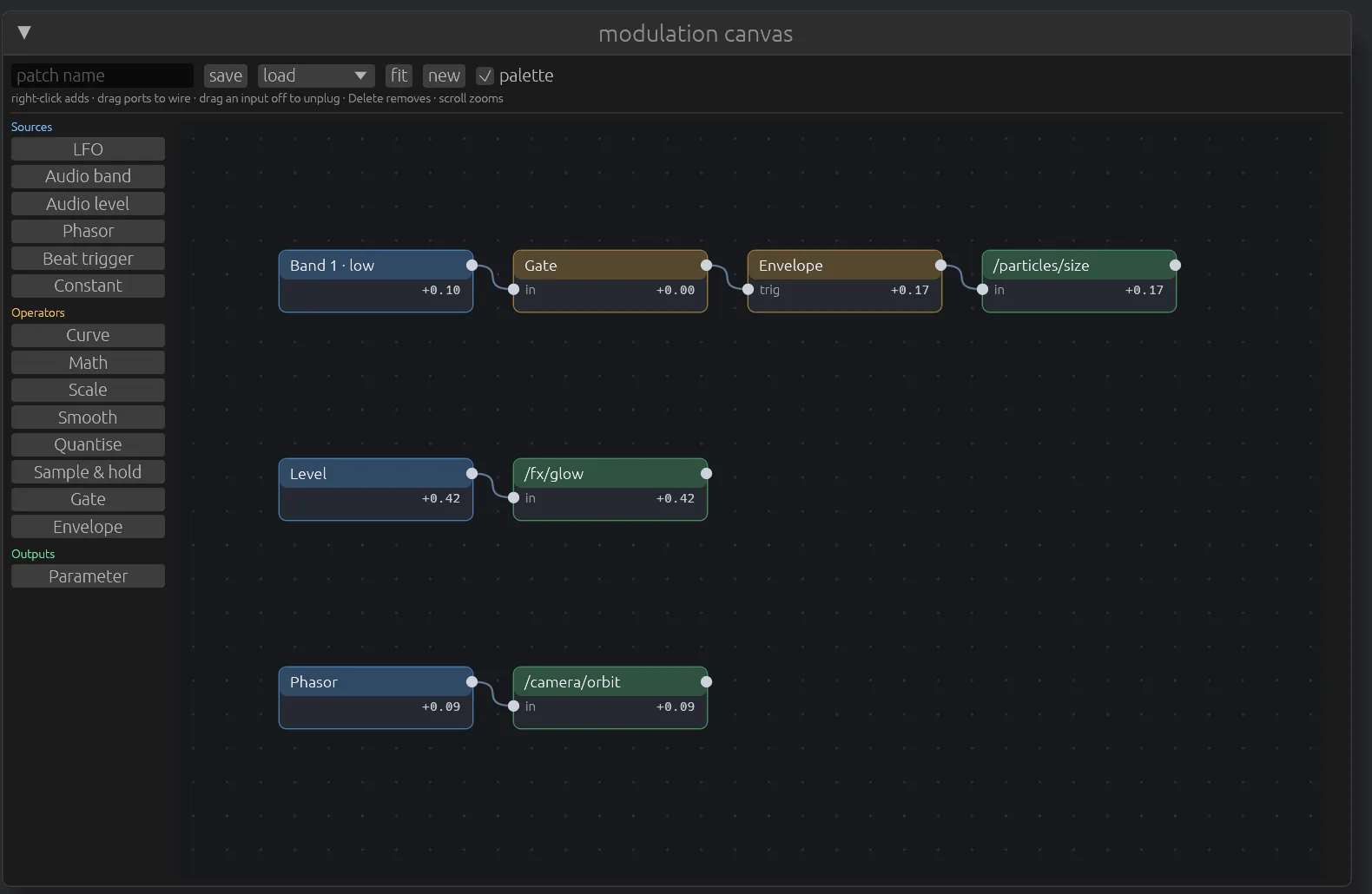
Modulation never takes a parameter away from you. It adds an offset on top of where the slider sits. Move the slider and the modulation rides on the new value. In the parameter list, a modulated row is marked ~.
The canvas and the per-parameter modulators in the control panel add together. A patch is saved separately from looks, so recalling a look never rewires your modulation, and loading a patch never moves your sliders.
Working on the canvas
The line under the toolbar is the short version: right-click adds · drag ports to wire · drag an input off to unplug · Delete removes · scroll zooms.
Add a node
Right-click empty canvas and choose from the menu, or drag one in from the palette down the left. Both list the same nodes, grouped as Sources, Operators and Outputs.
Wire two nodes
Drag from a node's output port to another node's input port. Each input takes one wire. To combine two signals, use a Math node.
Unplug a wire
Drag the wire's end away from the input it's plugged into and let go on empty canvas.
Loops are refused
A wire that would feed a chain back into itself is refused when you drop it. The status line says refused — that wire would make a loop. If a loop does exist, for example in a patch made elsewhere, its nodes turn red and output zero. The rest of the graph keeps running.
Select, move and delete
Click a node to select it and show its settings in the inspector below the canvas. Drag it to move it. Delete removes the selected node.
Zoom and pan
Scroll to zoom about the pointer, from 0.35× to 2.5×. Drag empty canvas to pan. At 0.7× and closer, each node shows the value it's sending right now.
The toolbar
Patch name
Type the name the patch is saved under. Names become file names, so characters a file name can't hold are replaced. café/bar is saved as caf__bar. The status line shows the name actually used.
save
Saves the graph, with every node's position, into the open show. Saving under the name of a shipped patch saves as Name 2 instead, so the shipped one stays as it was.
load
Opens a saved or shipped patch. It replaces the graph on the canvas. Two ship with Vizz:
| Patch | What it does |
|---|---|
| Breathe | Kick band → gate → envelope into particle size, the loudness into glow, and a 16-beat phasor that swings the camera orbit. This is the chain the react button builds. |
| Pulse | Kick band → gate → envelope that blinks vector layer 2 out on each hit, and a 4-beat phasor that drifts layer 1's phase. Load it over a vector look such as Interference. |
fit
Zooms and pans to show every node. Use it when you've panned into empty space, or to read a patch you've just loaded.
new
Clears the graph. It asks once: the button changes to clear?, and a second click clears. There's no undo.
palette
Shows or hides the node palette down the left.
The inspector
Select a node and its settings appear below the canvas.
bypass
Passes the node's input straight through, as if the node weren't there. On a source, bypass sends nothing. Use it to hear a chain without one operator.
delete
Removes the node and its wires.
Sources
Sources have no inputs.
LFO
A repeating wave. Title: LFO · shape. Output swings −1 to 1.
- shape: sine, tri, saw, square, or s&h (a new random value each cycle).
- sync: when ticked, the rate is in beats per cycle, locked to the tempo. When unticked, it's in Hz. 0.01 to 64.
- Default: sine, synced, 4 beats.
Audio band
One of the four audio bands, as an envelope from 0 to 1. Title: Band N · name. The bands are 1 low, 2 low-mid, 3 high-mid, 4 high. Their frequency ranges and gains are set in the panel's audio section. Default: band 1.
Audio level
The overall loudness of the input, 0 to 1. No settings. Title: Level.
Phasor
A ramp from 0 to 1 that repeats every so many beats, locked to the tempo. Every phasor and beat trigger shares the same clock, so they stay in step. 0.25 to 64 beats, default 4.
Beat trigger
Sends 1 for one frame each time a beat division passes, and 0 otherwise. Title: Beat · N. 0.25 to 64 beats, default 1. Feed it into an Envelope for a hit on every beat.
Constant
A fixed value, −1 to 1. Default 1.
Operators
Operators have one input unless it says otherwise.
Curve
Reshapes the signal. shape is linear, exp² (slow start, fast finish, which makes a band punchy), exp⁴, log (fast start, slow finish) or S-curve (eases in and out). amount 0 to 1 blends from the straight signal to the curved one. The curve keeps the sign, so a swinging LFO keeps its shape either side of zero. Default: exp², amount 1.
Math
Combines two inputs, a and b. The operations are a + b (the default), a - b, a × b, min and max. Title: Math · operation.
Scale
Multiplies (×) then adds (+). Default ×1, +0. Use ×2, +(−1) to turn a 0-to-1 source into one that swings −1 to 1, or trim a range.
Smooth
Slows a jumpy signal down. A is the rise time and R the fall time, in seconds, each 0 to 5. Default 0.02 and 0.2.
Quantise
Snaps the signal to a number of steps, 1 to 32. Default 4. Turns a smooth sweep into something that lands on steps.
Sample & hold
Two inputs, in and trig. Each time trig rises past 0.5, it grabs the value of in and holds it. Title: S&H. No settings.
Gate
Outputs 1 while the input is at or above the threshold and 0 below it. A little hysteresis stops a level hovering at the line from chattering. Threshold 0 to 1, default 0.5. Use it to turn a band into a clean trigger.
Envelope
Fires a hit each time its trig input rises past 0.5: a straight rise to 1 over A seconds (0 to 2), then a fall over D seconds (0 to 5). A new trigger climbs from wherever it is instead of clicking to zero. Default A 0.01, D 0.3.
Outputs
Parameter
Sends its input to a parameter. Pick the parameter from the address list. depth, −1 to 1, is how far the signal can move it, as a fraction of the parameter's whole range. Negative depth moves it the other way. Default 0.5. The node's title is the address. A Parameter node with no address says no target, and one whose address doesn't exist says missing.
Some parameters can't be modulated: the transport controls and the cloud crossing that scene changes drive.
Where patches are kept
Patches are saved in the open show, in ~/.config/vizz/projects/<show>/patches/, one JSON file each. The graph on the canvas is also saved on its own every few seconds and restored at launch. See Files and folders.