Vizz 1.0
Keyboard, OSC and the command line
Every keyboard shortcut and mouse gesture, how OSC control works, every command-line option, and where Vizz keeps its files.
Press ? in Vizz to see the shortcuts on screen. This page lists the same keys, then everything that isn't on that list.
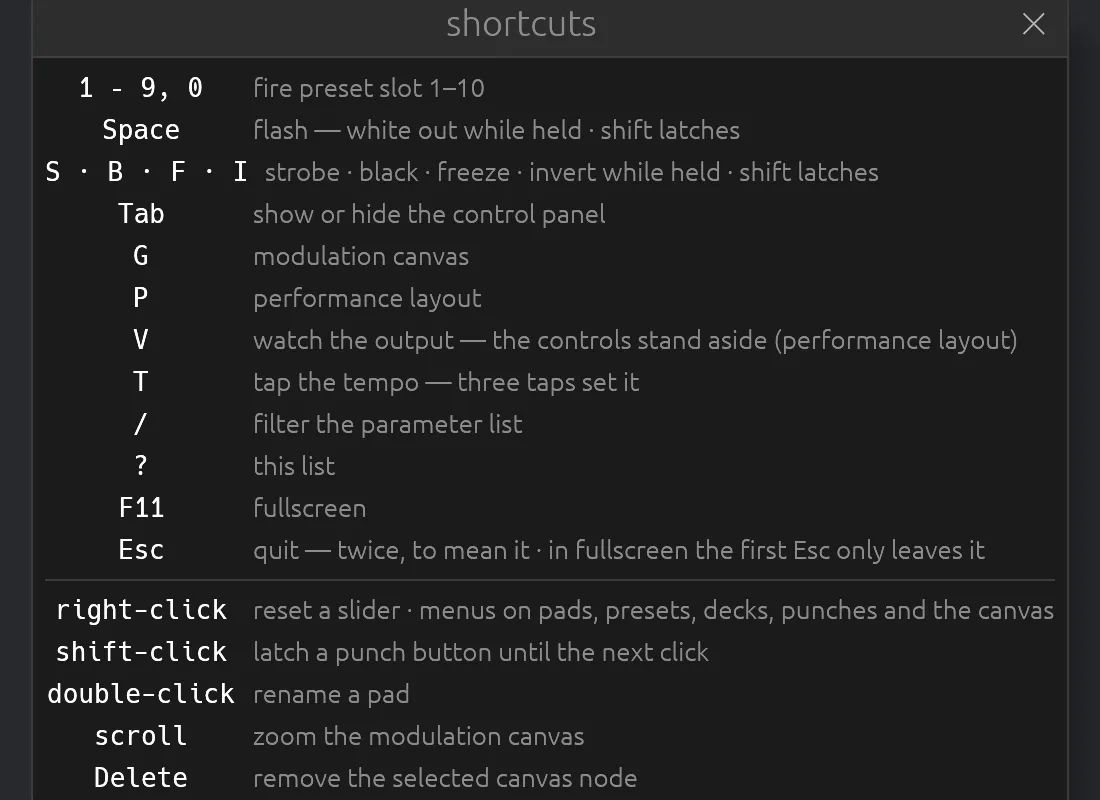
Keys
Keys work whenever you aren't typing in a text box.
1 to 9, 0
Fire preset slots 1 to 10. 0 is slot 10.
Space
Flash: whites out the output while held. Shift+Space latches it on until you press it again.
S, B, F, I
Strobe, black, freeze and invert, while held. Hold Shift to latch. Either case works. See Punch.
Tab
Shows or hides the control panel.
G
Opens or closes the modulation canvas.
P
Switches between the control panel and the performance layout.
V
On the performance layout, stands the controls aside so you can watch the output. Press it again to bring them back.
T
Taps the tempo. Three taps set it.
/
Jumps to the filter above the parameter list.
?
Shows the shortcuts.
F11
Fullscreen on and off. Vizz remembers your choice for the next launch.
Esc
Quits, but only when pressed twice within three seconds. The first press says press Esc again to quit. In fullscreen, the first Esc only leaves fullscreen.
Mouse
Right-click
On a slider or fader, puts it back to its default. On pads, preset tiles, set-list chips, punch buttons and the canvas, opens a menu.
Shift-click
Latches a punch button on until the next click.
Double-click
Renames a scene or gravity pad.
Alt-click
Fires a pad's whole column: the scene pad and the gravity pad with the same number.
Scroll
Zooms the modulation canvas.
Delete
Removes the selected node on the modulation canvas.
Drag and drop
Drop a cloud or image file on the window to load it as a cloud, or a palette file to add a palette. See Drop a file.
OSC
Vizz listens for OSC on UDP port 7000, from any machine on the network. Change the port with --osc-port. To accept messages only from this computer, start Vizz with --osc-bind 127.0.0.1.
Addresses
Every parameter's OSC address is the heading of its entry in Parameters. Send the value as the first argument. Floats, doubles, integers and booleans all work, and bundles are unpacked. Values are in the parameter's own range, as that page lists it, not 0 to 1. Messages to addresses Vizz doesn't know are ignored.
Other names
OSC also accepts friendlier names for a few groups:
| You send | Vizz reads it as |
|---|---|
/look/… | /preset/… |
/song/… | /deck/… |
/background/… | /bg/… |
/ink/… | /pal/… |
/print/N/… | /lN/… |
Resolume messages
When resolume is switched on in the set list, Vizz also understands two of Resolume Arena's own messages:
/composition/columns/N/connectfires the matching column of pads./composition/decks/N/selectturns to the matching page.
The setup is in Follow Resolume's columns.
Command line
Vizz runs without any options. These are for rigs, scripts and troubleshooting. On a Mac, run the program inside the app:
/Applications/vizz.app/Contents/MacOS/vizz --ndi
Output
| Option | What it does |
|---|---|
--width N, --height N | Output size in pixels. It wins over the size set in the panel, for this run only. Without it, the size from the panel is used, or 1280×720. |
--fullscreen | Start fullscreen. |
--monitor N | Which screen to go fullscreen on, counting from 0. |
--no-gui | Start with the control panel hidden. Tab shows it. |
Syphon and NDI
| Option | What it does |
|---|---|
--no-syphon | Don't publish over Syphon. |
--syphon-name NAME | The name Syphon receivers see. Default vizz. |
--syphon-flip false | Use this only if your receiving app shows Vizz upside down. |
--ndi | Publish the output over NDI. Needs the NDI runtime. |
--ndi-name NAME | The name NDI receivers see. Default vizz. |
--fps N | The frame rate announced to NDI receivers. Default 60. |
--list-ndi | Print the NDI sources on the network, then quit. |
Inputs
| Option | What it does |
|---|---|
--cloud FILE | Load a cloud file or image, or gen:NAME for an equation. Repeat it to fill more slots. See Clouds. |
--live-cloud ADDRESS | A live stream (listen://…, tcp://…, host:port or a .ply path) or a simulation (sim:NAME). |
--video-source NAME | Video in: test for the test pattern, or part of an NDI source's name. |
--audio-device NAME | Part of the audio device's name. |
--list-audio | Print the audio devices, then quit. |
--no-audio | Don't capture audio. |
--osc-port N | OSC port. Default 7000. |
--osc-bind ADDRESS | Where OSC listens. Default 0.0.0.0, every network. |
--midi-map FILE | Where MIDI bindings are kept. |
Other
| Option | What it does |
|---|---|
--no-update-check | Don't check for a newer version at launch. |
--headless | Render with no window. For benchmarks and tests. |
--frames N | How many frames to render headless. Default 600. |
--dump FILE | Save the last headless frame as a PNG. |
--report FILE | Save a JSON performance report when a headless run ends. |
-V, --version | Print the version. |
-h, --help | Print every option. |
Files and folders
Vizz saves as you go. There's no save button and nothing to lose by quitting.
Settings folder
~/.config/vizz on a Mac and on Linux, or $XDG_CONFIG_HOME/vizz if that's set. On Windows, Vizz uses .config\vizz under the folder the HOME variable names. If HOME isn't set, it uses a vizz folder in the folder Vizz was started from. In it:
| Path | What it holds |
|---|---|
settings.json | This machine's setup: output size, audio device, loaded clouds and palettes, and the like. |
midi.json | Your MIDI bindings. |
licence.json | The licence. |
open.json | Which show is open. |
recovery.json | The look on screen, saved every few seconds, for restoring after a crash. |
projects/NAME/ | One folder per show. |
reports/ | Crash reports and feedback waiting to be sent. |
settings.json and midi.json describe the machine and stay put when you switch shows.
Show folders
Each show in projects/ holds its pages and pads, its looks and their pictures, its canvas patches, its fader layout and its slider ranges. Copy a show's folder to another machine's projects/ to take the whole show with you.
Takes
Recordings go to ~/Movies/vizz on a Mac, and ~/Videos/vizz on Windows and Linux. Each take is a folder of numbered images, named after the look and the time. See Record a take.