Vizz 1.0
Installing
Install Vizz on a Mac, start the trial or enter a licence key, keep it up to date, and remove it.
Vizz 1.0 is a Mac app. Download it, drag it to Applications, open it. Syphon is built in, so there is nothing else to install for Resolume, VDMX or MadMapper to see it.
Mac
What you need
- macOS 11 (Big Sur) or later.
- An Apple Silicon Mac. The 1.0 release is built on Apple Silicon.
- For NDI output or input only: the free NDI Tools or NDI Runtime from ndi.video. Vizz runs without it. NDI shows as unavailable until it is installed.
Download and install
- Go to letissier.ie/vizz and press Download for macOS. You get a file called
vizz-1.0.0.app.zip. - Double-click the zip to unpack
vizz.app. - Drag
vizz.appinto your Applications folder. - Double-click it.
Releases are signed with a Developer ID and notarised by Apple, so a normal double-click opens them. You don't need to right-click and choose Open.
Install from Terminal
The same release, in one line:
curl -fsSL https://raw.githubusercontent.com/legofsalmon/vizz/main/scripts/install.sh | bash
This downloads the newest release and puts vizz.app in /Applications. If that folder isn't writable, it uses ~/Applications.
The permission prompts
macOS asks the first time Vizz uses each of these. Say Allow to the ones you need.
| Prompt | What Vizz uses it for |
|---|---|
| Microphone | Hearing audio input, so the picture can react to the music. This covers audio interfaces and loopback devices too, not just the built-in mic. |
| Camera | A camera or capture card as video in. |
| Local network | OSC control, live point-cloud streams, and NDI in and out. |
If you said no by mistake, turn it back on in System Settings → Privacy & Security, then restart Vizz.
Windows and Linux
There is no Windows or Linux installer for 1.0. Vizz builds from source on both, with a Rust toolchain:
git clone https://github.com/legofsalmon/vizz
cd vizz
cargo run --release
Syphon is macOS only. On Windows and Linux, send the picture out with NDI instead. In-app updates are macOS only too: to update a source build, pull and build again.
First launch
On a new machine, Vizz opens like this:
- The window is 1440×900, or nine-tenths of your display if that is smaller.
- The look called Tunnel is playing.
- The control panel is on the left.
- A card along the bottom names the keys to know: 1–9 fire a look, Space flashes, P is the screen you play from, ? lists every key. Any key or a click puts the card away. It doesn't come back.
- A twenty-song demo set is already on the performance layout.
- OSC is listening on UDP port 7000.
- On a Mac, a Syphon source called
vizzis published.
The window title shows the live settings, for example vizz — Syphon 'vizz' — OSC :7000.
The only exception is an unlicensed copy with no trial. It opens on the licence section instead, and its output stays black until you start a trial or enter a key. See the next section.
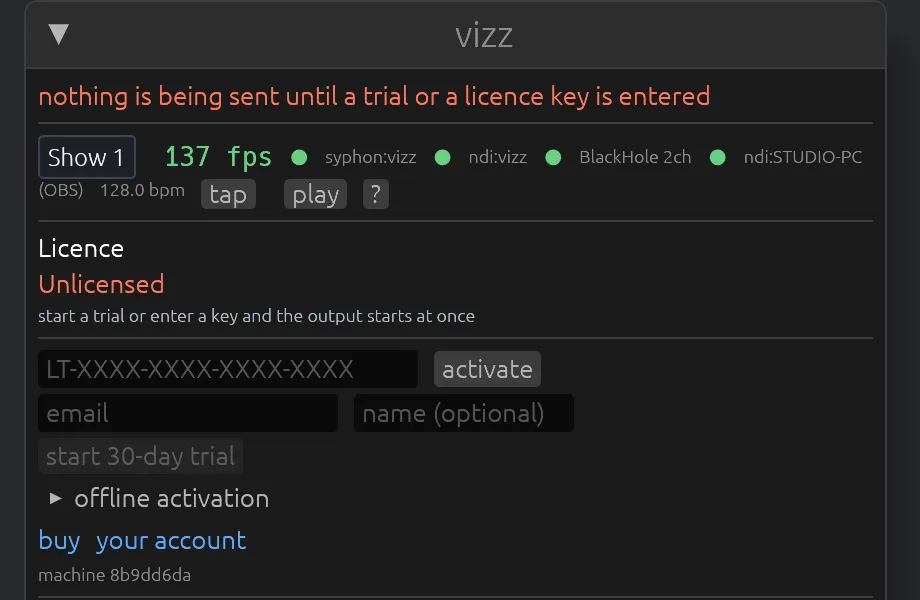
The trial and your licence key
Vizz is paid software with a 30-day free trial. Everything works during the trial. After it, Vizz needs a licence key.
Start the trial
- Open Vizz. With no licence, the panel opens on Licence.
- Under the key field, type your email. A name is optional.
- Press start trial. The button has the trial length on it.
The output starts right away. The trial key is also emailed to you. There is one trial per machine.
Enter a licence key
- Buy a licence at letissier.ie/shop. The key arrives by email.
- In the panel's Licence section, paste the key into the field and press activate or Enter.
Keys look like LT-XXXX-XXXX-XXXX-XXXX. You don't need to worry about case, the dashes or the LT- prefix. Letters that are easy to confuse, like O and 0 or I and 1, are read as the same thing. If you paste a key for another LeTissier product, the field tells you which product it's for.
One licence runs on 2 machines at a time. To move it to a new machine, press release this machine on the old one (press it twice, to confirm), or release the seat from your account. Then activate on the new one.
What happens when the trial ends
A copy that is already running keeps running. Vizz never stops a show in progress because of a licence. The next time you open it, it opens on the licence section with the output black, and nothing is sent to Syphon, NDI or a recording until you enter a key.
Where the licence section lives, and what each line and button in it means, is covered in Licence.
Working offline
A licence checks in with letissier.ie shortly after launch and then about once a day. If there's no network, it skips the check quietly. A licence runs offline for 30 days between check-ins.
If you go past that, the licence section says Needs check-in, but nothing is restricted. Vizz keeps running and checks in the next time it's online. To check in yourself, press check in now.
For a machine that never goes online:
- In the licence section, open offline activation.
- Press copy next to this machine's request code.
- On any machine with a network, sign in at letissier.ie/account, choose the licence, and enter the request code.
- Paste the token it gives you into the token field and press use token.
Updating
Vizz checks GitHub once at launch for a newer release. The check runs in the background, times out after 8 seconds, and fails quietly with no network. When a new release is out, a banner appears at the top of the panel: vizz 1.0.1 available, for example.
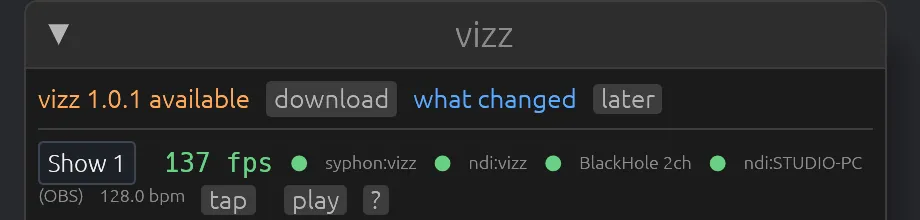
- Press download. A progress bar counts the megabytes.
- When the download is done, press install and restart. Vizz checks the download is signed by the same developer as the copy you're running, closes, swaps in the new version and reopens.
Your shows, presets, patches, palettes, MIDI mappings and settings aren't inside the app, so an update doesn't touch them.
Nothing happens without you pressing it. Vizz never downloads in the background, installs on quit or counts down. later hides the banner until the next launch, and what changed opens the release notes.
The banner explains when it can't install, and gives a link to download instead:
- stop the recording first: Vizz won't restart during a take.
- move vizz to Applications first: it's running from Downloads.
- this build is not Developer ID signed: you built it yourself.
- The app's folder is read-only.
To turn the check off, start Vizz with --no-update-check. See Command line.
Uninstalling
- Quit Vizz.
- Drag
vizz.appfrom Applications to the Bin. - Delete the
~/.config/vizzfolder if you want to remove your shows, presets, patches, MIDI map, settings and licence too. Keep it if you might reinstall.
Recordings are in ~/Movies/vizz, and uninstalling doesn't remove them. Before you delete the licence on this machine, press release this machine so the seat is free for another one.