Yewee 1.0
Choose and set up a capture card
Which capture cards work with Yewee on Mac and Windows, and the two panel settings that make a card show a picture.
Yewee reads a capture card the same way it reads a webcam. Most USB capture devices just work. PCIe cards on Windows need one or two settings.
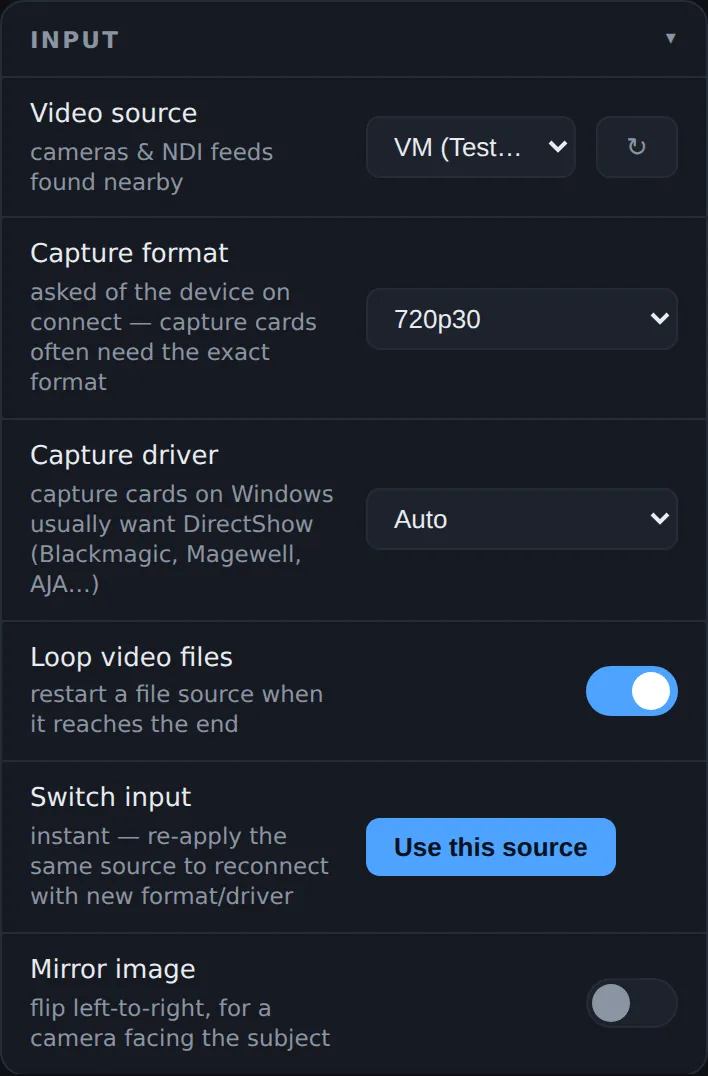
The two settings that matter
Both are in the Input card, and both take effect when you press Use this source.
- Capture format: the size and frame rate Yewee asks the card for. Many cards refuse Auto and show black. Set exactly the signal you are feeding the card: a 1080p50 camera needs 1080p50, not 1080p25 and not Auto.
- Capture driver: on Windows, most PCIe cards are reached through DirectShow. On a Mac, leave it on Auto.
After changing either, press Use this source again with the same source selected. That reopens the card with the new settings.
Which cards work how
| Card | How it shows up | What to set |
|---|---|---|
| Elgato Cam Link and HD60, Magewell USB Capture, AVerMedia USB, AJA U-TAP | A standard USB webcam (UVC) on Mac and Windows | Nothing special. Any driver works. Set Capture format if it shows black. |
| Blackmagic UltraStudio and other Thunderbolt Blackmagic devices | Mac: a normal camera, by name, once Blackmagic Desktop Video is installed | Install Desktop Video. Set Capture format to the signal. |
| Blackmagic DeckLink (PCIe) | Windows: Blackmagic WDM Capture, through Desktop Video | Install Desktop Video. Capture driver DirectShow. Set the exact Capture format. |
| Magewell Pro Capture (PCIe) | Windows, through DirectShow | Capture driver DirectShow. Usually fine with Auto format. |
| AVerMedia PCIe | Windows, through DirectShow | Capture driver DirectShow. |
| AJA KONA | Windows, through AJA's DirectShow filters | Install AJA's software. Capture driver DirectShow. |
A DeckLink PCIe card has no route into Yewee on a Mac. Use an UltraStudio, a USB (UVC) converter, or an NDI encoder instead.
The Cameras list in Video source names each device and the size it opens at. A card is remembered by name, so it is found again after a reboot or on another USB port.
Step by step
- Install the card maker's driver software (Blackmagic Desktop Video, AJA software, Magewell's driver), if the card needs one, and restart if it asks.
- Feed the card a signal, and check the maker's own utility sees it. If the card itself sees no signal, Yewee can't either.
- Start Yewee. In Input, press ↻ to scan again, then pick the card in Video source.
- On Windows, set Capture driver to DirectShow for a PCIe card.
- Set Capture format to the incoming signal.
- Press Use this source. The preview should show the picture within a few seconds. If it doesn't, the old source stays on and the reason appears under the preview.
If the card shows black
- Check Capture format matches the signal exactly, frame rate included.
- On Windows, try the other driver: DirectShow, then Media Foundation.
- Check the card's own utility sees the signal, and that no other program (the maker's capture app, OBS, a browser tab using the camera) has the card open.
- Press Use this source again to reopen it.
Frame rate and load
Yewee never runs faster than its source, so a 25 fps signal gives 25 fps feeds whatever the Output frame rate says. Set Output frame rate to match the signal.
A 1080p or 4K source costs more for everything that works on the whole picture. The faces are found on a smaller copy (see Search detail), but the cutout, the feeds and the preview work at full size. If the machine struggles on a big source, set Output size to 1920 or 1280 wide.
No capture card at all
An NDI camera, or an NDI encoder on the camera's SDI or HDMI, needs no card: pick it under NDI sources on the network. On a network that also carries Yewee's feeds and phones, wired is best.
For ST 2110 plants: Yewee does not speak 2110 itself. Bring the picture in through a DeckLink IP card (it appears as a DeckLink capture device on Windows) or a 2110-to-NDI gateway, and send Yewee's NDI feeds out through an NDI-to-2110 gateway.
NDI® is a registered trademark of Vizrt NDI AB.