Yewee 1.0
Getting started
From a fresh install to tracked faces on your vision mixer, in ten steps.
This takes about ten minutes. You need Yewee installed, a camera, capture card or NDI source, and a mixer or monitor that can receive NDI (or, on the same machine, Syphon or Spout).
-
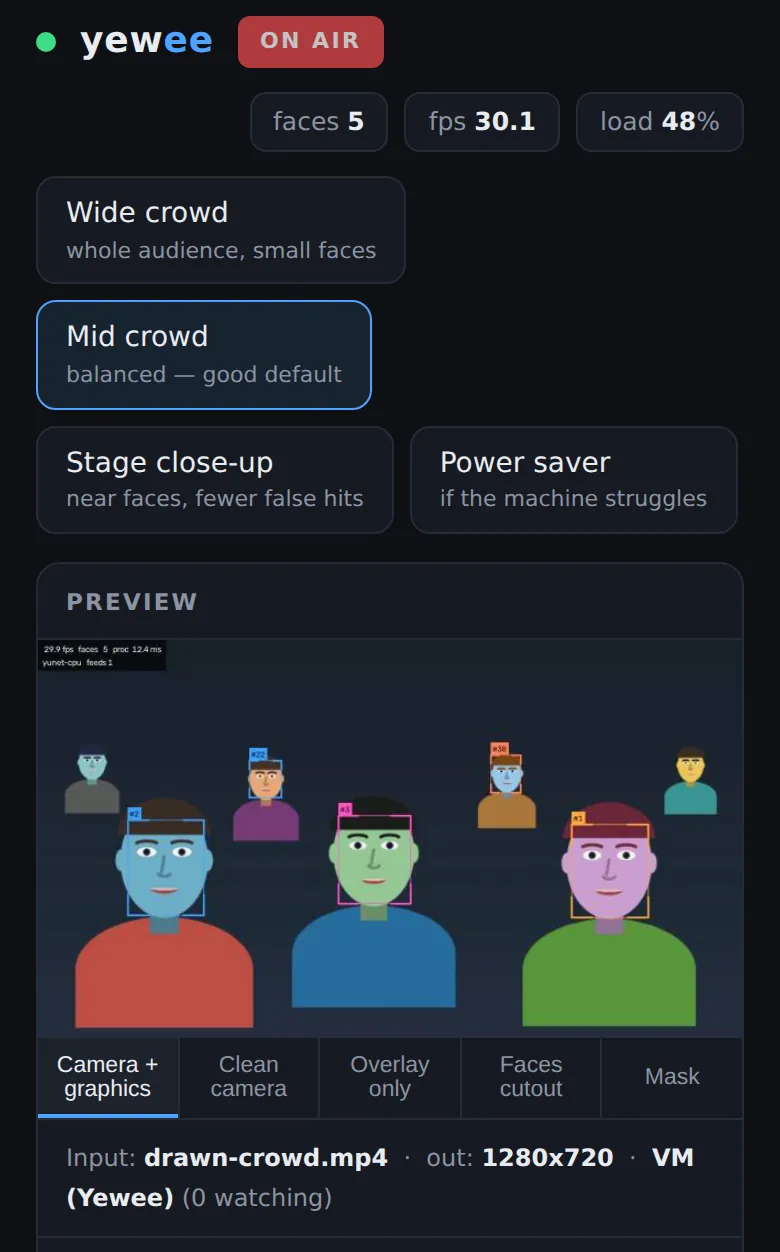
Start Yewee. The control panel opens in your browser on the Yewee machine. The dot at the top left turns green when the panel is connected, and the pill next to the name says ON AIR once a feed is running. The Program feed over NDI is on from the start.
-
Pick your source. In the Input card, open Video source. It lists the cameras and capture devices on the machine by name, and the NDI sources on the network. Choose one and press Use this source. The switch takes a moment and nothing restarts. If your device isn't listed, press ↻ to scan again. A capture card that shows black usually needs its exact format: see Capture cards.
-
Frame the shot. Point the camera at the audience. Yewee looks for faces from the first frame; a box appears once a face has been seen twice, and keeps its number (
#12) while that face stays in shot. -
Pick a preset across the top: Wide crowd for a whole audience with small faces, Mid crowd for most shows, Stage close-up for a few faces near the camera, Power saver if the machine struggles. A fresh install starts on Mid crowd.
Tapping Wide crowd, Stage close-up, Power saver and Mid crowd on a phone: the lit preset, the face count and the boxes follow -
Check the look. The preview shows the program as it goes out. Turn off Number badges or Stats readout in the On-screen look card if you don't want them on the picture, or switch on Brand colour to draw every box in the event's colour.
-
Choose your feeds. In the Outputs card, switch on what your mixer needs: Program (the picture with graphics), Overlay (graphics alone, for keying), Faces cutout and Mask. Each has a switch for NDI and one for Syphon or Spout. See Output feeds for what each carries.
-
Pick them up in the mixer. NDI feeds appear on the network as
MACHINE (Yewee),MACHINE (Yewee Overlay)and so on, whereMACHINEis the Yewee computer's name. The line under the preview shows the exact names and how many receivers are watching each one. Details for each mixer are in Route the four feeds into a vision mixer. -
Prove the chain. Switch on Test card in the Process card. Every feed shows bars, the feed's name and a running clock. Check each one arrives, the right way up, then switch the test card off. See the test card guide.
-
Take the panel with you. On the Yewee machine, the top of the panel shows an address and a PIN for other devices. Open the address on your phone, type the PIN once, and you have the whole panel at FOH. See Run it from a phone at FOH.
-
That's it. Every change you make is saved as you make it (
✓ savedflashes in the header) and comes back on the next launch, including your source and feeds.