Yewee 1.0
Route the four feeds into a vision mixer
Get Yewee's Program, Overlay, Faces cutout and Mask feeds into vMix, TriCaster, OBS, a hardware mixer, or VJ software on the same machine.
Yewee sends up to four feeds. Which ones you want depends on how your mixer keys. Start with the simplest route that does the job:
| You want | Send | In the mixer |
|---|---|---|
| Boxes and numbers on the camera, nothing else to do | Program | Cut or dissolve to it like any camera. |
| Boxes and numbers you can take on and off air over your own camera | Overlay, and Program with Keep program clean | Key the Overlay over the clean Program (or over your own camera feed). |
| Faces lifted off the crowd, over a background or graphic | Faces cutout | Put it on a layer or key above the background; it carries its own transparency. |
| A matte for a mixer or media server that does its own keying | Mask, often with Faces cutout or Program | Use it as the key (matte) source. |
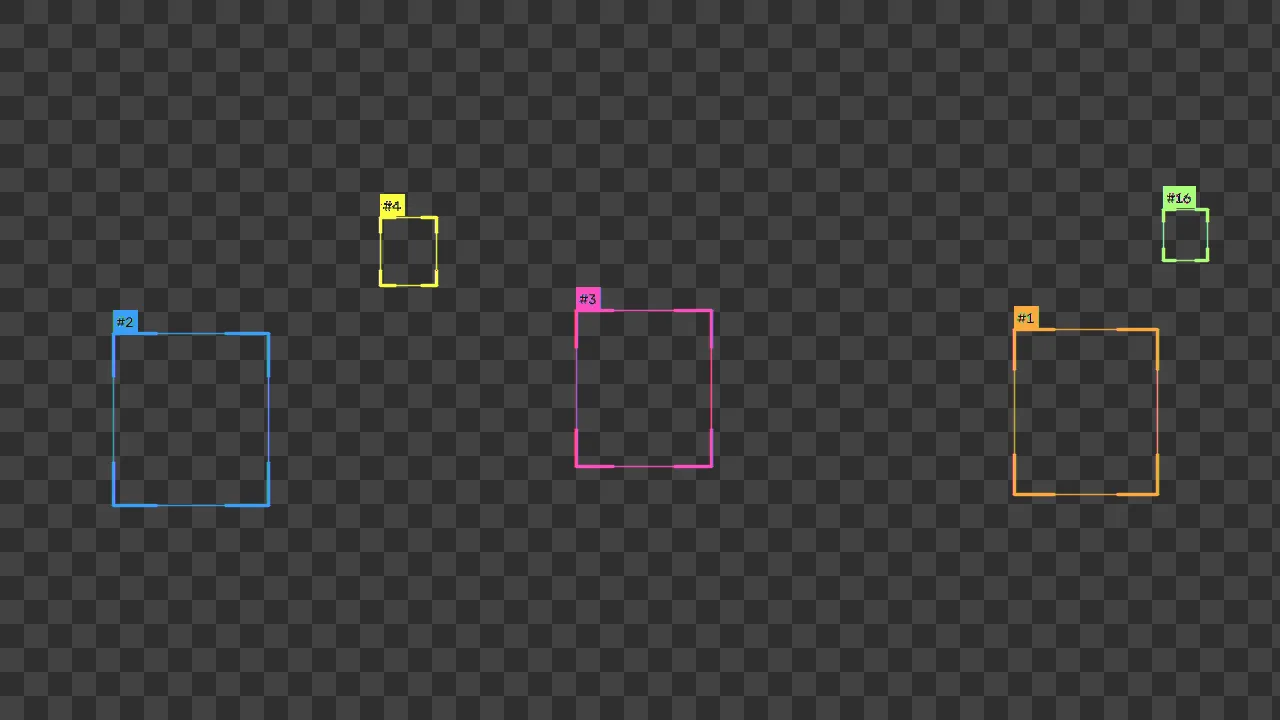
What each feed carries is in Output feeds. Every feed is the same size and frame rate and in step with the others, so a key lines up with no adjustment.
Before you start
- In the panel's Outputs card, switch on the feeds you need in the NDI column (or Syphon/Spout for software on the same machine).
- Note the names on the line under the preview, for example
STAGEPC (Yewee Overlay) (0 watching). They areMACHINE (Yewee),MACHINE (Yewee Overlay),MACHINE (Yewee Faces)andMACHINE (Yewee Mask), whereMACHINEis the Yewee computer's name. - Set Output frame rate to your show's rate (25 or 50 in PAL countries, 30 or 60 elsewhere), and Output size to what the mixer works at, so it doesn't have to scale.
- Put the Yewee machine and the mixer on the same network, preferably wired. NDI finds sources on the local network by itself.
When the mixer picks a feed up, its watching count goes up by one. That's the quickest way to know you have the right one.
vMix
- Add Input → NDI / Desktop Capture, find the Yewee machine, and pick the feed.
- Program is an ordinary camera input.
- For the Overlay or Faces cutout, add the feed as an input and put it on an Overlay channel (or a layer of another input) above your camera. vMix reads NDI transparency, so no key setting is needed.
- Repeat for each feed you want.
TriCaster
Add each feed as an NDI source on an input, then use it in a DSK or as an upstream key layer. TriCaster reads NDI transparency, so the Overlay and Faces cutout key with no extra setting; if the layer shows a black background, set the layer's key to use the source's alpha rather than a colour or luma key.
OBS Studio
OBS needs an NDI plugin (DistroAV, formerly obs-ndi) on the OBS machine.
- Add an NDI Source and pick the feed.
- Stack it in the scene: the clean camera or Program at the bottom, the Overlay or Faces cutout above it. Transparency comes through.
On the same machine as Yewee, Syphon (Mac) or Spout (Windows) is simpler and has no network in the way: add a Syphon Client or Spout2 Capture source and pick yewee, yewee-overlay, yewee-faces or yewee-mask. Spout in OBS needs the Spout2 plugin.
A hardware mixer with no NDI input
Mixers such as an ATEM take SDI or HDMI, not NDI. Put an NDI decoder (an NDI-to-SDI or HDMI converter) between Yewee and the mixer, one per feed.
SDI and HDMI carry no transparency, so over a decoder:
- Program works as it is: take it as a camera.
- To key the faces over another picture, send Faces cutout as the fill and Mask with Mask style set to White on black as the key, into a key that takes separate fill and key sources. Yewee's Faces cutout is premultiplied: everything outside the faces is black, which is what a fill needs.
- The Overlay arrives as graphics on black. Use Program with its graphics burned in instead, unless you are happy with a luma or additive key.
Resolume, TouchDesigner, MadMapper and other VJ software
On the same machine, use Syphon (Mac) or Spout (Windows): uncompressed, with real transparency, and nothing crossing the network.
- In Outputs, switch on the feeds you need in the Syphon or Spout column.
- In the VJ software, look under its Syphon or Spout sources for
yewee,yewee-overlay,yewee-facesandyewee-mask. In Resolume they are in the Sources panel, under Syphon or Spout. - Drop them onto layers. The Overlay and Faces cutout composite over the layers below them with no key.
If a feed comes in upside down, which some texture-sharing receivers do, switch on Flip upside down in the Syphon/Spout column. It is free, and the NDI feeds aren't affected.
On another machine, use NDI: Resolume and TouchDesigner both take NDI sources, with transparency.
Keying tips
- Keep program clean gives you the camera without graphics on the Program feed while the Overlay carries them, so you can cut the graphics in and out on the mixer rather than in Yewee.
- If the Overlay's edges look dark or haloed, the receiver is treating premultiplied transparency as straight. Look for a premultiplied, "linear key" or "alpha is premultiplied" option on the key or layer and switch it on.
- Mask in White on alpha style is for receivers that key on the alpha channel; White on black is for luma and track-matte keys.
- Pause keeps every feed connected: Program shows a standby slate and the Overlay and Faces feeds go fully transparent, so keyed layers simply vanish. See Slates.
Bandwidth
Each NDI feed that is on uses about as much network as any other HD NDI source, and more at 1080p50 or 60. Four feeds at full size on a busy network can be too much: set Output size to 1280 or 960 wide if your mixer works at that size anyway, and switch off feeds nobody takes. Tracking doesn't change with the output size.
NDI® is a registered trademark of Vizrt NDI AB.