Yewee 1.0
Run it from a phone at FOH
Open the control panel on a phone or laptop anywhere on the network, get past the PIN, and know what to watch during a show.
The control panel is a web page, so any phone, tablet or laptop on the same network as the Yewee machine can run the show. Nothing to install on the phone.
Connect
- On the Yewee machine, look at the top of its panel for Phones and other computers, for example
http://192.168.1.20:8089 · PIN 4821. The console window shows the same address and PIN. - Join the phone to the same network as the Yewee machine: the same Wi-Fi, or a Wi-Fi that reaches the wired network the machine is on.
- Type the address into the phone's browser,
http://and all. - The phone asks Control panel PIN:. Type the four digits. The phone remembers the PIN, so it won't ask again unless the PIN changes.
Add the page to the phone's home screen to reopen it in one tap.
The PIN
Every other device must give the PIN before it sees anything or can change anything. The machine itself never asks.
- It is four random digits, made when Yewee first runs, and kept.
- Five wrong tries lock that phone out for a minute.
- Change it with
--pinwhen you start Yewee:--pin 2580. The new PIN is kept, and every phone is asked for it again. - Turn it off with
--pin none, only on a network that nobody else can join. With no PIN, anyone on the venue Wi-Fi who finds the address can change or quit your show, and the machine's own panel warns about it in amber.
Change the PIN if someone who shouldn't have it has seen it (it is on the machine's screen).
What to watch during a show
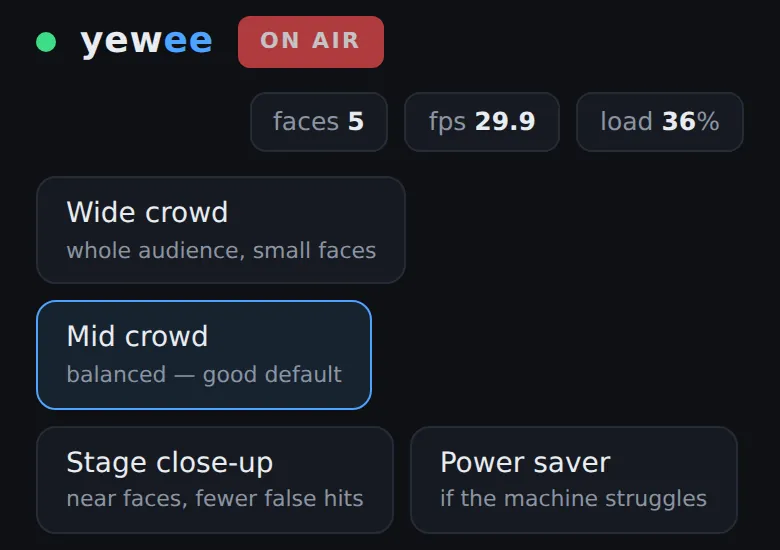
- The dot and the pill. Green dot, ON AIR. A red dot means the phone has lost the panel, not that the show has stopped: the feeds carry on, and the phone reconnects by itself.
- fps and load. Amber or red for more than a few seconds means the machine is short of time. Tap Power saver, or turn off what you're not using. Performance shows what each part costs.
- The amber message line under the preview says what Yewee did about anything that went wrong: a source lost and being retried, a model that fell back, Auto relief stepping in.
- The preview tabs show each feed as it goes out, so you can check the Overlay or the Mask from FOH without asking the vision mixer.
The preview on a phone is a small, slower copy made for the panel; it is not the feed quality. Yewee stops making it when no one is watching.
Things that save a show
- Pause holds the feeds on a standby slate without dropping them, and the keyed layers go transparent. Resume is instant.
- Test card proves every feed arrives before doors. Switch it off before the show: it is saved, and would come back at the next launch.
- Restart fixes most stuck states in a few seconds, from the phone, keeping every setting.
- view log, at the bottom of the Process card, shows the log on the phone.
Two phones can have the panel open at once. Every change shows on both, and the last one wins.
If the phone can't reach the panel
- The page doesn't load. The phone isn't on a network that can reach the Yewee machine. Guest Wi-Fi often keeps devices apart ("client isolation"); use the production network or a travel router. Check the address again, including
:8089. - Windows machine. Windows Firewall has to allow Yewee on this network. If you said no to the firewall prompt, or the network is marked Public, allow it in Windows Security → Firewall & network protection → Allow an app through firewall, or mark the network Private.
- Mac machine. macOS 15 and later must allow Yewee on the Local network (System Settings → Privacy & Security → Local Network).
- It keeps asking for the PIN. The PIN has been changed, or the browser won't keep site data (a private tab).
- "Too many wrong PINs". Wait a minute, then try again.
More in Troubleshooting.
Keep the panel off the network
If phones shouldn't reach the panel at all, start Yewee with --web-host 127.0.0.1. The panel then works only on the Yewee machine.