Yewee 1.0
Output feeds
The four feeds Yewee sends, what each carries, their NDI, Syphon and Spout names, the Outputs and Cutout shape cards, and the slates.
Yewee makes four pictures from every frame and can send each one over NDI (to anything on the network), over Syphon on a Mac or Spout on Windows (to software on the same machine), or both. You pick them in the panel's Outputs card.
All four are always the same size and frame rate, and in step with each other: the Overlay lines up with the Program pixel for pixel, so you can key one over the other.
The four feeds
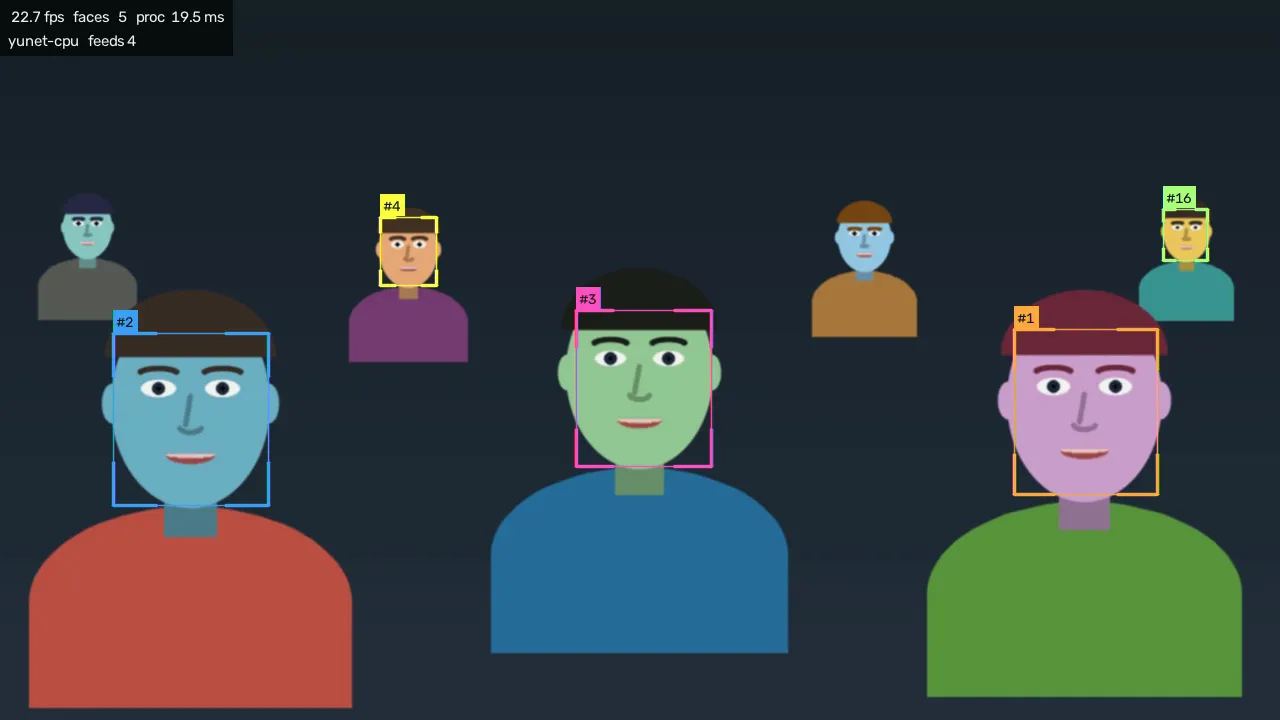
Program
The picture, with the tracking graphics drawn on it: a box round each face, the number badge, and the stats readout in the corner (each can be turned off in On-screen look). Opaque. On by default over NDI.
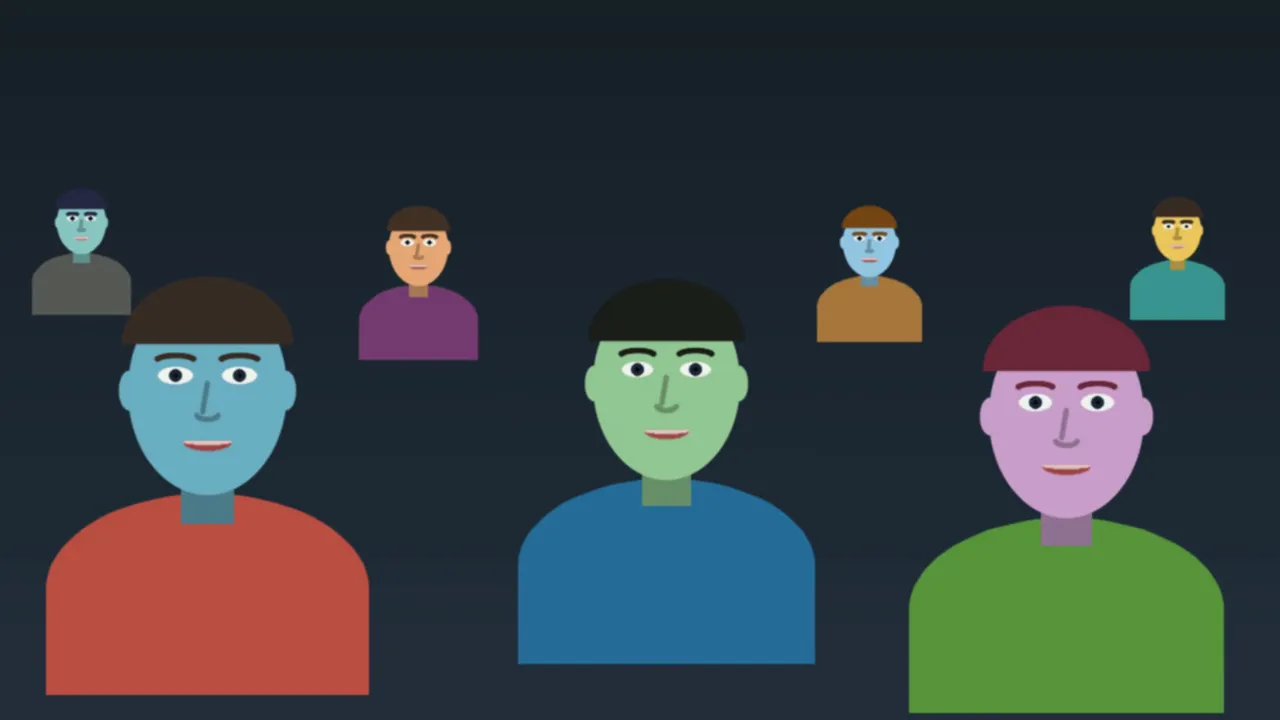
With Keep program clean on, it carries the camera picture alone:
Overlay
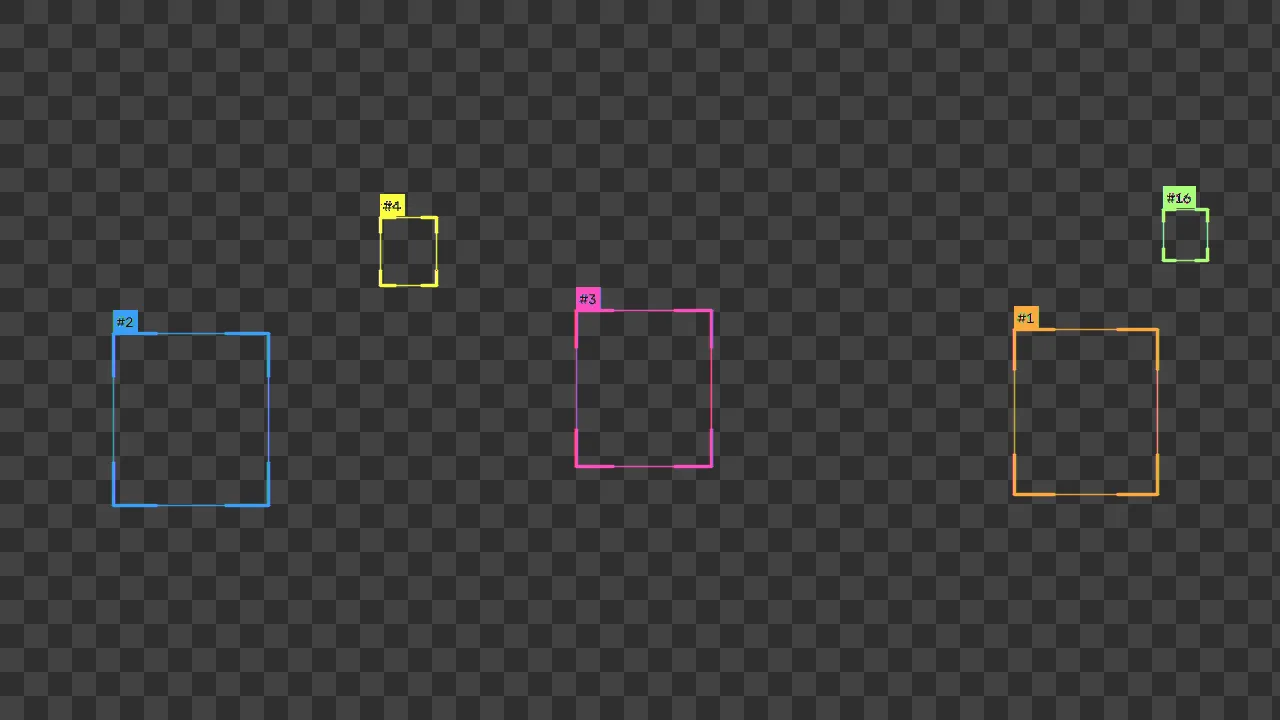
The same boxes and badges on a fully transparent background, for keying over your own copy of the camera in the mixer. It never carries the stats readout. The alpha is premultiplied, which is what NDI expects; most mixers handle it without any setting. Off by default.
Faces cutout
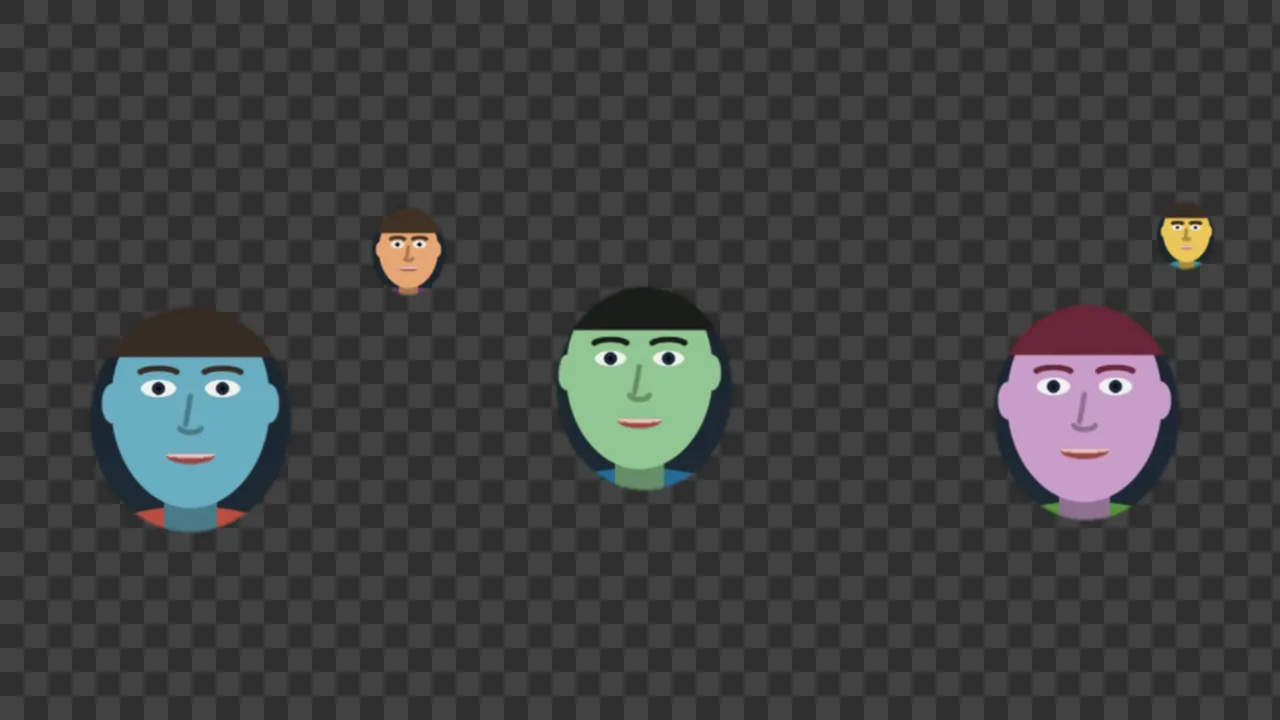
The camera picture only inside each face's cutout, transparent everywhere else: the crowd's faces floating on nothing, ready to put over a background or a graphic. Clean: no boxes or badges. The shape comes from the Cutout shape card. Off by default.
Mask
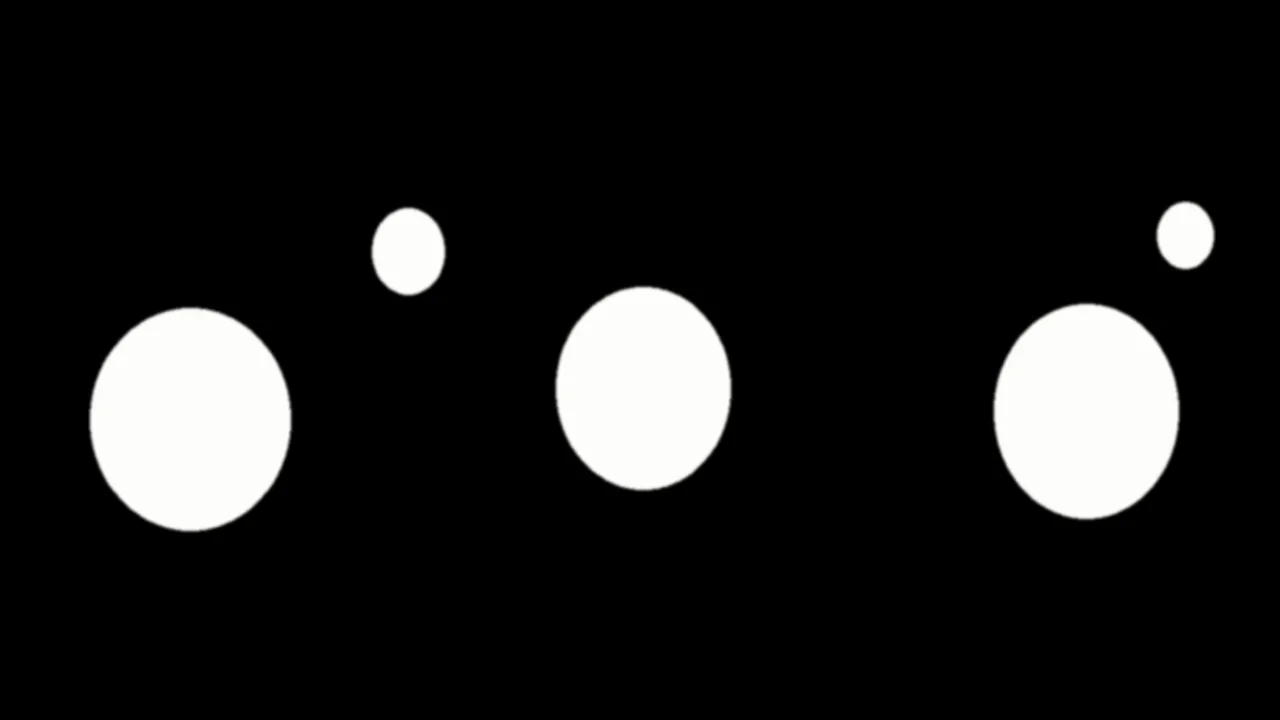
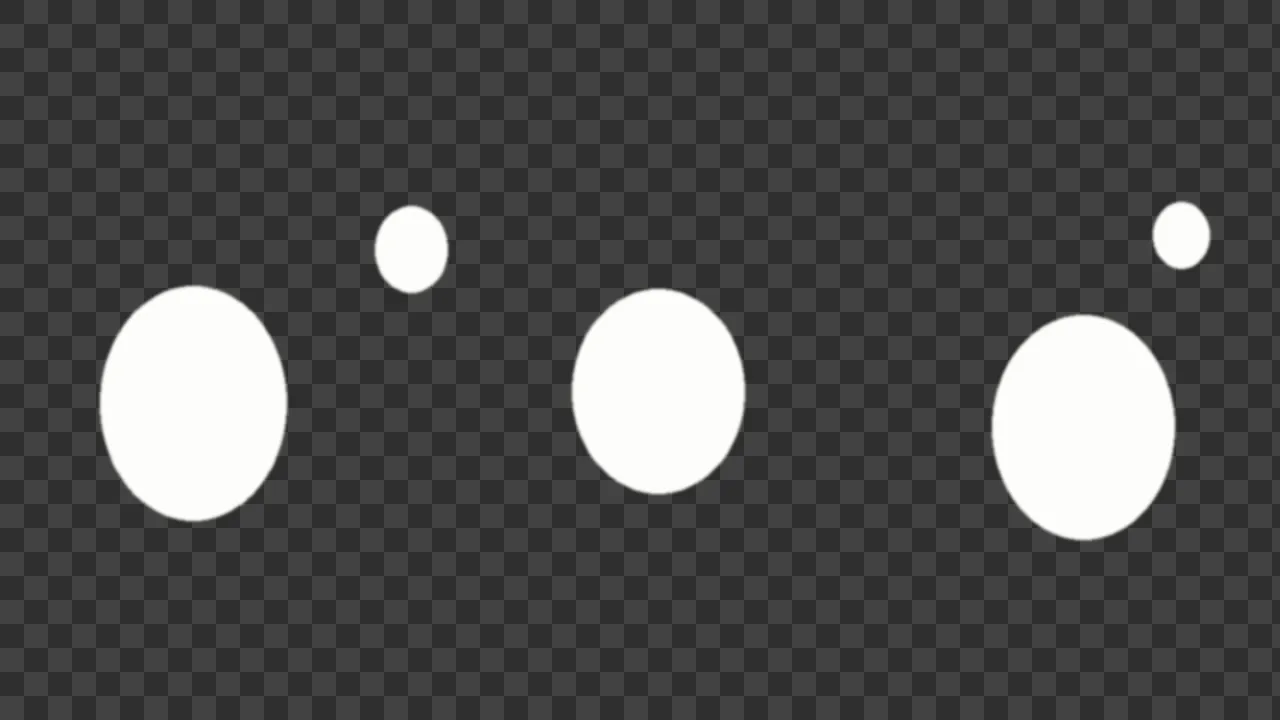
The cutout itself, with no picture: white where the Faces feed shows picture, empty everywhere else. Use it as a matte in a mixer, media server or VJ app that does its own keying. Off by default. It comes in two styles:
Feed names
Over NDI, each feed is named after the Yewee machine, in capitals:
| Feed | NDI name | Syphon / Spout name |
|---|---|---|
| Program | STAGEPC (Yewee) | yewee |
| Overlay | STAGEPC (Yewee Overlay) | yewee-overlay |
| Faces cutout | STAGEPC (Yewee Faces) | yewee-faces |
| Mask | STAGEPC (Yewee Mask) | yewee-mask |
STAGEPC stands for your machine's own name, as NDI shows it. The line under the panel's preview lists the exact names of the feeds that are on.
Launch Yewee with --ndi-name to change the Yewee part, which you need when two copies run on one machine. With --ndi-name Cam2 the feeds become STAGEPC (Cam2), STAGEPC (Cam2 Overlay) and so on, and the Syphon or Spout names yewee-Cam2, yewee-Cam2-overlay and so on. --ndi-overlay names the Overlay feed on its own.
Names are fixed while Yewee runs. Turning a feed off and on again brings it back under the same name, so mixers pick it up again by themselves.
Outputs card
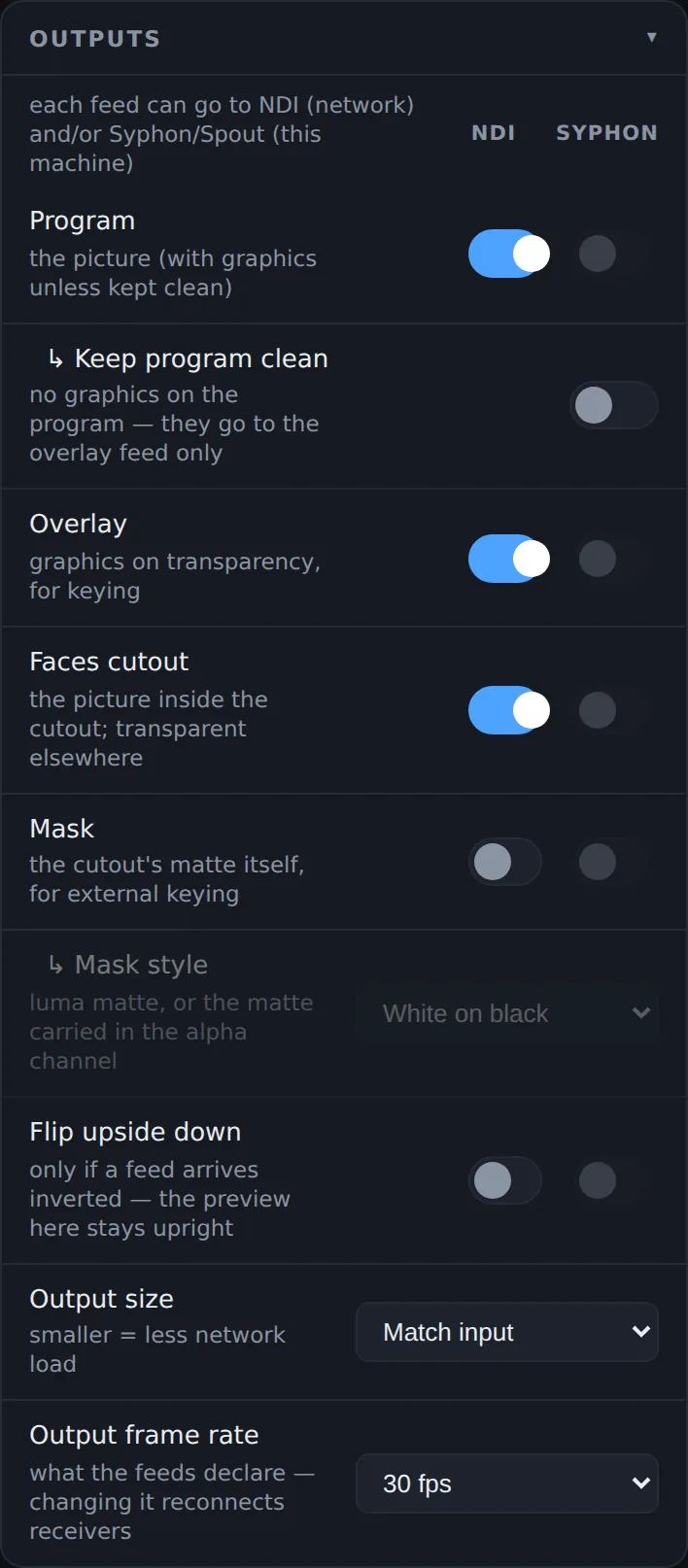
The Syphon column is greyed in this picture because it was taken on a machine that has neither Syphon nor Spout. On a Mac the column says Syphon, on Windows Spout, and its switches work like the NDI ones.
NDI and Syphon or Spout switches
Each feed row has two switches: NDI on the left, Syphon (Mac) or Spout (Windows) on the right. Any combination works: a feed can go to both at once, and all eight can be on together. A feed starts or stops the moment you flip its switch, without disturbing the others. Only Program over NDI is on by default.
Feeds that are off cost nothing. Each one that is on adds to the Feed outputs row of the Performance card, and the Faces and Mask feeds also need the cutout worked out.
NDI travels over the network, compressed, at about the bandwidth of any other NDI HD source. Syphon and Spout share the picture on the graphics card with software on the same machine (Resolume, TouchDesigner, MadMapper, OBS with a Syphon or Spout plugin), uncompressed, with nothing crossing the network.
If Syphon or Spout can't start on a machine, the column greys out and the switches do nothing; the NDI feeds carry on.
Keep program clean
Off by default. Takes the boxes, badges and readout off the Program feed, so it carries the camera picture alone. The Overlay feed still carries the graphics, so you can have a clean camera and a keyable graphics layer from the same machine. The preview and window on the machine keep showing graphics unless you pick another preview tab.
Mask style
Dimmed until a Mask feed or the Mask preview is in use.
- White on black (default): an opaque picture, white inside the cutout and black outside. A luma matte: use it with a luma key or a track matte.
- White on alpha: white inside the cutout, transparent outside, with the matte in the alpha channel. For receivers that key on alpha.
Soft edges (Edge softness) come through as grey in White on black and as partial transparency in White on alpha.
Flip upside down
Two switches, one for all NDI feeds and one for all Syphon or Spout feeds. Off by default. Turn one on only if a receiver shows that feed upside down: some texture-sharing receivers do. The panel preview and the window on the machine stay upright either way.
Flipping costs Yewee an extra copy of each NDI frame; flipping Syphon or Spout costs nothing.
Output size
Match input (default), 1920 wide, 1280 wide or 960 wide; the height follows the source's shape. Smaller means less network load and a little less work for each feed. Yewee still finds faces on the full source picture, so tracking is the same at any output size.
The feeds can be scaled up as well as down: 1920 wide from a 720p camera gives a 1080p feed. The window on the machine follows this size too.
Output frame rate
24, 25, 30 (default), 50 or 60 fps. The rate the feeds tell receivers they run at, and the frame budget the load chip measures against (33.3 ms at 30 fps). Set it to your show's rate.
It doesn't make frames: Yewee sends one feed frame for each source frame it processes, so a 25 fps camera gives 25 frames a second whatever you declare. Changing it makes NDI receivers reconnect, which takes a moment: don't change it on air.
Cutout shape card
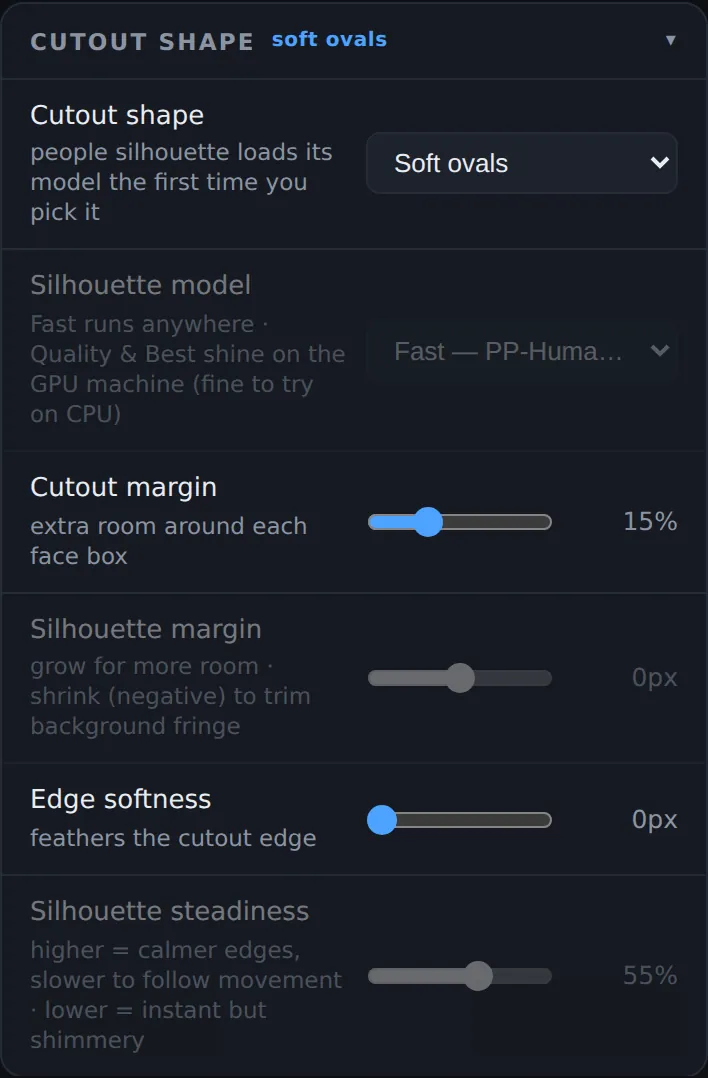
These settings shape the Faces cutout and Mask feeds (and the preview's Faces cutout and Mask tabs). Nothing here touches the Program or Overlay feeds. The card starts closed; while none of those is in use, its title says no feed using it, and otherwise shows the shape in use. Settings that don't apply to the chosen shape are dimmed.
Cutout shape
- Rectangles (default): each face's box, grown by the Cutout margin. Sharp edges unless you add softness. The cheapest.
- Soft ovals: an oval round each face instead, better for a head than a box.
- People silhouette: the outline of each person round a tracked face, head, shoulders and as much body as is in shot, found by a segmentation model. The model loads the first time you pick this, which takes a second or two; after that switching is instant.
The silhouette is worked out on every 2nd frame (every 3rd under Auto relief) and held between, and only in a body-shaped area round each tracked face, so a crowd costs no more than a few people. When no face is tracked it looks at the whole frame. It is the most expensive thing Yewee does, and it is what Silhouette steadiness and Silhouette margin are for.
Silhouette model
Which model makes the People silhouette. Dimmed for the other shapes.
- Fast — PP-HumanSeg (default): runs well on any machine.
- Quality — MODNet: cleaner edges, especially hair, at more cost. Best on a Windows machine with an NVIDIA GPU; fine to try on a processor alone.
If a model can't load, Yewee switches to Fast and says so under the preview; if Fast itself can't load, the shape becomes Soft ovals.
Cutout margin
Extra room round each face box for Rectangles and Soft ovals, as a share of the box: 0% to 50%, in steps of 5%; default 15%. More takes in hair, ears and chin.
Silhouette margin
For People silhouette only: grows the outline outwards (up to 30 pixels) or shrinks it inwards (down to −30) to trim a fringe of background. Default 0.
Edge softness
Feathers the cutout edge by 0 to 60 pixels, in steps of 2; default 0 (a hard edge). Softer edges sit better on a background. Fast — PP-HumanSeg always gets at least a slight feather, because its raw edge is rough.
Silhouette steadiness
For People silhouette only: averages the outline over recent frames, 0% to 90%; default 55%. Higher gives calm, still edges when people hold still, but the outline takes up to about three quarters of a second to catch up when they move. Lower follows movement at once but the edges shimmer. 0% uses every frame as it comes.
Slates
When Yewee has no live picture to send, the feeds stay up, so receivers stay connected, and carry a plain slate instead.
Standby
When you press Pause: the Program feeds carry a dark STANDBY slate, the Overlay and Faces cutout feeds go fully transparent, so keyed graphics simply vanish, and the Mask goes empty (black, or transparent in White on alpha).
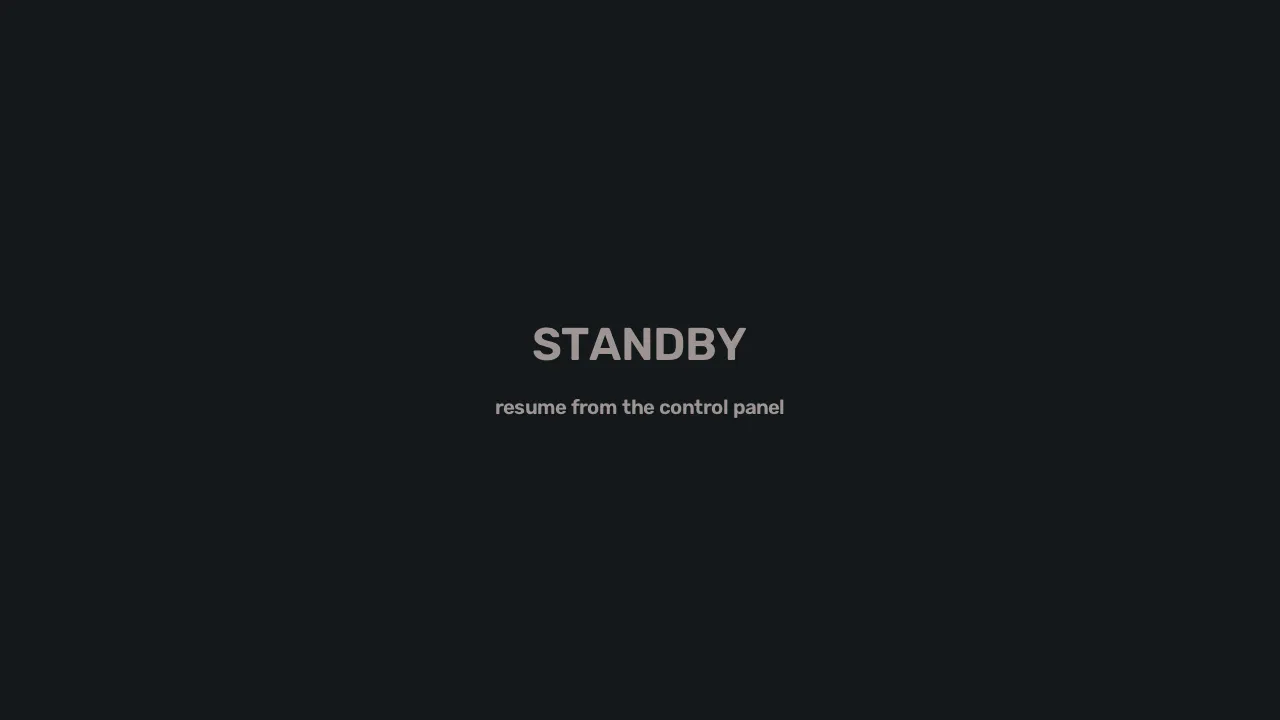
Test card
When you switch on the Test card: bars on the Program feeds, a keying test on the others.
No signal
When the camera, capture card or source stops sending mid-show (a cable pulled, a card losing its input, an NDI sender closing), the feeds go plain black after two seconds, and the Overlay and Faces feeds transparent: a black screen is kinder on a wall than a message. The panel shows a NO SIGNAL slate and the name of the source, the status pill flashes NO SIGNAL, and Yewee tries to open the source again every three seconds. When it comes back the show carries on by itself, with the same feeds.
If frames arrive but keep failing to process, Yewee sends black after 15 failed frames in a row and says why in the panel, rather than freezing the last good picture.
No input
If the source can't be opened when Yewee starts (a camera that isn't plugged in, a file that isn't there), the feeds come up anyway, with a NO INPUT slate, and the panel says what went wrong. Pick a source in the Input card.
Trial ended
When the trial has ended and no licence is active: a TRIAL ENDED slate on the Program feeds, saying to enter a licence key in the control panel, with the other feeds transparent or empty. Enter a key in the Licence card and the picture comes back without a restart. See Installing.
NDI® is a registered trademark of Vizrt NDI AB.