Yewee 1.0
Installing
Install Yewee on a Mac or Windows PC, get through the first launch, enter your licence key, update it and remove it.
Yewee comes as a Mac disk image and a Windows installer, from the Yewee page. Each brings everything with it: no Python, no model downloads, no NDI SDK. It is the full app, with nothing disabled, for a 72-hour trial.
Mac
- Download the
.dmgand open it. It holdsYewee.appand aTERMS.txtwith the licence terms. - Drag
Yewee.appto Applications. - The first time, right-click Yewee → Open, then Open again. The Mac build is signed but not yet notarised, so a plain double-click is refused the first time.
- macOS asks for permission. Say Allow each time:
- Camera: Yewee reads the camera to find faces. If you say no, other sources (NDI, capture cards that aren't cameras, files) still work, and you can change your mind in System Settings → Privacy & Security → Camera.
- Local network (macOS 15 and later): NDI finds sources and reaches your mixer over the local network, and phones reach the control panel over it. Without this, nothing leaves the machine.
- The control panel opens in your browser. Carry on with Getting started.
Needs macOS 11 or newer on Apple Silicon. Syphon output works out of the box.
Windows
- Download
yewee-setup-….exeand run it. It installs for your user only, with no admin prompt. - SmartScreen may say it protected your PC, because the installer isn't code-signed yet. Choose More info → Run anyway.
- Read and accept the terms, pick whether you want a desktop icon, and finish. Leave Start yewee now ticked.
- If Windows Firewall asks, allow Yewee on private networks. NDI and the control panel both need it.
- A console window opens with the control panel's address and PIN in it, and the panel opens in your browser. Leave the console window open: closing it quits Yewee.
Start it later from the Start menu or the desktop icon. Needs Windows 10 or 11, 64-bit. Spout output works out of the box. For the GPU detector on an NVIDIA card, see Tune for small faces.
What you see on first launch
The machine's own panel shows a line at the top for other devices:

- The address is what a phone or laptop on the same network opens.
- The PIN is four random digits made on the first launch. Phones ask for it once. The Yewee machine itself never needs it. See Run it from a phone at FOH.
On Windows the console window shows the same two things, and the names of the feeds that are on:
  yewee 1.0.0 is running
  Control panel : http://localhost:8089   (from other devices: http://192.168.1.20:8089)
  Panel PIN     : 4821   (other devices ask for it once; --pin to change, --pin none to turn off)
  NDI program   : STAGEPC (Yewee)
  Input         : 0   detector: yunet-cpu
The trial and your licence key
A new install runs as a trial for 72 hours, counted from the first launch in real time, whether Yewee is running or not. Everything works during it. The Licence card in the panel counts down.
When the trial ends, Yewee keeps its feeds up but sends a TRIAL ENDED slate on them, and the panel stays usable so you can enter a key. A trial that ends while Yewee is running switches to the slate within about 20 seconds, so don't let one run out during a show.
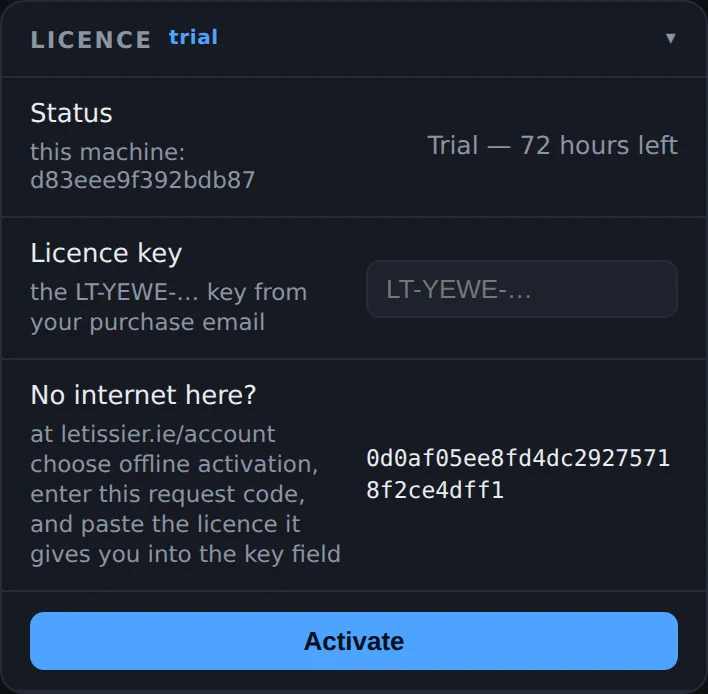
Activate a key from the shop
- Find the key in your purchase email. It looks like
LT-YEWE-XXXX-XXXX-XXXX. - In the panel, open the Licence card, paste the key into Licence key, and press Activate (or Enter).
- Yewee checks the key with letissier.ie, which takes one of the licence's seats for this machine. It says
Activated. Thank you, …and the card changes to Licensed to your name.
One licence runs on 2 machines. The machine needs the internet for those few seconds, then no more: Yewee checks in with letissier.ie a minute after each launch and then daily, in the background, and runs normally if it can't. After 30 days without a check-in the card asks you to connect once, but nothing is restricted and the show goes on. See the FAQ.
Typing mistakes are caught before anything is sent: spaces, lower case, a missing LT-, and O for 0, I or L for 1, U for V are all corrected for you. A key for another LeTissier product is refused by name.
A machine that is never online
- In the Licence card, copy the request code under No internet here?
- On any device, sign in at letissier.ie/account, choose offline activation, and enter the request code exactly as shown.
- It gives you a long licence (two long blocks of letters joined by a dot). Paste that into Licence key on the Yewee machine and press Activate. No network needed.
Older YW1. keys
Keys that start YW1., issued before the shop, keep working exactly as before. Paste one into the same field. They are checked on the machine and never need the internet.
Move a licence to another machine
Press Remove licence in the Licence card. If the machine is online, its seat is released at the same time; if not, Yewee says so and you release the seat from letissier.ie/account. Then activate on the new machine.
Updating
Download the new version from the Yewee page and install it over the old one: drag the new Yewee.app into Applications and replace, or run the new Windows installer. Your settings, PIN and licence stay, because they live outside the app (see where files live).
A shop licence covers every 1.x release.
Uninstalling
- Mac: quit Yewee and drag
Yewee.appto the Bin. Your settings and licence stay in~/Library/Application Support/yewee/; delete that folder too if you want them gone. - Windows: Settings → Apps → yewee → Uninstall. The uninstaller keeps
%APPDATA%\yewee, which holds your settings and licence, so a reinstall picks up where you left off. Delete it by hand if you want it gone.
Release the licence seat first (Remove licence) if you are moving to another machine.