Yewee 1.0
Control panel
Every card, button, slider and setting in Yewee's control panel, what it does, its range and its default.
The control panel is a web page that Yewee serves on port 8089. It opens by itself on the Yewee machine, and any phone, tablet or laptop on the same network can open it too, after typing the PIN. Everything you can change while Yewee runs is here, and every change applies at once and is saved for the next launch.
On a laptop the preview sits on the left and the controls on the right; on a phone it is one column in the same order.
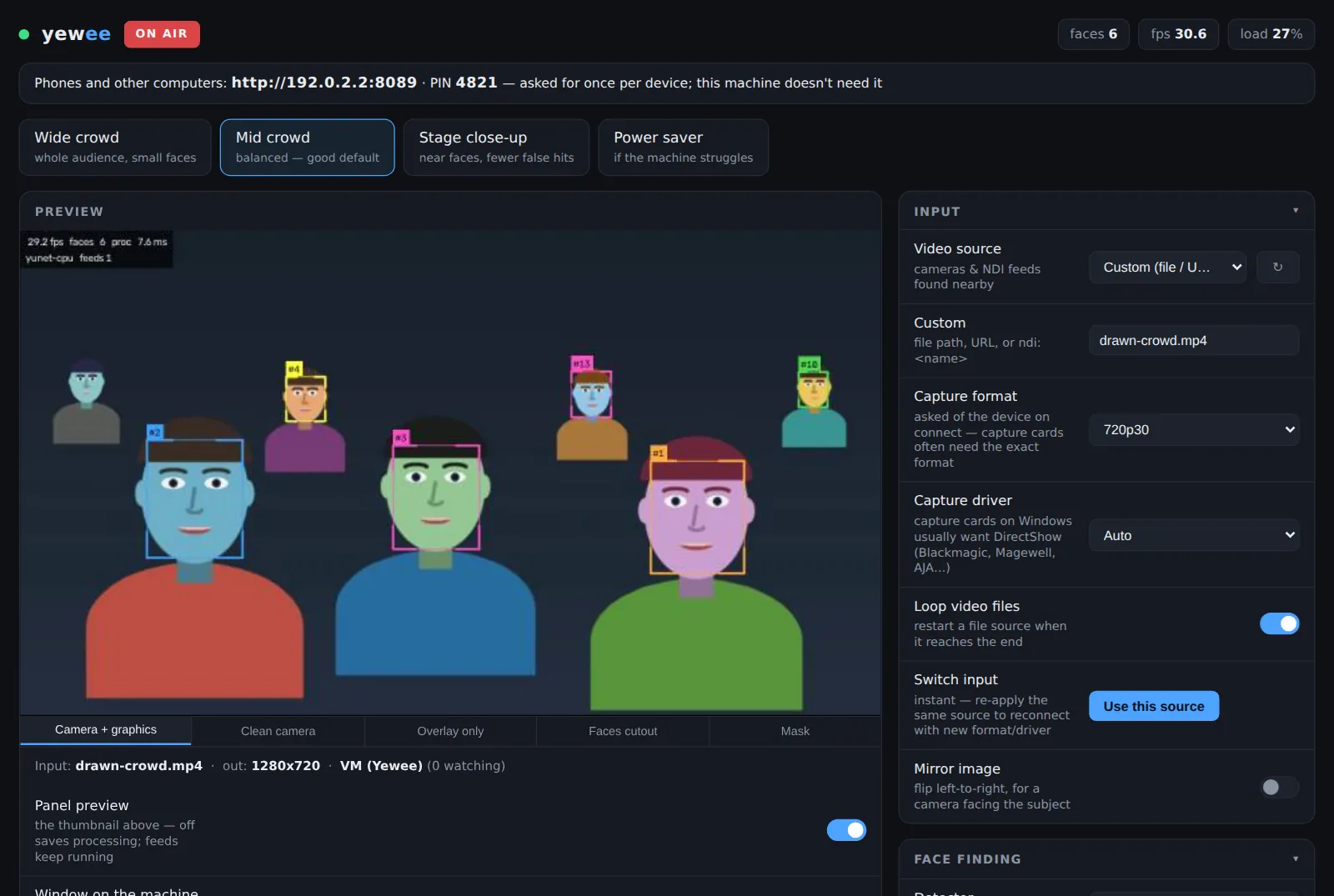
Cards fold up: tap a card's title to close or open it. Each browser remembers which cards you keep open. Machine load and Cutout shape start closed.
The pictures on this page come from a small test machine without a GPU, tracking a drawn crowd; the fps and load figures on a show machine will be better.
Header
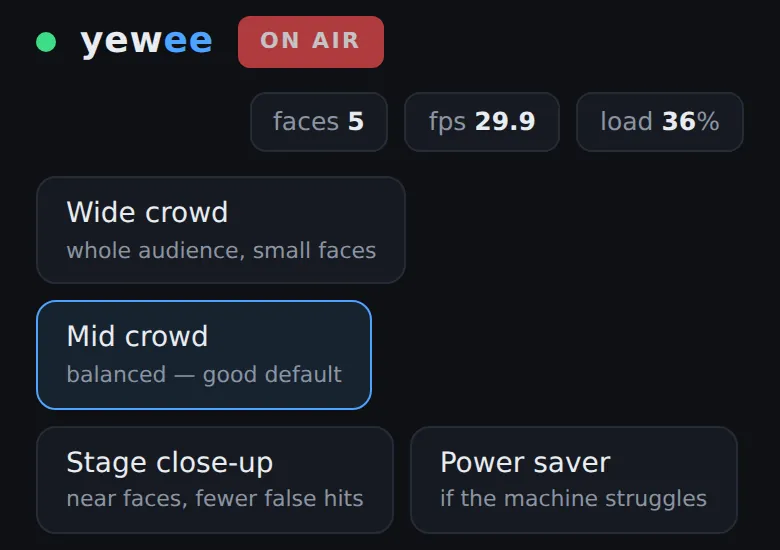
Connection dot
The dot left of the name is green while the panel is connected to Yewee and red while it isn't. While it's red the controls grey out and the preview says Reconnecting…; the panel tries again every second and a half, by itself, including after a Restart or after Yewee is started again.
Status pill
What the feeds are doing right now:
| Pill | Means |
|---|---|
| ON AIR (red, pulsing) | At least one feed is on and carrying the picture. |
| FEEDS OFF | Yewee is tracking but every feed is switched off. |
| PAUSED (amber) | You pressed Pause: the feeds carry the standby slate. |
| TEST CARD (amber) | The Test card is on. |
| NO SIGNAL (red, flashing) | The camera or capture card stopped sending. The feeds are black; Yewee retries every few seconds. |
| TRIAL ENDED (red, flashing) | The trial is over and no licence is active. See Installing. |
Before the first update arrives the pill reads NDI OFF for a moment.
Saved
✓ saved flashes next to the pill each time a change is sent. Settings are written to disk a moment later and come back on the next launch.
Faces, fps and load
- faces: how many faces are being tracked now.
- fps: frames Yewee is processing per second. Amber below 90% of the Output frame rate, red below two thirds of it.
- load: all of Yewee's work on a frame as a share of the time one frame has (the frame budget). Amber above 60%, red above 100%. Over 100% for five seconds and Auto relief steps in, if it's on.
Yewee never runs faster than the source: a 25 fps camera gives at most 25 fps.
Phones and other computers
Shown only on the panel open on the Yewee machine itself: the address other devices use and the PIN, for example Phones and other computers: http://192.168.1.20:8089 · PIN 4821. If the PIN is turned off it says so in amber, because anyone on the network can then change or quit the show.
Presets
Four buttons that set several Face finding values at once. The lit one matches the current settings; change any of its values by hand and it goes dark. A fresh install starts on Mid crowd.
Wide crowd
Whole audience, small faces. Search detail 960, Strictness 0.35, Ignore small faces off, detector every frame. Finds more distant faces, costs more, and lets through a few more false ones. See Tune for small faces.
Mid crowd
The balanced default for most shows. Search detail 640, Strictness 0.45, Ignore small faces off, detector every frame.
Stage close-up
A few faces near the camera, fewer false hits. Search detail 640, Strictness 0.60, Ignore small faces 40 px, detector every frame.
Power saver
For a machine that struggles. Search detail 480, Strictness 0.50, detector every 2nd frame, Expression effort 2, and it switches on Limit CPU use and Auto relief. It does not turn features off: switch off Expressions or the cutout feeds too if you still need headroom.
Preview
Preview picture
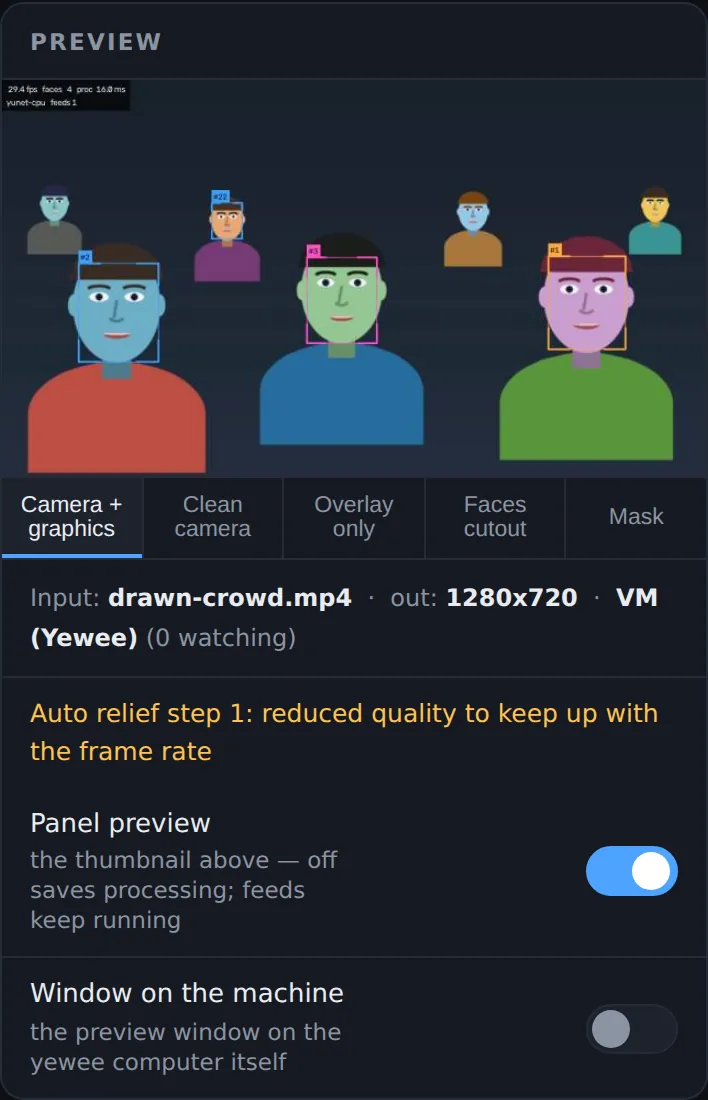
A live thumbnail of what Yewee is sending, up to 640 pixels wide at about 12 frames a second. Transparency shows as a grey checkerboard. Tap it to open the same preview in a tab of its own. It is your monitor, not the feed: it stays the right way up even when a feed is flipped.
The preview can show the NO SIGNAL, STANDBY, TEST CARD and TRIAL ENDED slates; see Output feeds.
Preview tabs
Which picture the preview shows. It changes only the preview, not any feed, and the choice is shared by every device.
- Camera + graphics (default): the picture with boxes, badges and the stats readout, as the Program feed carries it when it isn't kept clean.
- Clean camera: the picture as the camera sees it.
- Overlay only: the graphics on transparency, as the Overlay feed.
- Faces cutout: the picture inside the cutout, transparent elsewhere, as the Faces feed.
- Mask: the mask as the Mask feed sends it (white = kept).
Previewing Faces cutout or Mask makes Yewee work out the cutout even with those feeds off, so the Cutout shape card wakes up.
Feed line
The line under the tabs: the input, the output size, and every feed that is on, for example Input: cam:FaceTime HD Camera · out: 1280x720 · STAGEPC (Yewee) (2 watching) + yewee (syphon). The number watching is how many NDI receivers are connected to that feed right now. With no working input it reads none — pick a source above.
Messages
When something needs your attention an amber line appears under the feed line: a source that won't open, a detector or silhouette model that fell back, a frame that failed and was skipped, Auto relief stepping in. It clears by itself about 20 seconds later. Nothing here stops the show.
Panel preview
On by default. Off stops Yewee making the thumbnail at all, which saves a little work on a busy machine; the preview says Panel preview off — saving processing and every feed keeps running. It is one setting for all devices. Yewee also stops making the thumbnail by itself whenever no browser is watching it.
Window on the machine
On by default. A preview window on the Yewee computer itself, titled yewee (q to quit), showing the picture with graphics.
On a machine with no screen the window can't open; Yewee switches it off and says so. With Keep program clean on and both previews off, Yewee skips drawing graphics on the picture entirely.
Performance
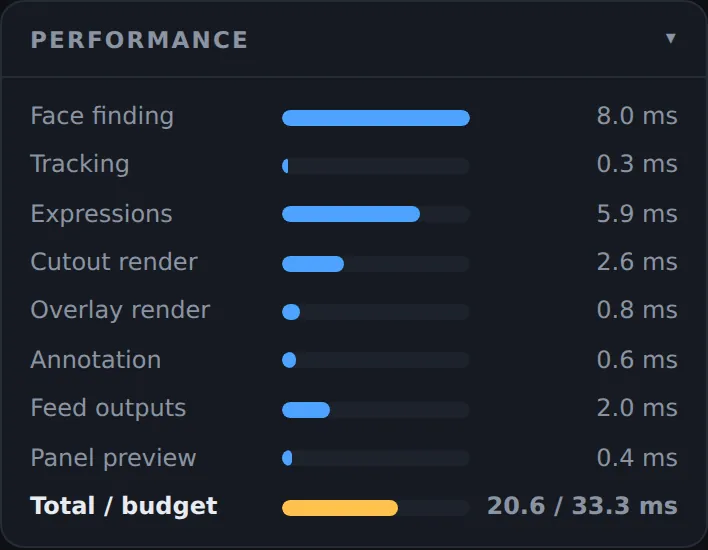
What each part of Yewee's work costs, averaged over recent frames, in milliseconds per frame. A row appears only while that part is doing something:
| Row | The work |
|---|---|
| Face finding | The detector. Grows with Search detail. |
| Tracking | Following faces between frames. Well under a millisecond, even for a big crowd. |
| Expressions | Expression labels, when on. Grows with Expression effort. |
| Silhouette model | The people-silhouette cutout, when in use. Usually the most expensive thing Yewee does. |
| Cutout render | Making the faces cutout and the mask. |
| Overlay render | Drawing the graphics-on-transparency feed. |
| Annotation | Drawing boxes and the stats readout onto the picture. |
| Feed outputs | Sending every NDI, Syphon and Spout feed. |
| Panel preview | Making the panel's thumbnail. |
| Total / budget | All of it, against the time one frame has at the Output frame rate (33.3 ms at 30 fps). This is the load chip as milliseconds. |
The card updates only while Yewee is tracking, not while paused or on the test card.
Machine load
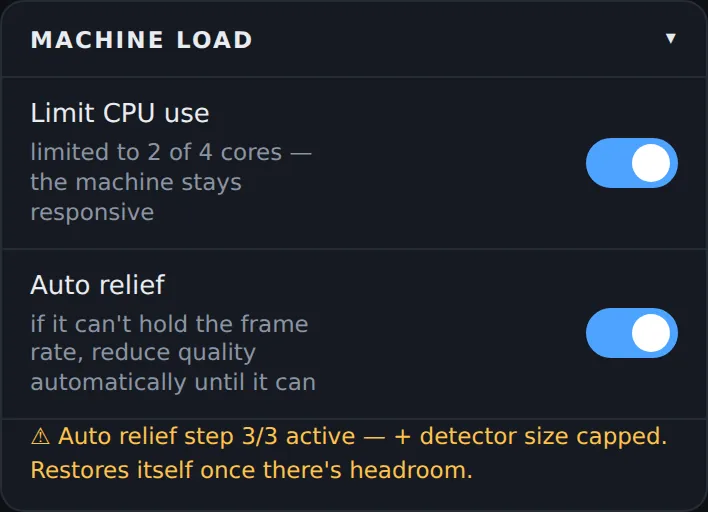
Limit CPU use
Off by default. Stops Yewee's AI models taking every processor core, so the rest of the machine, including this panel, stays responsive. It allows about a third of the cores: 1 of 2, 2 of 4, 3 of 8, 4 of 12, never more than 6. The hint shows what took effect, for example limited to 2 of 4 cores, or off: free to use all 8 cores.
On Windows it caps everything. On a Mac, OpenCV ignores thread limits, so only the heavier models (the CenterFace detector and the MODNet silhouette) are capped. Switching it reloads the silhouette model, which takes a moment. Power saver turns it on.
Auto relief
On by default. If the load stays over 100% for five seconds, Yewee lowers quality one step to hold the frame rate, and takes one step back after 20 seconds under 70%:
- The silhouette is worked out every 3rd frame instead of every 2nd.
- Also: faces are looked for every other frame.
- Also: Search detail is capped at 640.
Your own settings are never changed: relief is applied on top and removed step by step. While it is active the card says so in amber, for example ⚠ Auto relief step 2/3 active — + face finding every other frame. Step 1 only helps when the people-silhouette cutout is in use.
Input
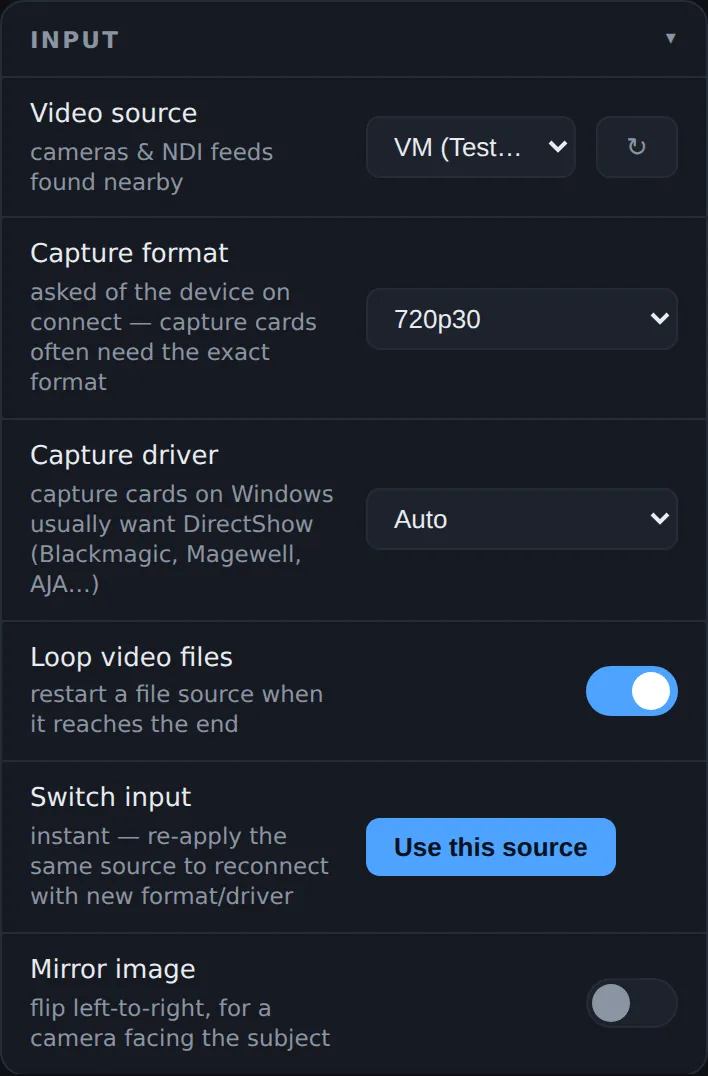
Nothing here takes effect until you press Use this source.
Video source
Everything Yewee found, in groups:
- Cameras: webcams, capture cards and virtual cameras, by name, with the size they open at, for example
Cam Link 4K (1920x1080). The one in use says(in use)and isn't disturbed by the scan. Cameras are remembered by name, so a device that is replugged or moves to another USB port is still found. - Cameras (blocked by macOS): shown when macOS hasn't let Yewee use the camera; each says
needs permission, and the hint above explains what to do. - NDI sources on the network: every NDI source Yewee can see, except its own feeds.
- Custom (file / URL / NDI name)…: opens the Custom field.
Rescan
The ↻ button scans again for cameras and NDI sources. Use it after plugging something in. The scan takes a second or two.
Custom
Appears when Custom is chosen. Type a video file's path, a stream URL, or ndi: and part of an NDI source's name (ndi:PTZ Cam 1); upper and lower case don't matter, and Yewee waits up to ten seconds for a matching NDI source. Press Enter or Use this source.
Capture format
The size and frame rate asked of a camera or capture card when it is opened: Auto (device default), 720p30 (the default), 720p60, 1080p25, 1080p30, 1080p50, 1080p60, 2160p30. Capture cards often refuse Auto: ask for exactly the signal you are feeding them. Doesn't apply to NDI or files.
Capture driver
How Yewee talks to cameras: Auto (default), DirectShow (Windows), Media Foundation (Windows) or AVFoundation (Mac). PCIe capture cards on Windows (Blackmagic DeckLink, Magewell Pro Capture, AJA, AVerMedia) usually need DirectShow. Also used by the next Rescan. See Capture cards.
Loop video files
On by default. A video file starts again when it reaches the end.
Use this source
Switches to the chosen source. The button says Switching… for up to eight seconds. The old source keeps running until the new one opens, and if the new one fails the old one stays and the reason appears under the preview. Tracking starts afresh, so numbers begin again.
Pressing it again for the source already in use reconnects it with the current Capture format and Capture driver: do that after changing either, or to give a capture card a kick.
Mirror image
Off by default. Flips the picture left to right, before anything else, so every feed and the preview are mirrored. For a camera that faces the people it shows. To turn a feed upside down instead, see Flip upside down.
Face finding
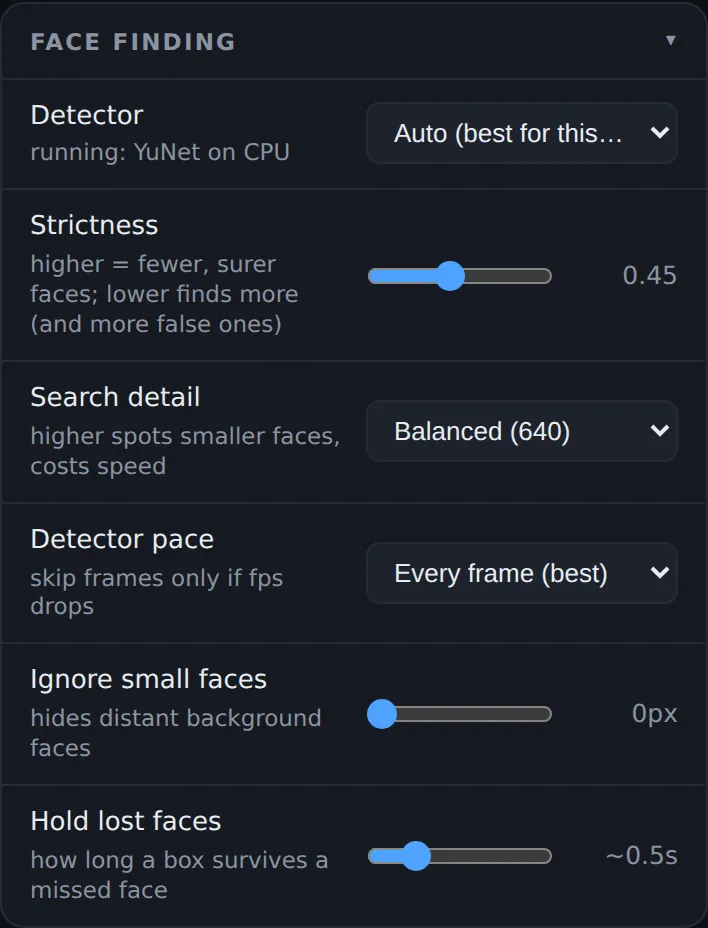
Detector
The engine that finds faces:
- Auto (best for this machine) (default): CenterFace on a working NVIDIA GPU, YuNet everywhere else.
- Fast — YuNet (any machine): quick on any processor. What a Mac uses.
- Accurate — CenterFace (better on a GPU): finds smaller, more distant faces when Search detail is high, cheaply on an NVIDIA GPU. It also runs without one, but more slowly than YuNet.
The hint underneath says what is actually running, for example running: YuNet on CPU or running: CenterFace on NVIDIA GPU. If the chosen engine can't load, Yewee uses YuNet and says why. If frames keep failing with CenterFace (a GPU driver giving up mid-show), Yewee switches to YuNet by itself after 30 failed frames in a row.
Strictness
How sure Yewee must be before it calls something a face. 0.10 to 0.90, in steps of 0.05; default 0.45. Higher finds fewer, surer faces; lower finds more, including more false ones (a pattern on a shirt, a poster). The presets use 0.35 to 0.60.
Search detail
How closely Yewee looks at each frame: Fast (480), Balanced (640) (default), Fine (960), Maximum (1280). Higher finds smaller faces and costs more time on every frame the detector runs.
The number is the width, in pixels, of the picture the detector sees. With YuNet, a detail larger than the source's own width does nothing more: 1280 on a 720p source is the same as full size. See Tune for small faces.
Detector pace
How often the detector runs: Every frame (best) (default), Every 2nd, Every 3rd or Every 4th frame. Between detections the boxes carry on along their last movement. Skip frames only if the fps drops: fast movement gets sloppier.
Ignore small faces
Faces smaller than this are ignored: 0 to 120 pixels, in steps of 4; default 0 (off). The size is measured on the source picture, and a face must be at least this wide and this tall to count. Use it to drop distant background faces in a close shot. Stage close-up uses 40.
Hold lost faces
How long a box survives when its face is missed (someone looks down, a hand goes up): 2 to 60 frames; default 15. The panel shows it in seconds at the current frame rate (15 frames at 30 fps reads ~0.5s). Longer keeps numbers steadier through brief misses; shorter clears a box sooner when someone really leaves.
A new face needs to be found twice before its box appears, so a one-frame false hit never gets a number.
On-screen look
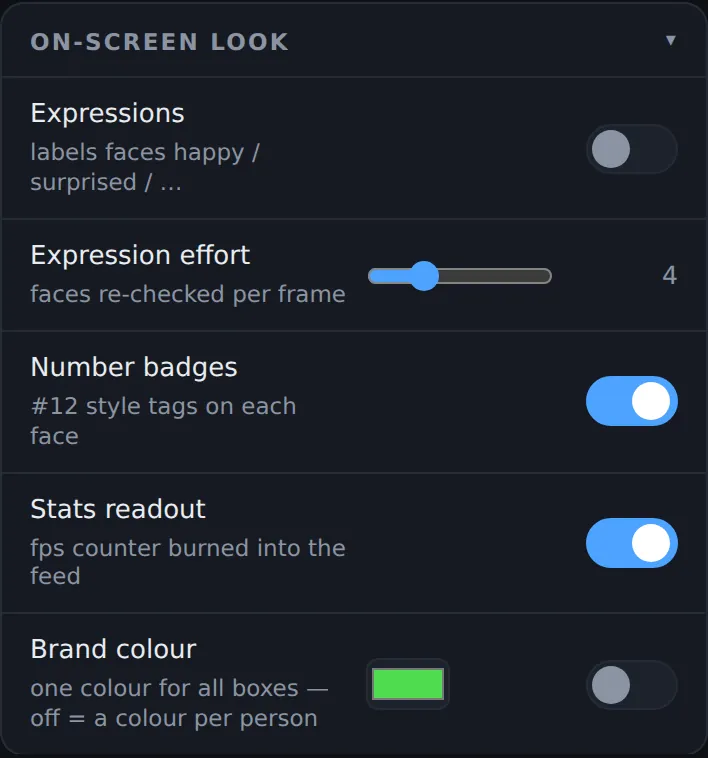
These change the graphics on the Program feed (unless it is kept clean), the Overlay feed, the preview and the window on the machine.
Expressions
Off by default. Adds a label to each face's badge: neutral, happy, surprise, sad, anger, disgust, fear or contempt. It is a quick guess from the face's shape in one moment, drawn on the picture and never recorded, and it is often wrong. Faces smaller than 28 pixels aren't labelled.
It is off by default on purpose: in some places, inferring emotions from faces is regulated. Check before you use it at a public event. If the expression model fails, Yewee switches this off and says so.
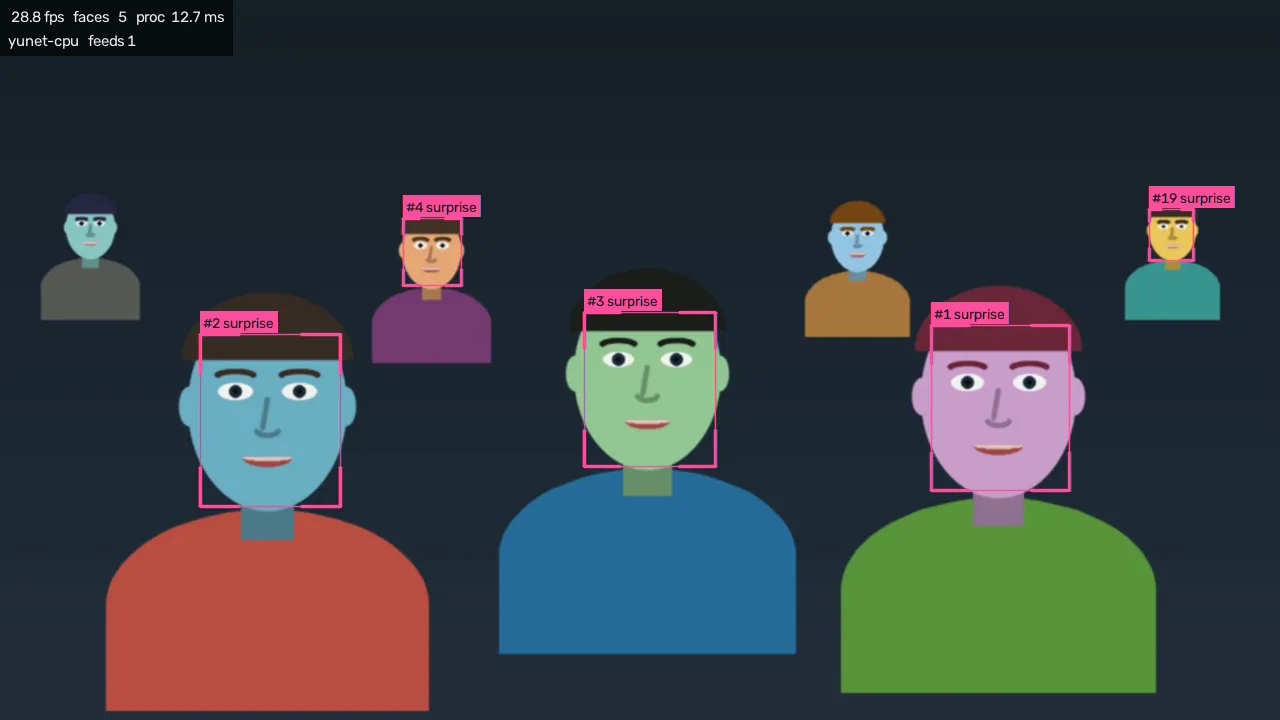
The labels in this picture are Yewee's guesses about drawn faces.
Expression effort
How many faces get a fresh expression label each frame: 1 to 12; default 4. Each face is rechecked at most every 12 frames, the longest-waiting first, so the cost stays flat however big the crowd. Higher updates labels sooner in a large crowd and costs more. Power saver sets 2.
Number badges
On by default. The #12 tag on each face. The number stays with that face while it is tracked; a face that leaves and comes back gets a new number.
Stats readout
On by default. Two lines in the top left corner of the picture: frames per second, faces, and processing time; then the detector and the number of feeds on. On the Program feed and the previews, never on the Overlay feed.
Brand colour
Off by default: each face gets a colour from a set of ten, by its number. Switch it on to draw every box and badge in one colour, and tap the colour swatch to choose it (it starts at green). The colour is kept even while the switch is off.
Outputs and Cutout shape
The Outputs card turns each of the four feeds on over NDI and Syphon or Spout, and holds the output size, frame rate and flip settings. The Cutout shape card shapes the Faces cutout and Mask feeds. Both are described with the feeds themselves, in Output feeds.
Licence
The Licence card appears only when Yewee needs a licence. It shows the state, this machine's id, and the key field. How to use it is in Installing.
Status
- Trial, with the time left (amber in the last twelve hours). The card's tag says
trial. - Trial ended — feeds are held until you activate (red). Tag
expired. - Licensed to a name, with an end date if the licence has one. Tag: the edition.
Anything else you should know, such as a check-in that is overdue or a licence that letissier.ie has ended (after a refund), appears as a note under the status. A licence ended by letissier.ie keeps working until Yewee is quit: it is never taken away mid-show.
Licence key
Paste an LT-YEWE-… key from the shop, a licence from offline activation, or an older YW1.… key, then press Activate or Enter. Hidden once a licence is active.
No internet here
The request code for offline activation at letissier.ie/account, shown while no licence is active. See A machine that is never online.
Activate
Checks and stores the key. A shop key is checked with letissier.ie, which takes a few seconds; the button says Activating…. The result appears under the button. The new state takes effect without a restart.
Remove licence
Shown once a licence is active. After you confirm, Yewee forgets the licence on this machine and, if it can reach letissier.ie, releases its seat. Without a connection, release the seat at letissier.ie/account.
Process
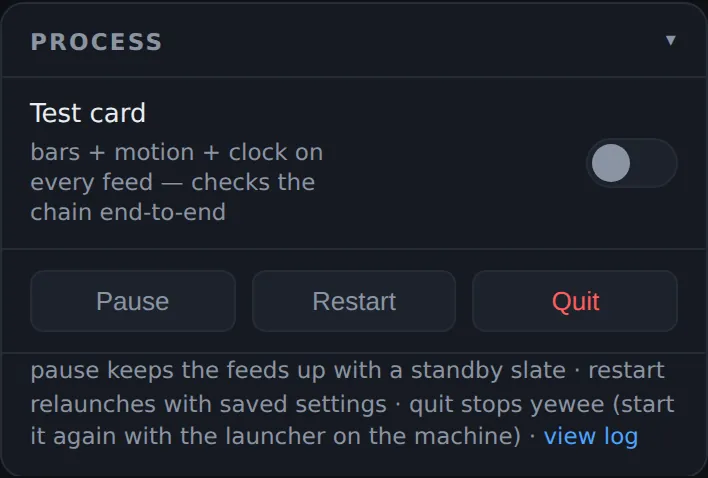
Test card
Off by default. Replaces the picture on every feed with colour bars, a grey ramp, the feed's identity, a moving block and a running clock, so you can check each feed arrives and is live. It is saved like any other setting, so switch it off before you finish, or the next launch starts on the test card. See Prove the chain with the test card.
Pause
Holds the show without dropping anything: Program feeds carry a STANDBY slate, the Overlay and Faces feeds go fully transparent (so keyed graphics vanish cleanly), and the Mask goes empty. The button becomes Resume. Pause isn't saved: a restart starts live.
Restart
After you confirm, Yewee closes and starts again in place with the same settings. Feeds drop for a few seconds, and the panel reconnects by itself. Use it if something seems stuck.
Quit
After you confirm, Yewee stops, and every feed and the panel go with it. The panel can't start it again: start Yewee on the machine. A panel left open reconnects by itself when you do.
View log
The link at the bottom of the card opens Yewee's last 200 log lines in a new tab, from any device, so you don't have to walk to the machine. Other devices need the PIN.
Help and feedback
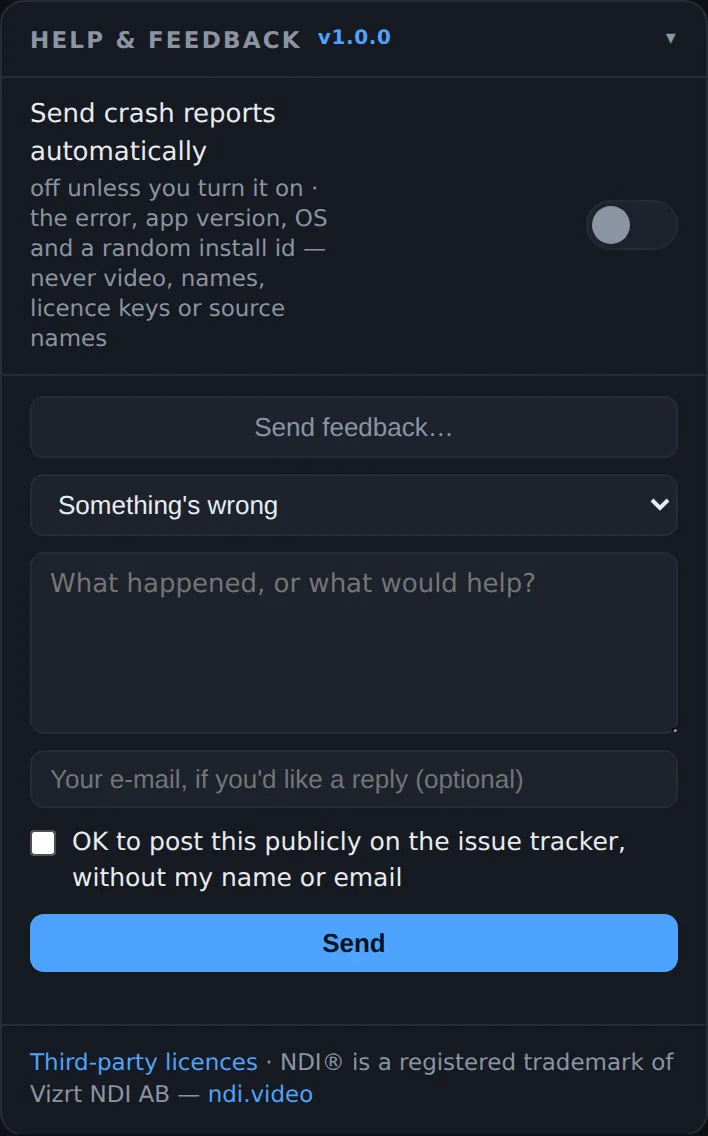
The card's title shows the version you are running.
Send crash reports automatically
Off by default, and nothing is sent unless you turn it on or say yes when asked. With it on, a report goes to LeTissier Creative Studios after a crash, and also for errors Yewee recovered from (once per error per run). A report holds the error and where it happened, the Yewee version, the operating system and a random install id. Before it is stored, this machine removes your user name, home folder, licence keys, e-mail and IP addresses, the PIN, and the names of your sources and feeds. It never holds video, pictures or settings. Reports wait on the machine until it is online.
Send feedback
Opens a form to send a bug report, an idea, a question or praise straight to the studio:
- Type: Something's wrong, An idea or feature request, A question, Praise.
- Message: what happened or what would help.
- E-mail: optional, for a reply.
- Include my licence so you know who I am: shown only with a bought shop licence; off unless you tick it.
- OK to post this publicly on the issue tracker: off unless you tick it; posted without your name or e-mail.
Press Send. Offline, it is saved and sent when the machine is next online, and the card says how many are waiting.
Third-party licences
The licences of everything Yewee ships with. Open to anyone who can reach the panel, without the PIN.
Crash report question
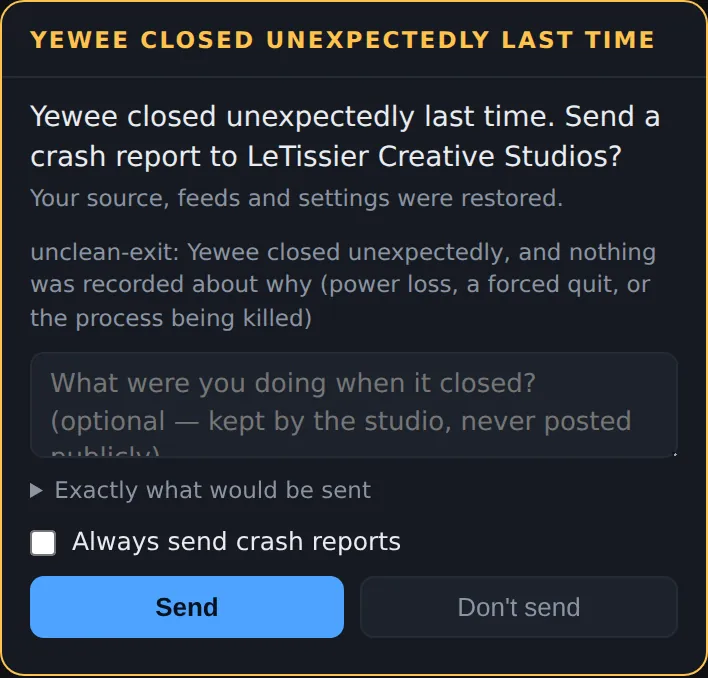
If Yewee closed without shutting down properly last time (a crash, the power going, the process being killed, or the 30-second watchdog restarting it), your source, feeds and settings come back as usual and the panel asks once, at the top:
- What were you doing when it closed? An optional note, kept by the studio and never posted publicly.
- Exactly what would be sent: opens the report itself.
- Always send crash reports: also turns on automatic sending.
- Send or Don't send. Either answer clears the question.
PIN
Other devices must give the panel PIN before they can see the preview, the sources or the log, or change anything. The browser asks Control panel PIN: the first time and remembers it. A wrong PIN shows Locked — enter the PIN and asks again. Five wrong PINs in a row lock that device out for a minute (Too many wrong PINs — wait a minute, then try again).
The panel on the Yewee machine itself (opened as localhost) never asks. The PIN is made on the first launch; change it or turn it off with --pin. More in Run it from a phone at FOH.
Footer
The line at the bottom: the version, a reminder that Yewee finds and follows faces but does not identify people, that settings save automatically, and how long Yewee has been running (up 2h 14m).