Light 1.0
Interface
The four views, every control on the top bar and status line, the stage view, the held chip, help mode and find.
The top bar is on screen in every view. Under it is the stage view, and under that the view you chose: pads, the rig or the look editor.
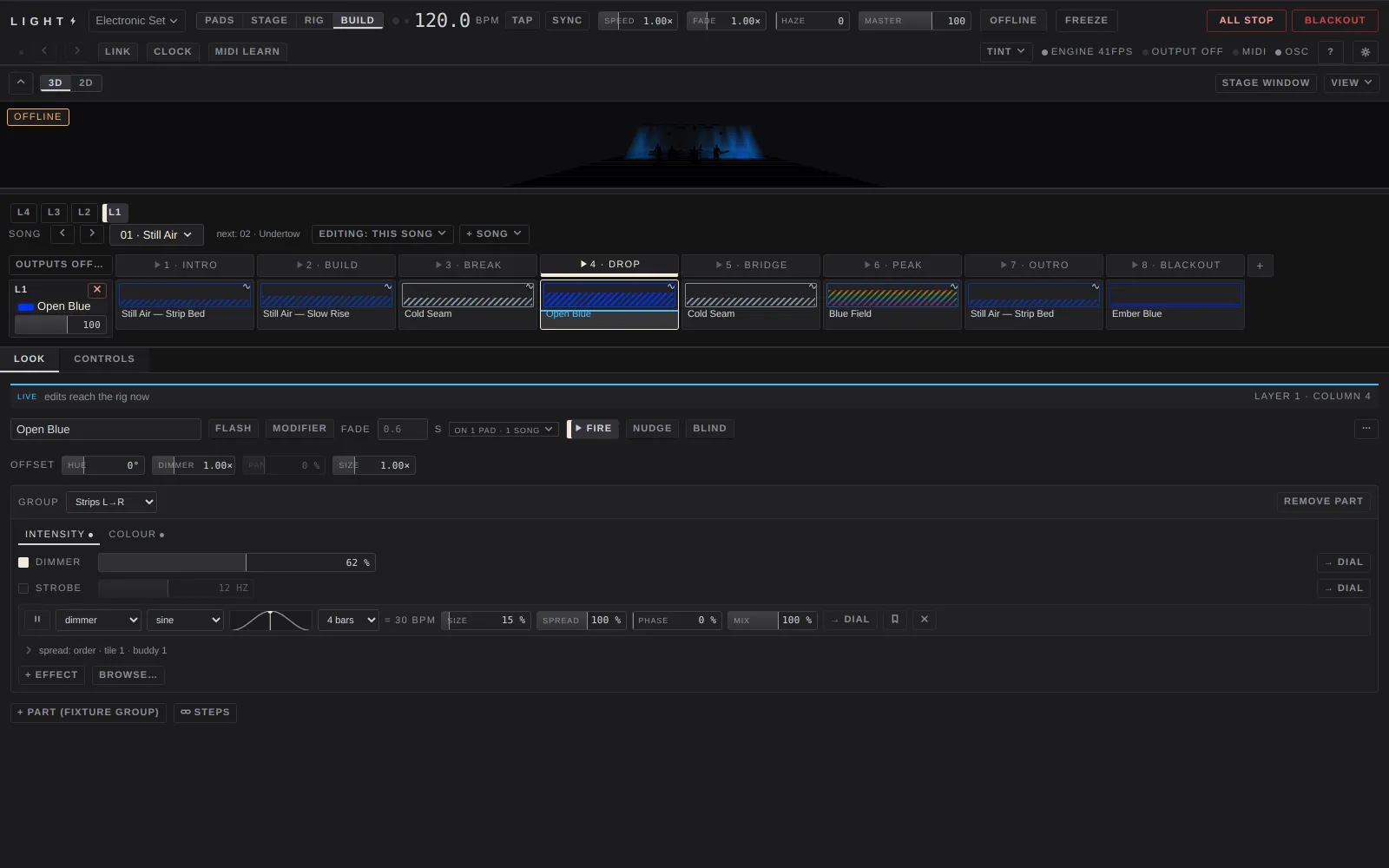
Views
The four buttons in the top bar switch the whole window. ⌥1 to ⌥4 do the same. The window remembers the last view you used.
Pads
⌥1. For performing: the stage view over the whole pad grid, with the look library and the look editor folded into strips at the right edge. Click looks ‹ or editor ‹ to open one. The status line is folded here, so the top bar takes one row.
Stage
⌥2. The 3D stage, full window. See Stage view.
Rig
⌥3. Fixtures, groups, the stage, profiles and the fixture library on the left, the 2D plan on the right. Everything is on the Rig page.
Build
⌥4. For programming: the stage view, one layer of pads (pick it with the L4 L3 L2 L1 tabs), and the look editor underneath with a Controls tab beside it.
Resizing the panels
Drag the thin bars between panels to resize them. The stage view's height is kept separately for Pads and Build. Sizes are remembered by this browser or this Mac, not the show.
Top bar


Faders on the top bar work the same way everywhere in LIGHT:
- Drag it to set it. Click the number to type a value.
- Double-click or right-click it to put it back to its default.
- Once it has focus, the arrow keys step it, Shift makes the steps ten times bigger, and Home and End jump to either end.
- In MIDI learn, click a fader and move a control to map it. A faint second bar shows where the hardware fader is when it doesn't match.
On a narrow window, controls move from the top row down to the status line, in this order: speed, haze, sync, then a shorter project name, a narrower master, fade, freeze and finally the wordmark.
Wordmark
The LIGHT logo. Hover over it to see the version you are running.
Project menu
The show's name with a ▾. Click it to see every show in the projects folder. Pick one to open it. The show you are on is saved first. If anything is playing, LIGHT asks Open "name"? before switching, because the stage goes dark and every layer needs firing again.
- + new project… starts an empty show: four empty layers, eight columns, two universes switched off, no fixtures.
- save as… saves a copy under a new name and switches to it. The show
you were on is left as it was. If the name is taken, LIGHT asks before
overwriting, and keeps the old file aside as a
.replacedbackup.
While the grid is showing a song that isn't playing, this slot reads editing: song name. Press Esc to go back to the playing song.
Shows save themselves a moment after every change. See Save indicator.
View buttons
Pads, Stage, Rig, Build. See Views.
Beat lamps
The two dots before the tempo. The larger one flashes on the first beat of the bar, the smaller one on every beat.
Tempo
The large number, in BPM. Drag it up or down to change it, or click to type a value from 20 to 500 (Enter to set it, Esc to cancel). It turns blue and stops accepting input while a MIDI beat clock is setting the tempo. Resolume can set it too; see Follow Resolume.
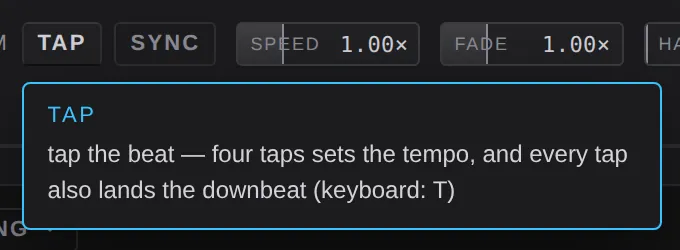
Tap
Tap it on the beat. Four taps set the tempo, and every tap also puts the downbeat where you tapped. The keyboard key is T. It is greyed out while a beat clock is setting the tempo, because the clock would overwrite it.
Sync
Press it on the downbeat. The bar count and every effect's cycle restart from that moment. Resolume's resync does the same.
Speed
A multiplier on every effect and pulse, from 0.25× to 4×. The default is 1.00×. It doesn't change the tempo: at 2× a one-bar chase runs twice a bar.
Fade
The fade master. Each look has its own fade time. This fader scales every crossfade that starts from now on:
- at the bottom (cut) every pad, column and clear is instant
- in the middle (1.00×, the default) looks fade as programmed
- at the top fades take four times as long (4.00×)
A fade that has already started keeps its length. It isn't saved, so a show always opens as programmed.
Haze
A manual level for every hazer in the rig, 0 to 100. Looks that set haze still work: the hazer does whichever is higher. It is back at 0 every time LIGHT opens, so a hazer never starts pumping by itself.
Master
The grand master, 0 to 100, default 100. It scales the intensity of everything. Blackout and the master are separate: blackout always wins.
Offline / live
The transmit switch. LIGHT always opens offline, and nothing is sent to the rig until you press this.
- offline, amber: universes are set up, but nothing is going out. Press it to go live.
- live: the rig is receiving. Press it to go offline. LIGHT sends a blackout first, then stops sending. The show keeps running on screen.
- If no universe has Art-Net or sACN switched on, pressing it opens Settings ▸ Output instead.
Freeze
Holds the rig on the frame it is showing, so you can set up the next column without the room seeing it. The stage view keeps following your edits.
- Click to latch it on, click again to let it through.
- Press and hold to freeze only while you hold it.
- While it is on, the button reads held. Blackout and ALL STOP release it. The keyboard key is F.
All stop
Asks All stop? and then, in one go: blackout, clears every layer, releases every hold, turns haze and derby motors off, drops every nudge and turns nudge mode off. Use it to reset a show that has got away from you.
Blackout
Zeroes intensity and strobe on every fixture, instantly. It always wins, over the master and every look. The layers keep running underneath, so pressing it again brings back exactly what was playing. The keyboard key is B.
Status line
The second row of the top bar. In the Pads view it folds away, apart from the lamps and buttons on the right.
Save indicator
A small dot at the far left. It glows while an edit is on its way to the engine, and briefly when the show has been written to disk. There is no save button: shows save themselves a moment after you stop editing. ⌘S saves at once.
Undo and redo
◀ and ▶. The tooltip names the step. ⌘Z and ⇧⌘Z do the same. LIGHT keeps the last 100 steps of each show. Undo history doesn't carry over when you switch shows.
Link
Greyed out in 1.0: Ableton Link isn't in this build.
Clock
Follows a MIDI beat clock. It is amber while it is waiting for one and lit while it is following. See Beat clock.
MIDI learn
Arms MIDI learn. Click any pad, column, dial or fader, then press or move a control on your controller. See Map a MIDI controller.
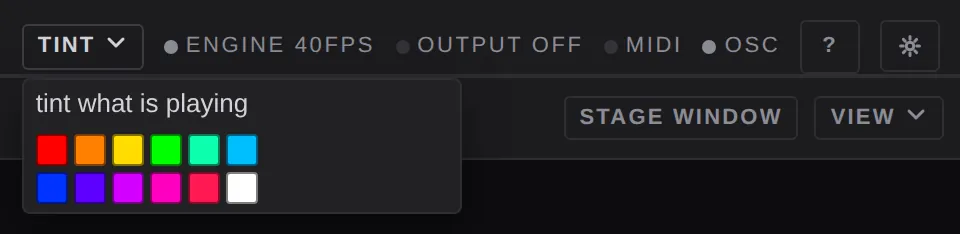
Tint
Colours what is playing, without editing a look. Pick a swatch and every coloured part on stage leans toward it. It is a nudge: Keep writes it into the looks, Discard takes it away. See Nudging. It is greyed out when nothing playing has a colour.
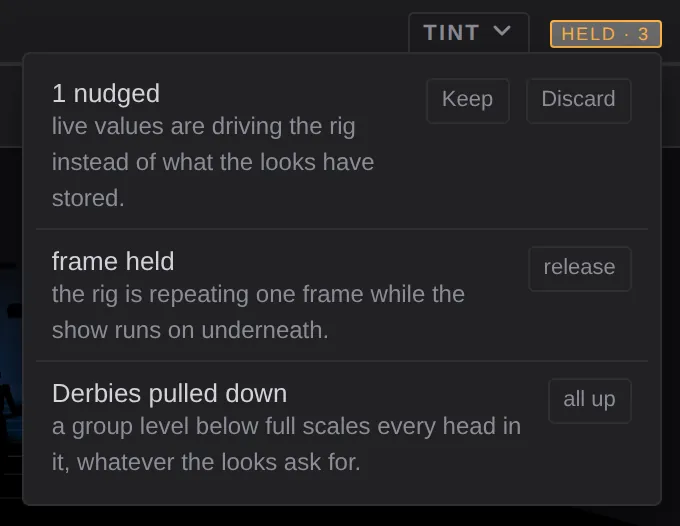
Held chip
An amber chip, held · N, that appears whenever something is holding the rig away from what the show says. Click it for the list. Each row has the button that ends it:
| Row | What it means | Button |
|---|---|---|
| N nudged | live values are driving the rig instead of the stored looks | Keep / Discard |
| frame held | freeze is on | release |
| finding fixture | a fixture is being found (full white); this overrides blackout, and the chip pulses | release |
| N groups pulled down | a group level is below full | all up |
| N muted | fixtures muted in the Rig view | show in Rig |
| layer bypassed | a layer is out of the mix | bring back |
| N dark | fixtures with a profile LIGHT can't drive | show in Rig |
| N channels held | channels held in the output channel check | show in Output |
Trial chip
In the last three days of a trial, a chip reads trial ends in N days, tomorrow or today. Click it to open the licence settings.
Lamps
| Lamp | What it says |
|---|---|
| engine 40fps | The show engine's frame rate. Green at 35 or more. engine stalled means it is connected but has stopped; no engine means the window has lost it. |
| output | output off (nothing set up), not sending (set up but offline), sending ·N (live, N nodes answering), sending sacn, no reply (live but no node answered), no discovery, or sends failing (macOS is refusing the packets; usually Local Network permission). |
| midi | Lit when a MIDI input is connected. Hover to see which. |
| osc | Bright when something arrived from Resolume in the last 3 seconds. Red if the OSC port couldn't be opened. |
Help button
The ? button. Click it, then click any control to read what it does. Press ? on the keyboard for the shortcut sheet instead.
Settings cog
Opens the settings. It has a small badge when an update has been downloaded and is waiting.
Stage view
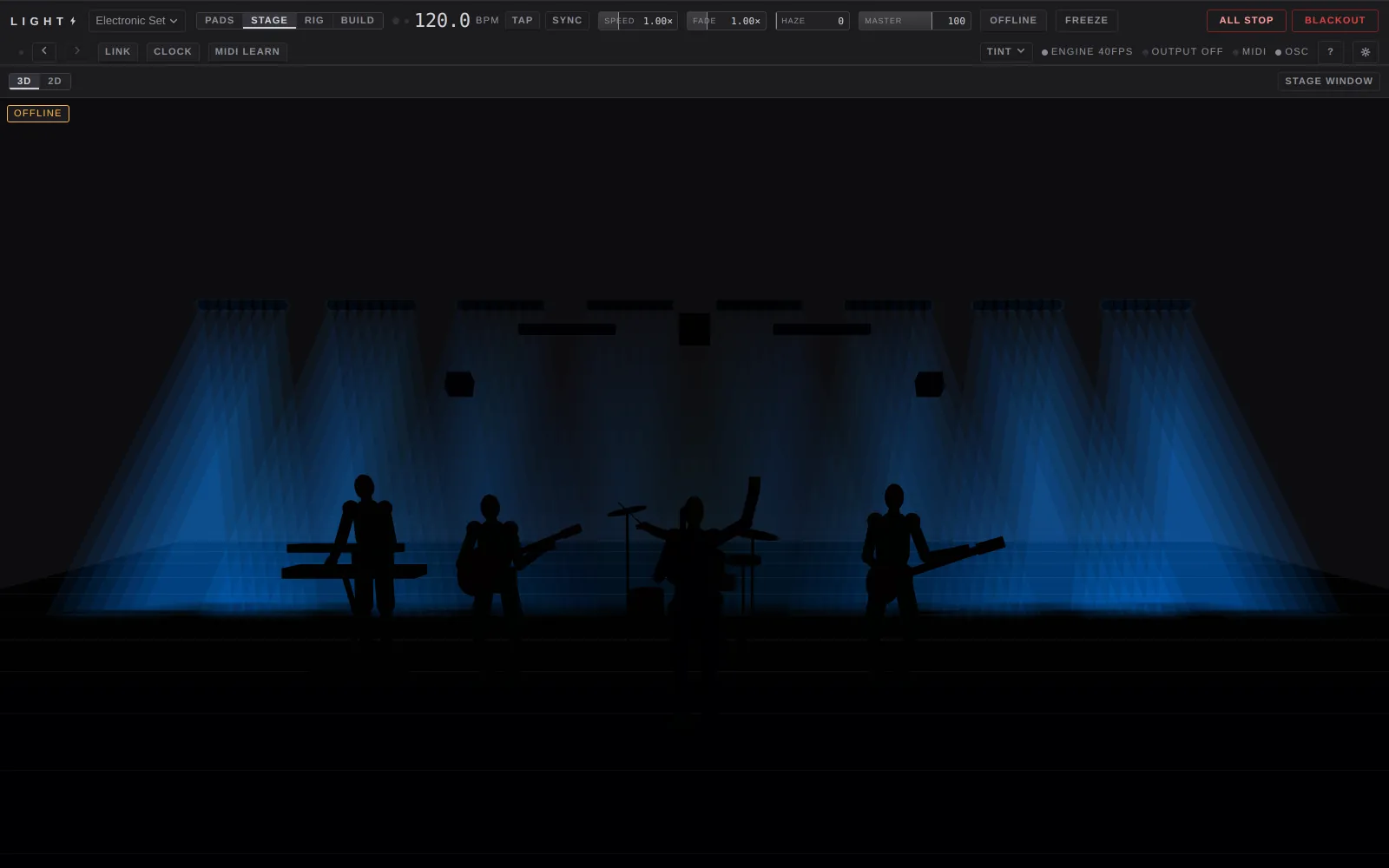
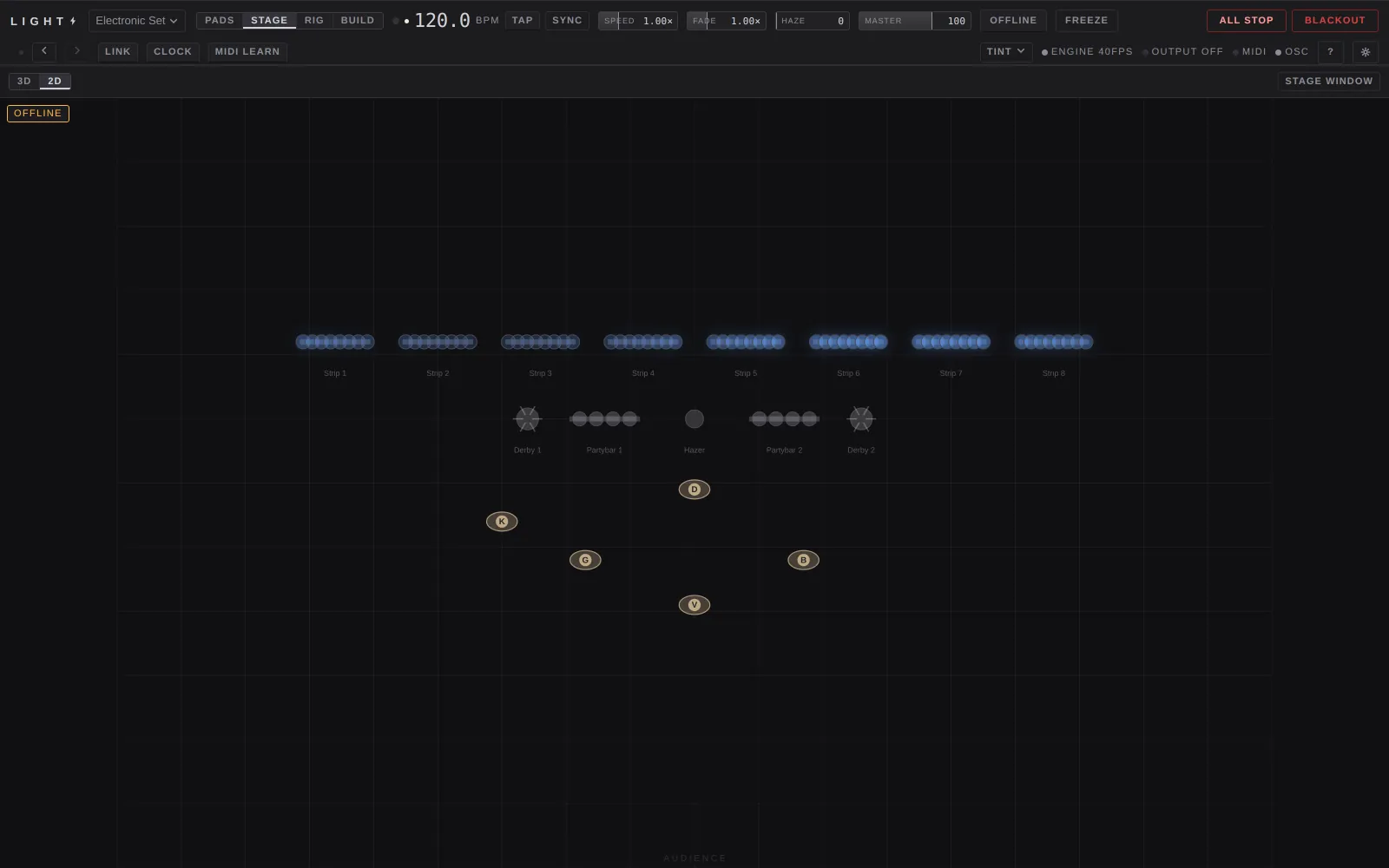
The band across the top of Pads, Build and Rig, and the whole window in the Stage view. It draws what the rig is doing: what is going out, or what would go out if you were live.
In 3D, drag to orbit, right-drag to pan and scroll to zoom. The camera is remembered.
Hide the stage
The ▴ button at the left. It folds the band away for this view only, and leaves a stage ▾ strip to bring it back.
3D and 2D
3D draws the rig from the room, with beams and haze. 2D is the plan: the same drafting view as the Rig plan, with + musician…, + structure…, Plan / Front and Move / Turn / Select.
Stage window
Opens the stage in its own window, drawn by LIGHT's native renderer, for a second screen. In that window: drag to orbit, right-drag to pan, scroll to zoom, 1 front of house, 2 side, 3 top, and M to show or hide the band figures.
View menu
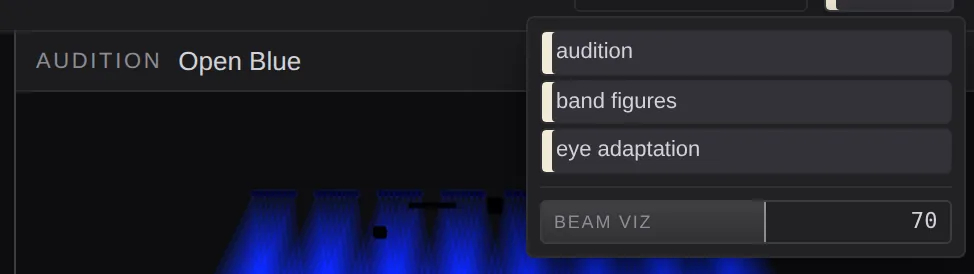
view ▾ at the right sets how this canvas draws. None of it reaches the rig.
- audition: show the audition pane (below).
- band figures: dummy musicians for scale. Nobody is really there.
- eye adaptation: exposure follows how much light is on stage, the way your eyes adjust. Off keeps a fixed exposure, for judging absolute levels.
- beam viz: how much haze the beams are drawn through, from 0 to 100; the default is 70. It changes the picture only, never the hazer.
- snap and measure (2D only): snap fixtures to truss, and show a metre grid.
Audition
When you select a pad whose look its layer isn't playing, a second pane opens beside the stage: audition · look name · not on the rig. It shows that look on its own, so you can check it before it goes out.

Stage tags
A tag in the top-left corner says why the picture may differ from the room: OFFLINE, HELD (freeze), FINDING fixture, BLACKOUT, or EDITING song when the grid is showing another song.
Other windows
Find
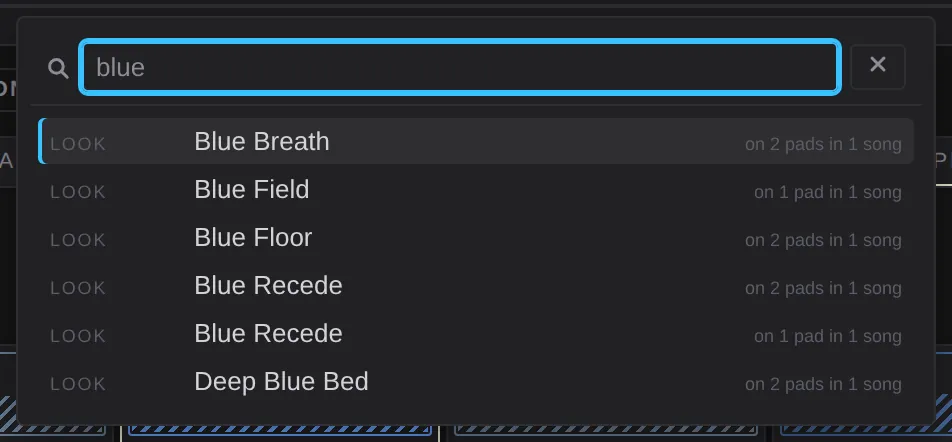
Press / or ⌘F. Type part of the name of a look, song, column, group or light. Use the arrow keys to move and Enter to jump. Enter does the smallest useful thing for each kind:
- a look: selects its first pad in this song, or opens the library on it
- a song: makes it the playing song. This is the one result that acts on the show, and the row says so
- a column: scrolls to it, and never fires it
- a group: shows its row in the Rig view
- a light: selects it on the plan
Esc closes it.
Shortcut sheet
Press ?. Every key and gesture, listed on the Keyboard shortcuts page.
Setup steps
A strip under the top bar that ticks off what a rig needs before it can light: Output, Fixtures, Stage, Groups, and Aim when the rig has moving heads. Each tick comes from reading the show. take me there opens the next step. It opens by itself on a show with no fixtures. To bring it back, use show the setup steps in Settings ▸ Help.
Engine banners
A red bar across the window, ENGINE OFFLINE — reconnecting…, means the window has lost the show engine. ENGINE STALLED means it is connected but not responding. Either way, nothing you press reaches the rig until it clears. See Troubleshooting.