Light 1.0
Settings
Every section of the settings sheet — output, sync and MIDI, display, lock, devices, licence, updates, feedback and help.
Open the settings with the cog at the right of the status line, or ⌘,. The sheet is titled Setup, with its sections down the left. A tag beside a section's name gives its state: live or offline for Output, the number of MIDI mappings, locked or open for Lock. close or Esc puts it away.
Licence, Updates and Feedback appear only in the LIGHT app on the Mac running the show. A device that is only watching sees just Display and Help.
Output
Where the DMX goes.
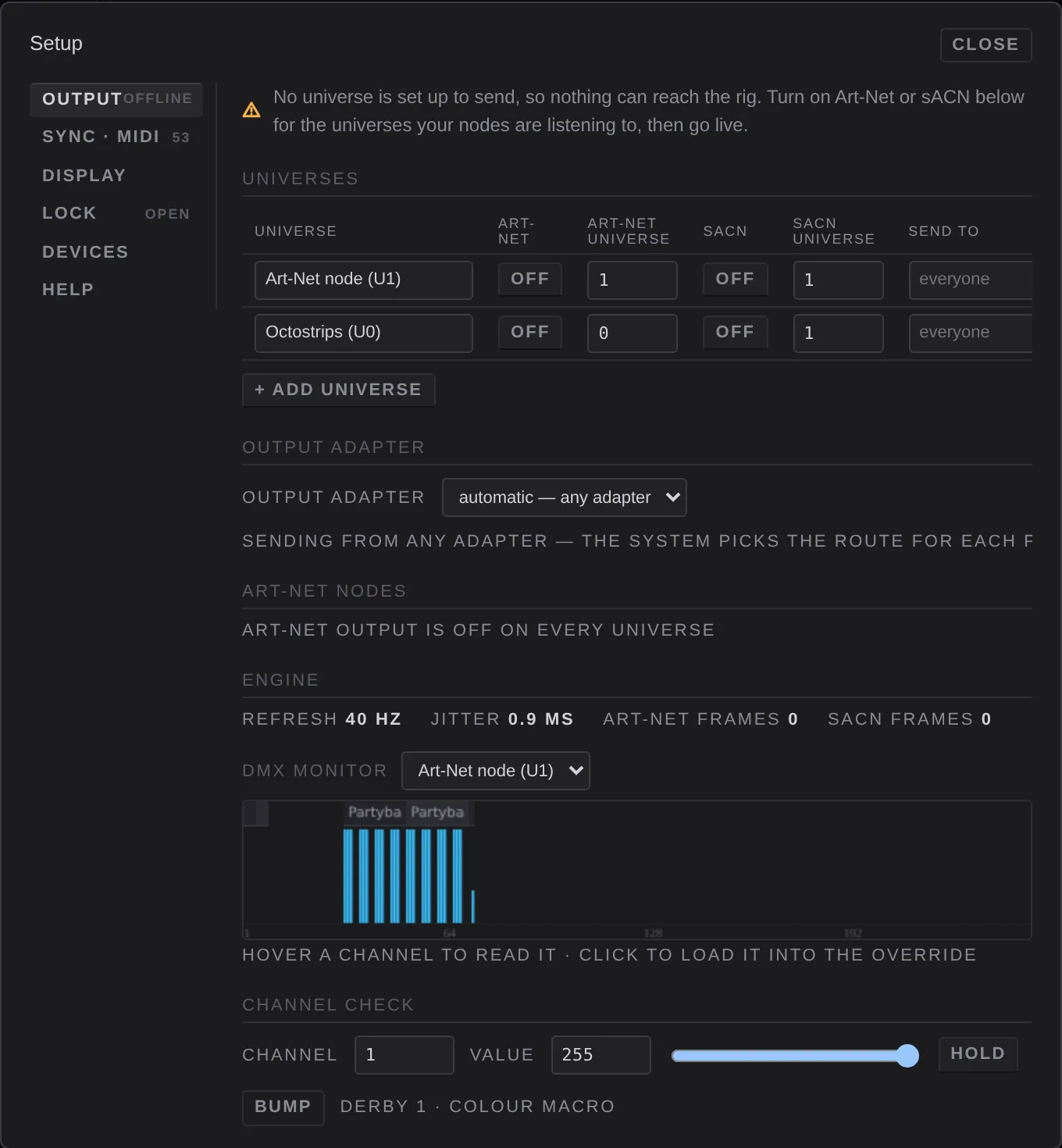
Go live / go offline
The banner at the top matches the top bar's offline / live button, with a sentence saying what is happening. With no universe switched on, it says so and nothing can go out.
Universes
A universe is one DMX line of 512 channels. Each row:
- Universe: a name for your own reference. It isn't sent anywhere.
- Art-Net: on or off. Off means this universe reaches no fixtures over Art-Net.
- Art-Net universe: the port-address it is sent on, 0 to 32767. It must match what your node expects.
- sACN: on or off. Art-Net and sACN can run at the same time.
- sACN universe: 1 to 63999.
- Send to: everyone (broadcast, the default) or one node's IP address (unicast).
- Fixtures: how many fixtures are patched to it.
- ✕: deletes the universe. You can't delete one with fixtures on it, or the last one.
+ add universe adds another, switched off.
Output adapter
Which network port Art-Net and sACN leave from. automatic — any adapter lets macOS choose for each packet. On a Mac that also has Wi-Fi, a phone or a VPN attached, that can be the wrong one, so choose the adapter your rig is on. This is remembered on this Mac, not in the show. The line below says what it is doing.
Art-Net nodes
The nodes that answered LIGHT's poll, by name and IP address. A node that has gone quiet shows (silent Ns). polling… no nodes have answered yet means check the network and the node's power. discovery unavailable means another app is holding Art-Net's port 6454.
Engine
refresh (the DMX rate, 40 Hz), jitter (how evenly frames go out), and running counts of art-net frames and sacn frames sent.
DMX monitor
Every channel of the chosen universe as a bar, labelled by fixture. Hover a channel to read it; click it to load it into the channel check below.
Channel check
For testing one channel by hand:
- channel (1 to 512; drag to scan) and value (0 to 255), with a slider to scrub the level
- hold: holds the channel at that value over the show; release lets it go
- bump: full while pressed
- release all: lets go of every held channel
Held channels show in the held chip.
Sync · MIDI
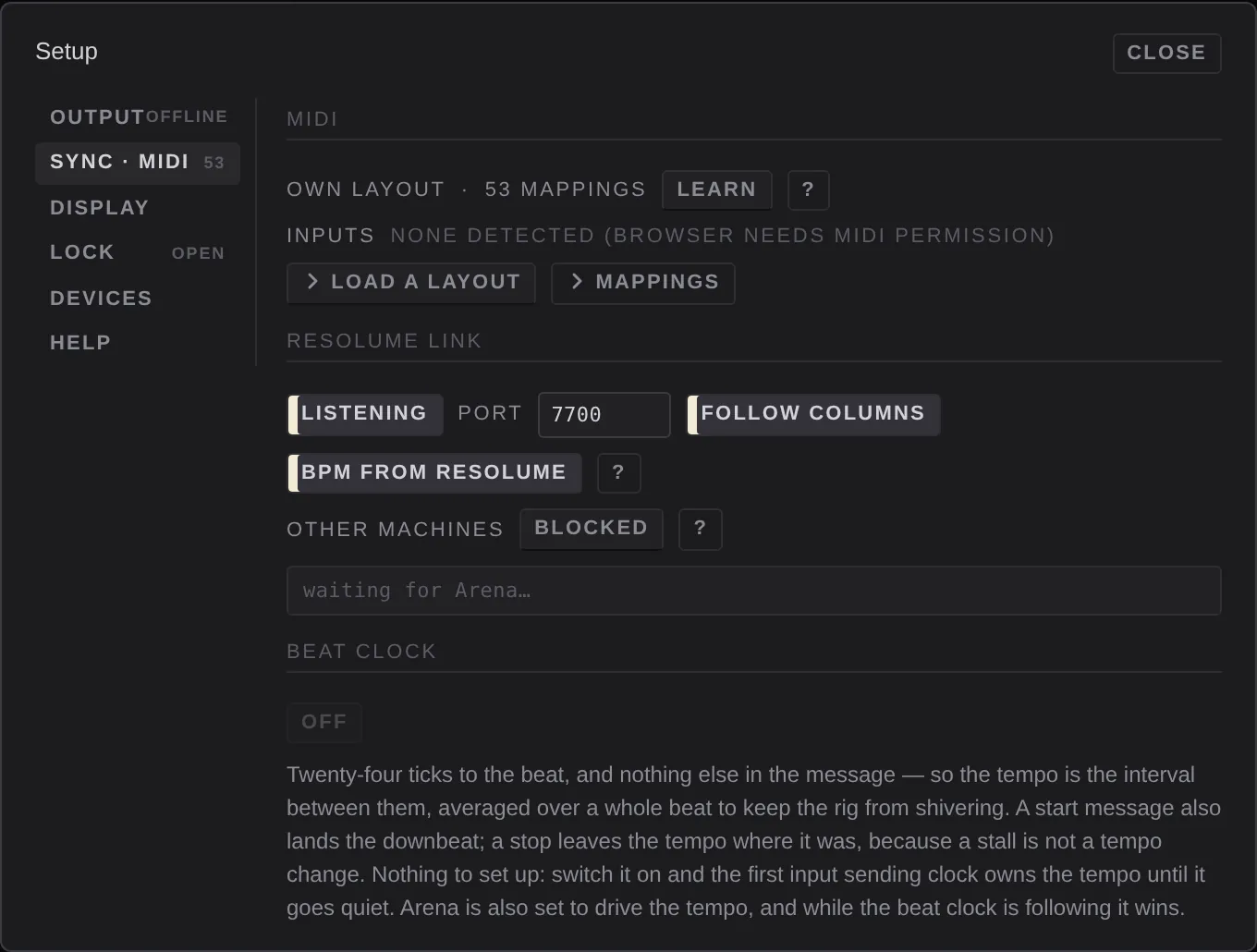
MIDI
The top line names the loaded layout (or own layout) and how many mappings there are, then learn and ?. The last MIDI message received shows at the end of the line.
- learn: arms MIDI learn (as does midi learn in the status line). Click a pad, column or fader, then press or move the control.
- ?: how the Resolume link, beat clock and learn work.
Inputs
One switch per MIDI input. Turn an input off when it belongs to another app on this Mac. Resolume's own APC, for example, sends the same notes and would fire LIGHT's cues too. This is saved in the show. LIGHT also makes a MIDI port of its own called LIGHT that other apps can send to.
Load a layout
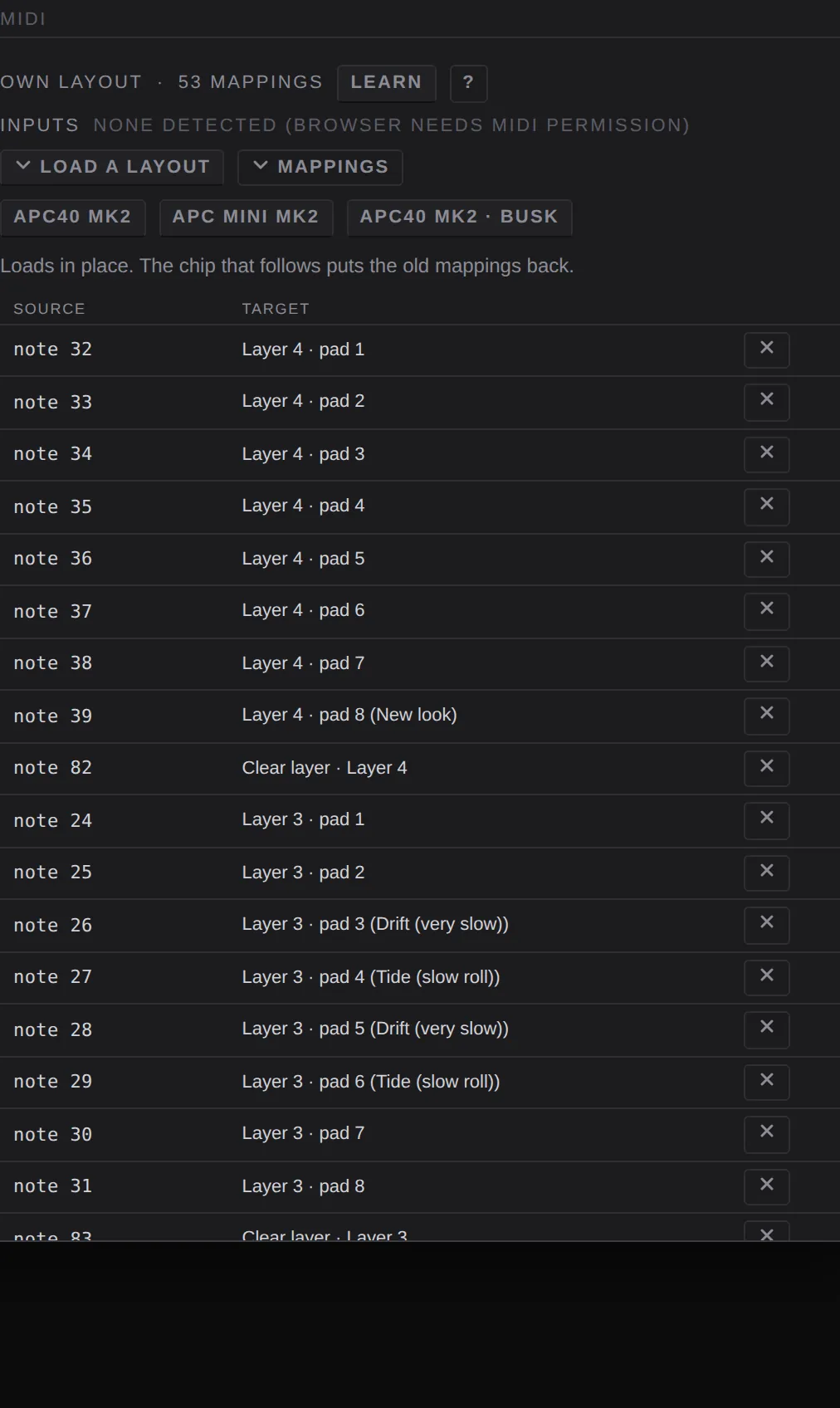
Lays down a whole controller map at once: APC40 mk2, APC mini mk2 or APC40 mk2 · busk. It replaces the mappings in place. A chip then offers to put the old ones back. See Map a MIDI controller.
Mappings
Every mapping: its source (the MIDI message), its target (what it does in LIGHT) and ✕ to delete it.
Resolume link
- listening / off: listen for OSC from Resolume. It is on in the demo show and off in a new show. Off means LIGHT ignores the network.
- port: the UDP port, 7700 by default (1024 to 65535). Resolume sends here.
- follow columns: when Resolume launches a column, LIGHT fires the same column. On by default.
- bpm from resolume: take the tempo and downbeat from Resolume. On by default.
- ?: what to switch on in Arena: Preferences ▸ OSC, enable OSC Output, address 127.0.0.1, port 7700.
- other machines: blocked or accepted. Programs on this Mac are always heard. Accept to let Resolume on another computer drive LIGHT. Remembered on this Mac, not in the show.
- The box below shows OSC messages as they arrive, or waiting for Arena….
The whole setup is in Follow Resolume.
Beat clock
off / following: take the tempo from a MIDI beat clock. The first input to send one owns the tempo until it goes quiet. While it is waiting it reads waiting — no input is sending one. A start message also sets the downbeat; a stop leaves the tempo where it was. While the clock is following, it wins over Resolume and tap.
The beat clock only works in the LIGHT app. In a browser it is greyed out.
Display
Colours
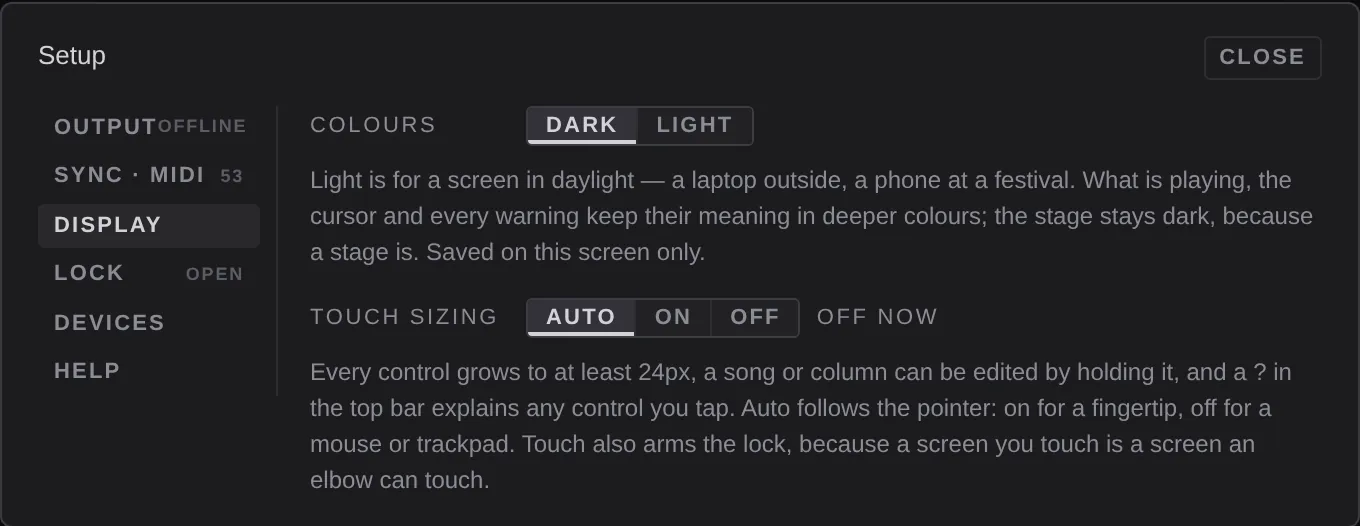
dark (for a dark room) or light (for a screen in daylight). What is playing, the cursor and every warning keep their meaning in deeper colours; the stage stays dark. Saved per screen.
Touch sizing
auto, on or off. On makes every control at least 24 px, lets you hold a song, column or pad to edit it, and switches on the lock by default. Auto follows the pointer: on for a finger, off for a mouse or trackpad.
Address
On a device connected over the network: the address other browsers can use to reach the show, as text and as a QR code.
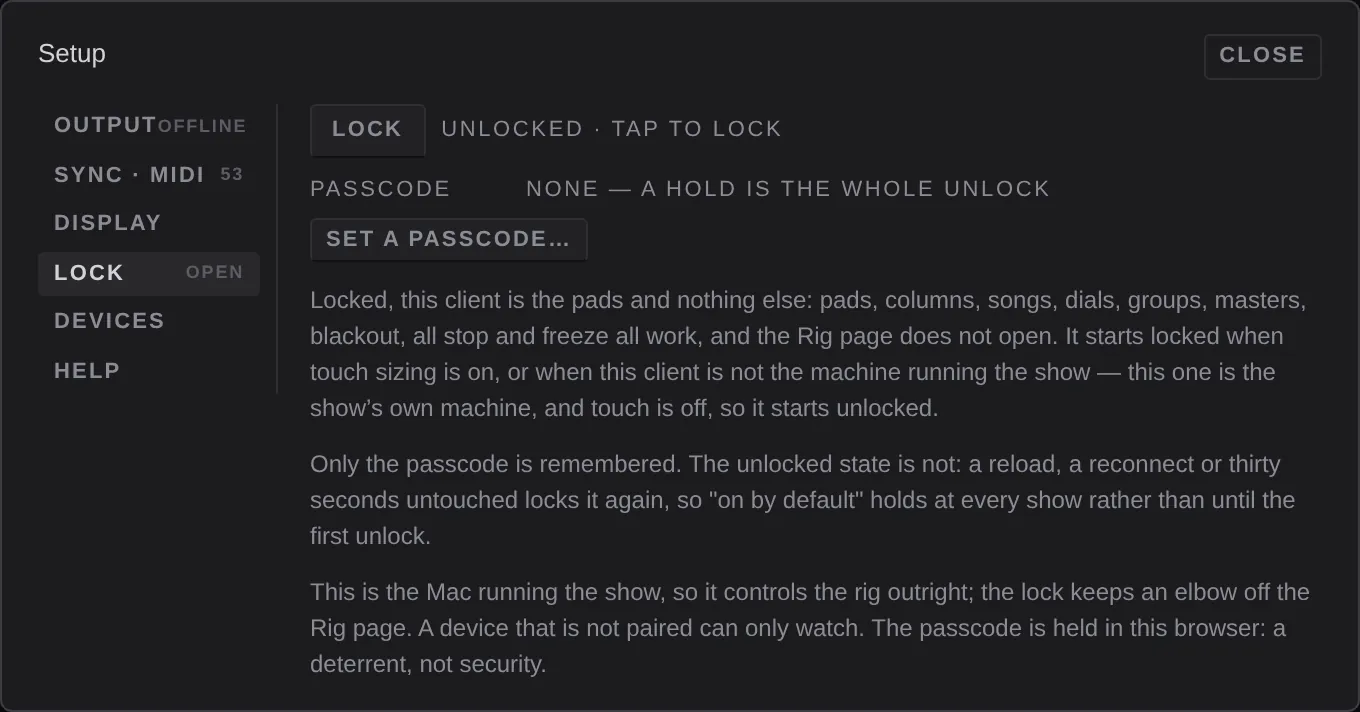
Lock
The lock keeps an elbow off the rig. Locked, a screen is the pads and nothing else: pads, columns, songs, dials, groups, masters, blackout, all stop and freeze all work, and the Rig view doesn't open.
- It starts locked when touch sizing is on, or when the screen isn't the Mac running the show.
- To unlock, press and hold the lock at the bottom of the screen (locked · hold to unlock).
- passcode: set a passcode… asks for one after the hold. It is kept in this browser only, so setting it on the Mac doesn't set it on the tablet. It is a deterrent, not security. clear goes back to the hold alone.
Unlocking doesn't last: a reload, a reconnect or 30 seconds without a touch locks it again.
Devices
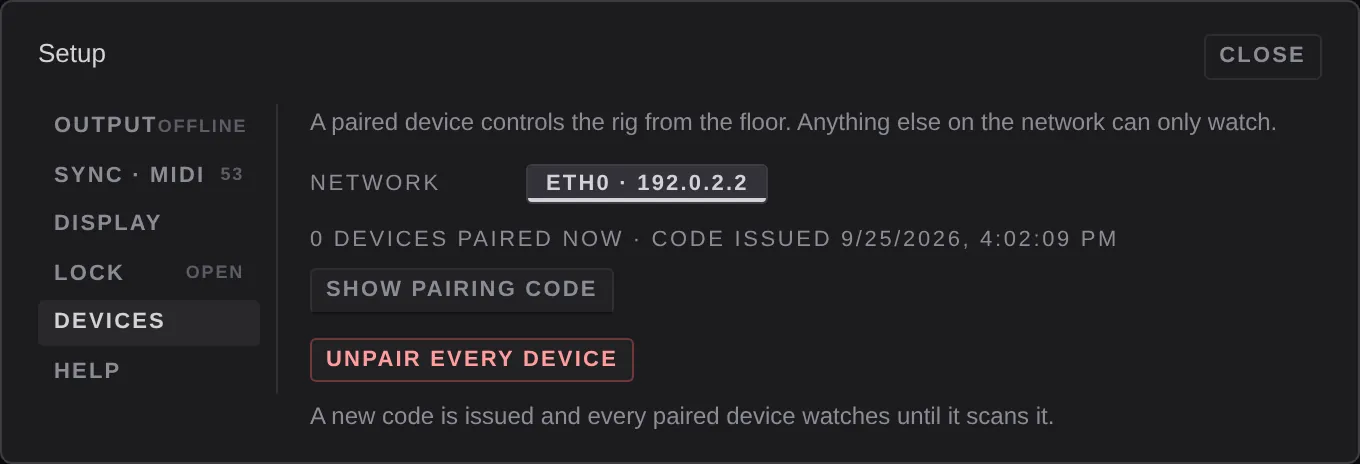
On the Mac running the show only. A paired device can control the rig from the floor; anything else on the network can only watch.
- network: which network adapter the pairing code uses. The tablet must be on the same network. The adapter your rig is on is marked rig wire and is never picked by default.
- N devices paired now · code issued …
- show pairing code: a QR code and link for the tablet to open. Anyone who can see it can pair, so it stays hidden until you ask. copy link puts it on the clipboard.
- unpair every device: issues a new code. Every paired device drops to watching until it scans the new one. Use it for a lost tablet.
The whole flow is in Run it from a tablet or phone.
Licence
In the LIGHT app only. It shows:
- the status in words, for example Licensed and Everything is in order.
- the edition, key and number of Macs
- works offline until date (or trial ends date on a trial), and updates until date
- this machine: …, the code support may ask for
With no licence active, the same Start trial and licence key fields as the first-launch screen appear here.
Refresh licence
Checks in with the licence server now. LIGHT does this by itself once a day when it is online, so you rarely need it. Use it after buying, or after changing something in your account. If a check fails, nothing changes: LIGHT keeps working from the copy on this Mac.
Deactivate this Mac
Frees this Mac's seat so the key can be used on another. LIGHT will ask for a key or trial the next time it opens here.
Updates
In the LIGHT app only.
- running version, then either This is the newest build. or version is available, with its size and what changed.
- Download version: downloads it and checks its signature and Apple's notarisation.
- Install and restart, then Press again to quit and install: LIGHT quits, replaces itself and reopens. After it reopens it says whether the install worked.
- Discard the download
- or get it manually: opens the release page.
- Check now
LIGHT refuses to install (Not now — …) while the rig has been lit in the last 30 seconds, or while another device is connected. It never installs by itself.
Feedback
In the LIGHT app only. Choose bug, idea, question or praise, write in what happened, or what you would like, and optionally add your email, only if you want a reply. Tick Include my licence so you know who I am if you like. Send sends it to LeTissier Creative Studios with the LIGHT and macOS versions, and nothing about your show. With no connection it is kept on the Mac and sent the next time LIGHT opens online.
Crash reports
Send crash reports automatically is off unless you turn it on. After a crash, LIGHT puts the show and what was playing back on the next launch, with output offline, and asks once whether to send a report (Don't send / Send, and Always send crash reports). If the rig was live, the question has a Go live button. A report carries the LIGHT and macOS versions, what failed and where in LIGHT's own code, and a random id for this install. It never carries your show, file names, licence, email or anything about your network.
Help
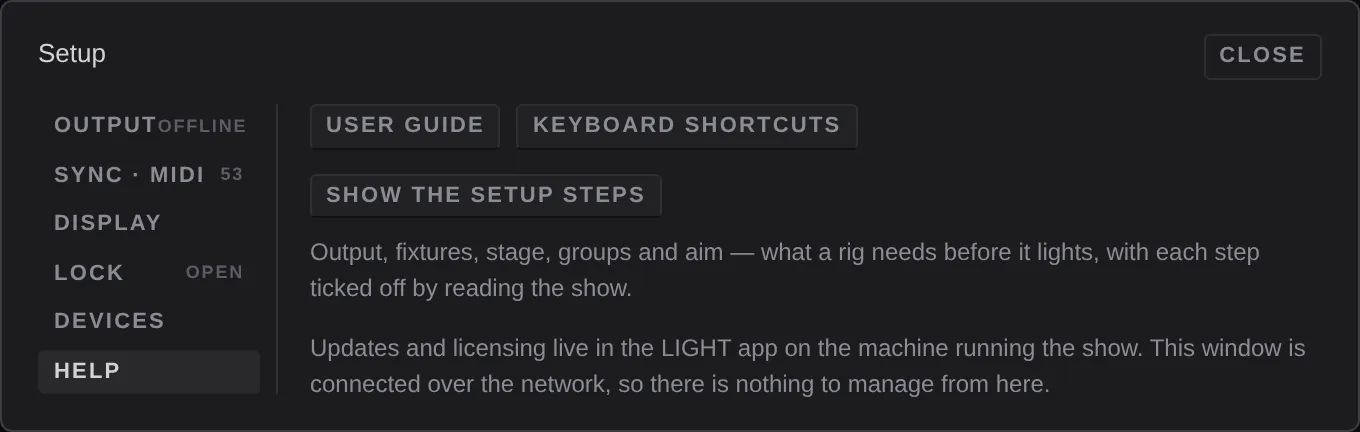
- user guide: opens the LIGHT user guide in your browser.
- keyboard shortcuts: the shortcut sheet, also on ?.
- send feedback…: jumps to Feedback.
- show the setup steps: brings back the setup steps strip.