Light 1.0
Rig
The Rig view — the fixture table, adding and importing fixtures, addressing, the inspector and calibration, groups, the stage, profiles, the fixture library and the plan.
The Rig view (⌥3) is where the show learns what is on the truss. On the left are the sections, on the right is the 2D plan. The table and the plan share one selection: click a row or a fixture and both highlight it.
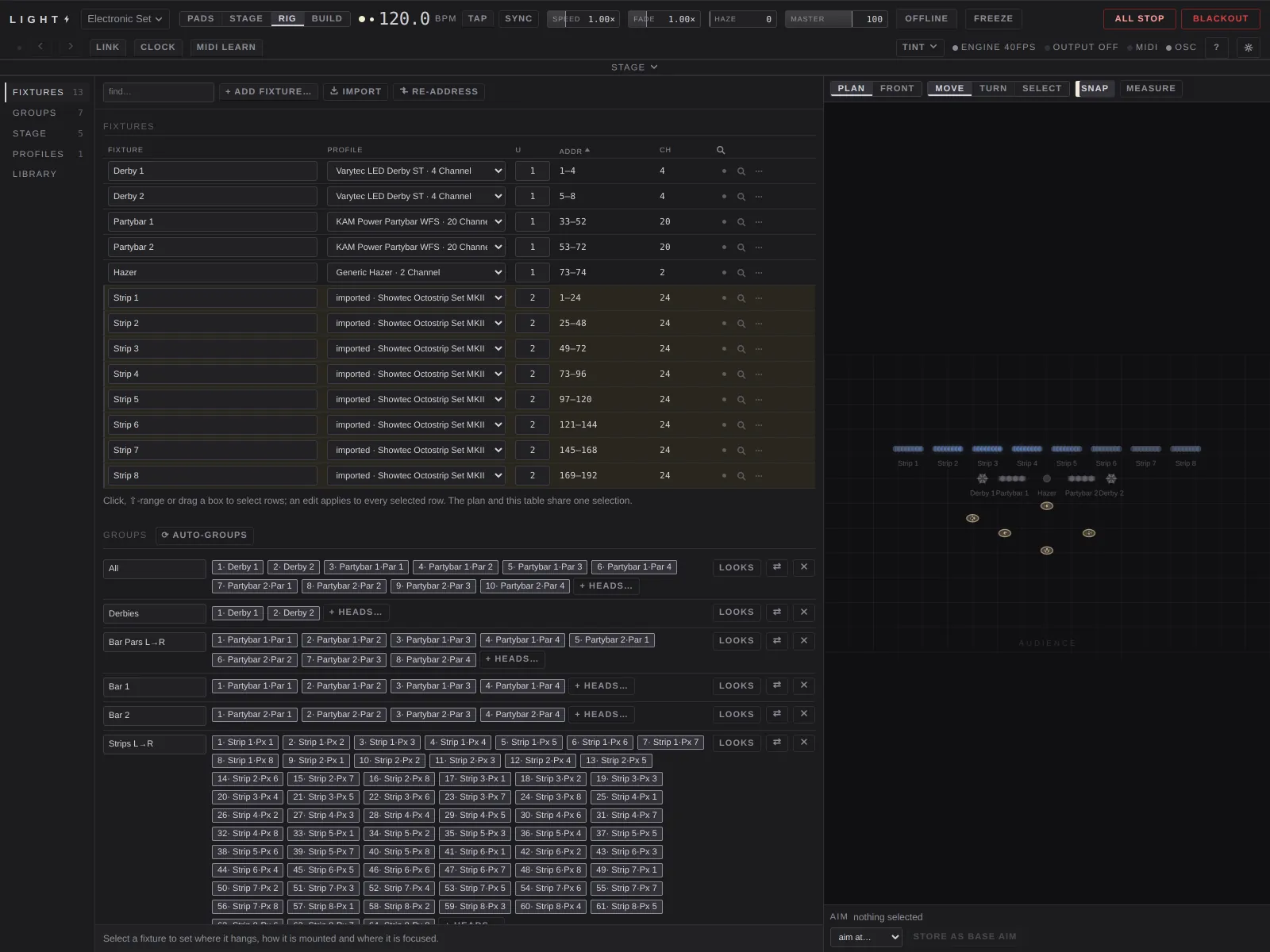
The rail at the far left jumps to each section, with a count beside it: Fixtures, Groups, Stage, Profiles, Library.
Fixtures
Find
find… filters the table as you type: a fixture's name, its profile, its universe, or any address it answers to. clear find shows everything again.
+ add fixture…
Patches a run of fixtures:
- type: the fixture definition. Anything not listed is in the Library or can be imported.
- how many: addressed one after another.
- universe
- start at: the first one's address. It starts on the next free address on that universe; the reset button puts it back there.
add patches them and selects the new rows.
Import
Imports a GDTF fixture definition (.gdtf), or an MVR scene
(.mvr) with its fixtures, addresses, positions and the definitions inside
it. Importing the same file again replaces the stored profile; undo puts
the old one back.
Re-address
Packs addresses again:
- the selection, from a start address you choose, in table order
- the whole rig, one after another on each universe, keeping the current order
- in rigging order: truss by truss, then left to right along each bar
Address conflict
A warning appears when two fixtures on one universe want the same channels. One of them would be driven by the other's look.
Fixture table
One row per fixture. Click a row to select it; ⇧-click selects a range; drag across rows to select a box of them. An edit applies to every selected row.
| Column | What it is |
|---|---|
| Fixture | its name, used on the plan and in every group |
| Profile | its fixture definition and mode |
| U | the universe it is plugged into |
| Addr | the channels it answers to. Click to type the start address (1 to 512). |
| Ch | how many channels it takes |
Sort by clicking a column's heading. A fixture whose profile is only a placeholder is flagged.
Mute
The small lamp on each row. It sends zeros to that fixture without touching the looks. Use it for a unit that is stuck or dead. Muted fixtures show in the held chip.
Find on the truss
The magnifier on each row. Hold it until its ring fills and the fixture goes to full white, so you can spot it on the truss. Click it to stop. It overrides blackout, which is why it is a hold and not a click.
Row menu
⋯ on each row: duplicate (the next free address, half a metre across) and delete (it leaves the rig and every group).
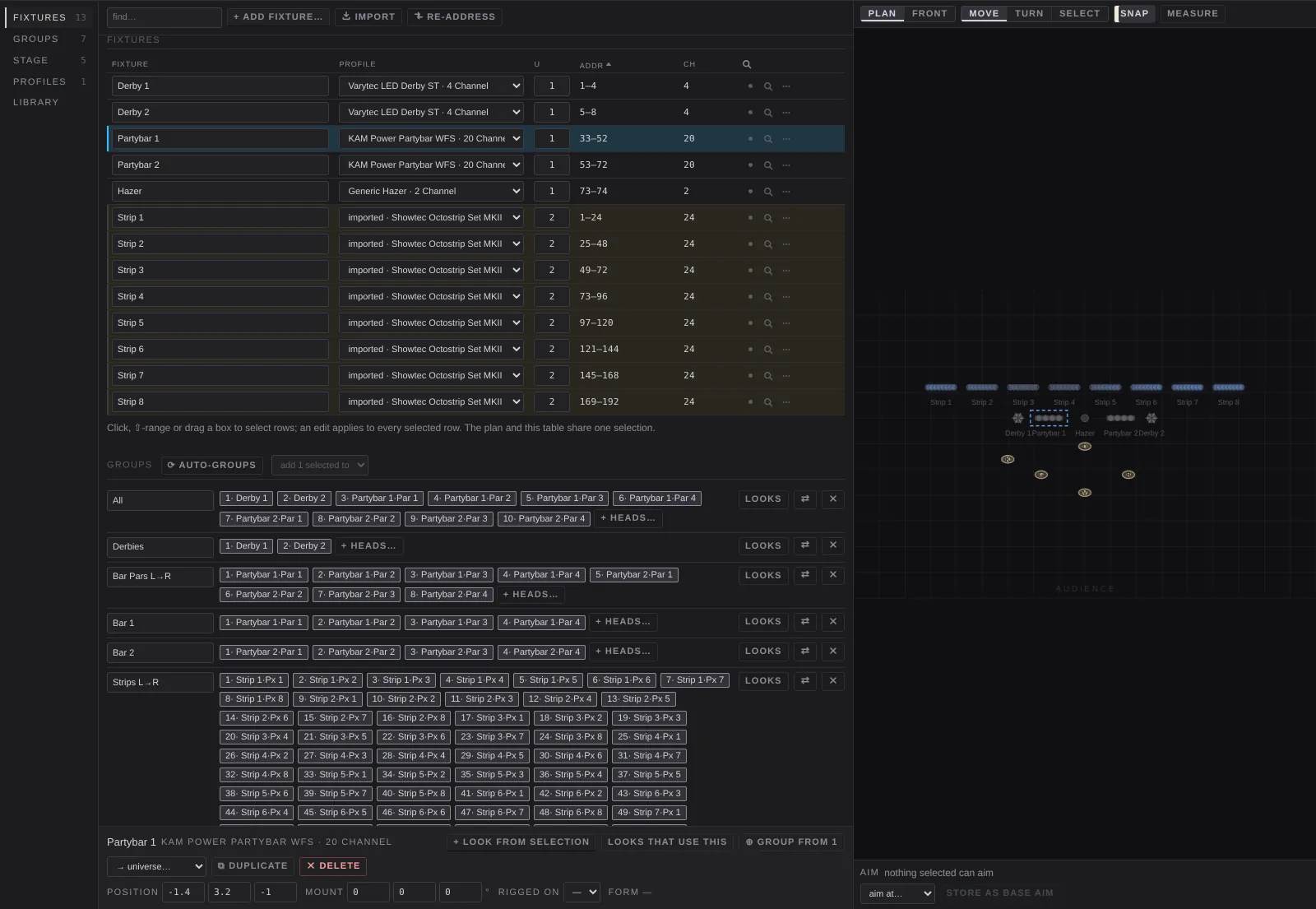
Inspector
Select one or more fixtures and the inspector opens under the table.
Selection buttons
- + look from selection: makes a group of these heads and a look that lights them, puts it on an empty pad and opens it.
- looks that use this: opens the library on them.
- ⊕ group from N: a new group from the selection.
- → universe…: moves them to another universe.
- ⧉ duplicate: copies at the next free addresses, 0.3 m across.
- delete
Position
Where it stands, in metres: across, up, and toward the audience. Dragging on the plan sets the same numbers.
Mount
How it is hung: turned about the vertical, tipped forward or back, and rolled about its beam. This is not where it aims.
Rigged on
The stage structure it hangs from. A rigged fixture travels with its structure. The offset is how many metres along the bar from its centre.
Form
What shape of fixture it is, which sets how the stage view draws and lights it. It is set on the profile, so it applies to every fixture of that type.
Aim
On moving heads: aim pan and aim tilt, 50% being centre, with the angle shown beside each. This is the base aim. Looks move around it instead of from the centre of the head's travel. See also Aim at on the plan.
Calibration
Under calibration on a moving head:
- pan runs backwards and tilt runs backwards: for heads that are wired or hung the other way round.
- hung on its side: swaps pan and tilt.
- pan limits and tilt limits: the lowest and highest it may be driven, as a percentage of its travel.
- clear: removes every correction on this head.
The base aim stays where you set it.
Groups
Groups are what looks point at. The order of the heads in a group is the order chases and spreads run in.
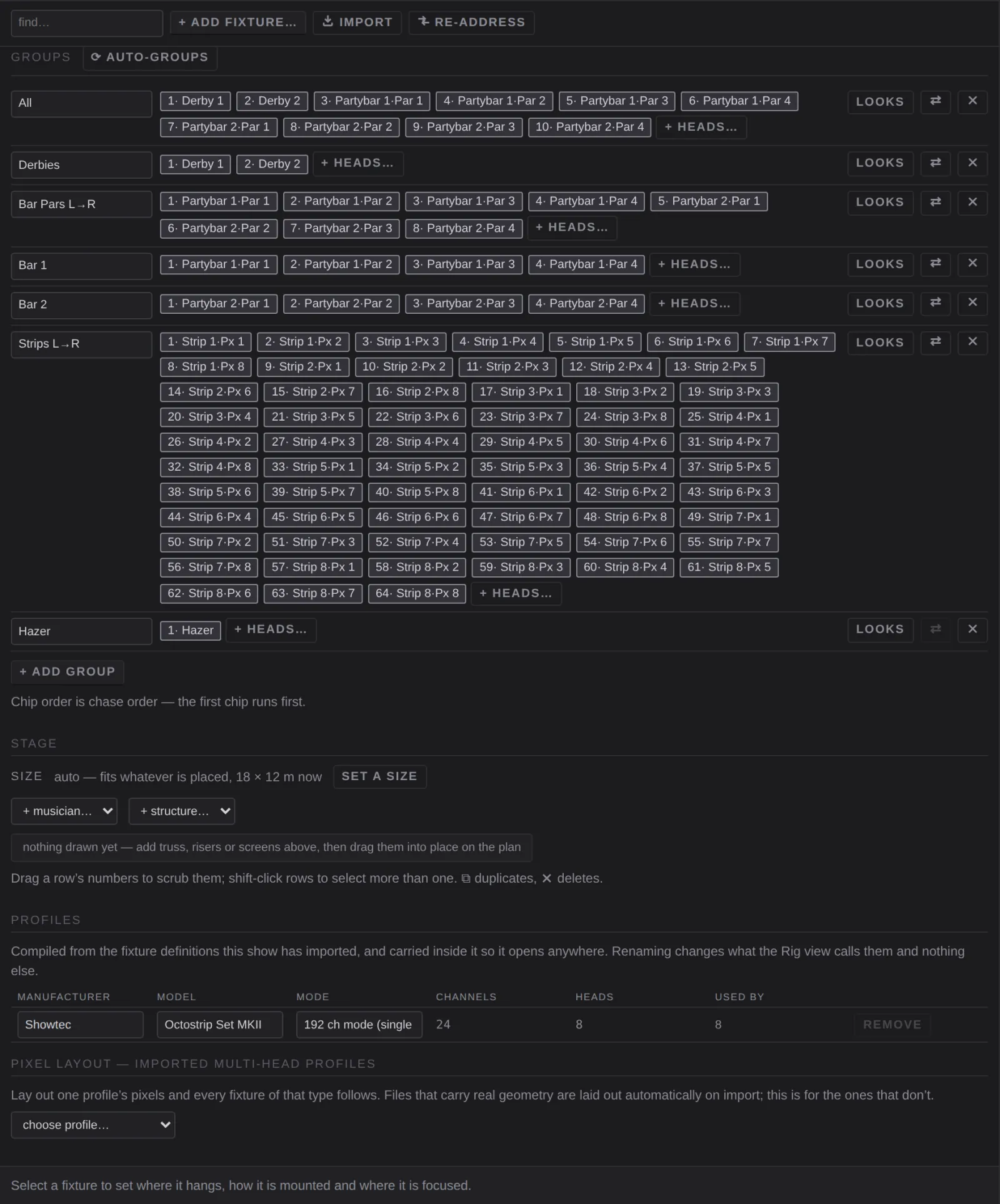
Auto-groups
⟳ auto-groups makes one group per fixture type and one per truss (ordered along the bar). Groups you have renamed or edited are yours, and auto-groups never touches them again.
Group name
Renaming a generated group makes it yours.
Pin
A generated group is marked as derived. Click the mark to keep it as yours.
Heads
Each head is a chip, in chase order. Click a chip to remove that head. + heads… adds heads by name, or use add N selected to at the top to add the selected fixtures to the end of a group.
Looks
Opens the library on the looks that use this group.
Reverse
⇄ reverses the chase order: one click when a bar is hung the other way round.
Delete
✕ deletes the group.
+ add group
Adds an empty group.
Stage
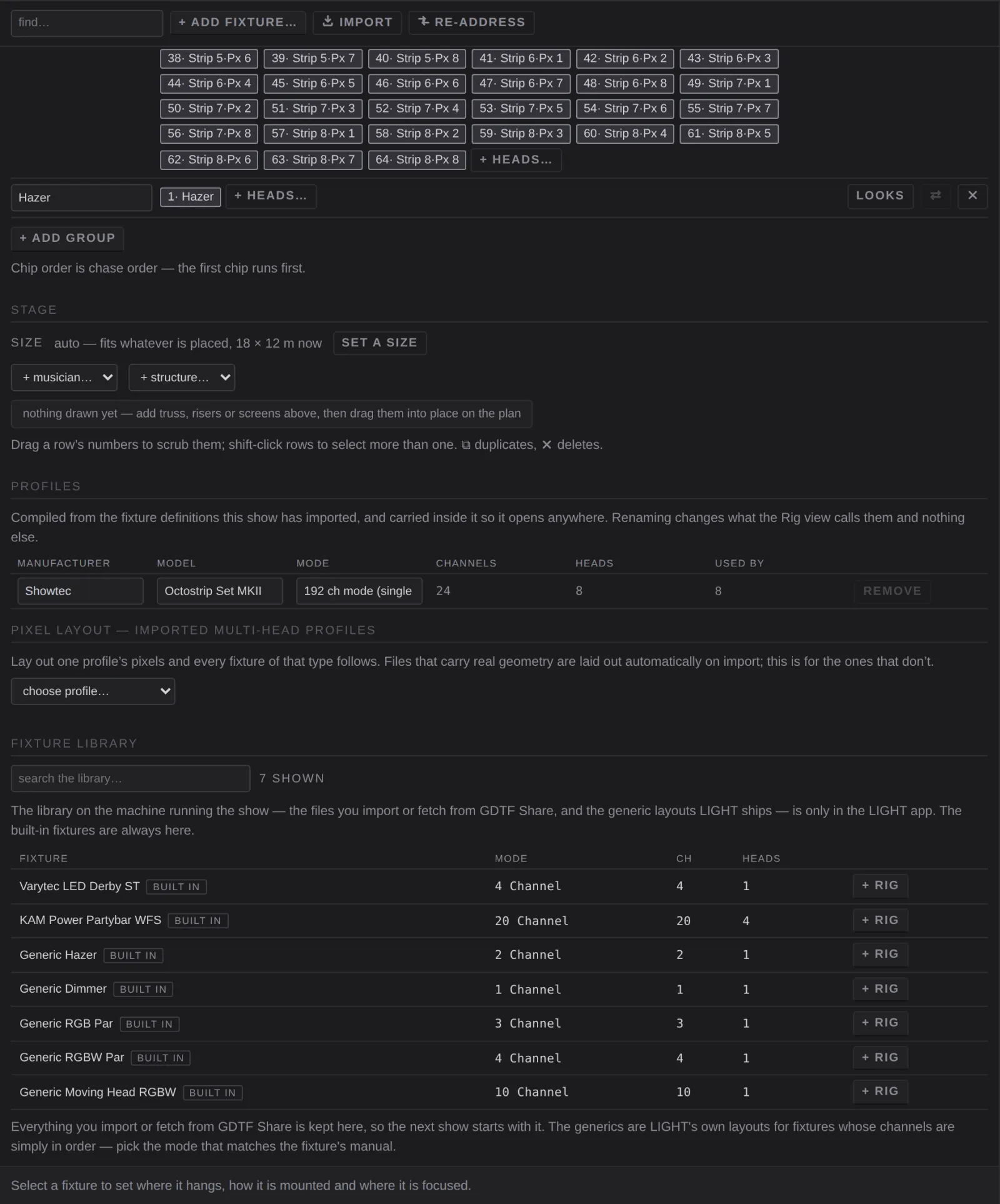
Size
auto fits the stage to whatever is placed. set a size gives it a fixed width, depth and height, in metres. The plan, the 3D stage and the stage window all draw it.
+ musician…
Adds a figure for scale: vocalist, guitarist, bassist, drummer, keyboardist, or a full band. Drag it on the plan; double-click it there to remove it.
+ structure…
Adds a truss bar, a truss leg, a riser or a screen. Drag it on the plan; double-click it there to remove it.
Structure table
Each piece's X, Z, Base Y, Width, Height, Depth and Rot°, with ⧉ (duplicate, 0.5 m across) and ✕ (delete). Drag a number to scrub it; ⇧-click rows to select more than one.
Profiles
The fixture definitions this show uses. They are stored inside the show, so it opens anywhere.
| Column | What it is |
|---|---|
| Manufacturer, Model | for reading only |
| Mode | the DMX mode; you can rename it |
| Channels | per fixture |
| Heads | how many emitters |
| Used by | how many fixtures use it |
remove deletes a profile no fixture uses.
Pixel layout
For a multi-pixel profile whose file doesn't carry its own geometry. Choose the profile, then lay out its pixels as a strip, a grid (with serpentine for strings wired as a snake) or a ring, with the pitch in metres. Applying it sets the pixel positions for every fixture of that type, which is what the pixel-row and pixel-column spreads read.
Library
The fixture definitions on this Mac, for every show:
- built in: compiled into LIGHT and always there. These include a generic dimmer, RGB par, RGBW par, moving head and hazer, for fixtures whose channels are in a simple order.
- generic: more of LIGHT's own simple layouts, kept in the library on the Mac.
- the GDTF files you have imported or downloaded.
A tablet or other browser connected to LIGHT sees only the built-in ones: the library itself lives in the LIGHT app.
search the library… filters it. + rig patches one at the next free address on the first universe. remove deletes an imported file from this Mac.
GDTF Share
In the LIGHT app you can fetch fixture definitions from GDTF Share with your own gdtf-share.com account. Sign in; your password goes into the macOS Keychain and never into a show. refresh downloads the catalogue index (about 6 MB), search it, and download adds a definition to the library. rebuild from library re-imports every GDTF file in the library.
Plan
The 2D plan at the right of the Rig view, and in the stage band's 2D mode.
Plan and Front
Plan is top-down: dragging a fixture sets where it stands. Front is the view from the audience: dragging sets its hang height.
Move, Turn and Select
- Move: drag fixtures and structures. ⌥-drag turns instead.
- Turn: drag turns a fixture or a bar, snapping to 5°.
- Select: click adds a fixture to the selection or takes it out, and nothing can move. Drag on empty space to select a box. ⇧-click does the same from Move.
Snap
On: a fixture dragged near a truss bar clamps on and is rigged there. Off: it goes where you drop it.
Measure
Shows a metre grid and dimensions.
Type to select
With the pointer over the plan, type the start of a name: every fixture whose name starts with it is selected. ⌃Tab steps through them, Esc clears.
Aim at
Under the plan, with moving heads selected: pick a musician or structure in aim at… and LIGHT works out where each head has to point to land on it. store as base aim saves that as their aim.