Light 1.0
Looks
The look library and every control in the look editor, from the header and offsets to each part's intensity, colour, position, beam and haze.
A look is what the lights do: one or more parts, each a fixture group with its settings and effects. All the looks in a show live in one pool. A pad points at a look, so one look can sit on many pads in many songs, and one edit changes all of them.
Look library
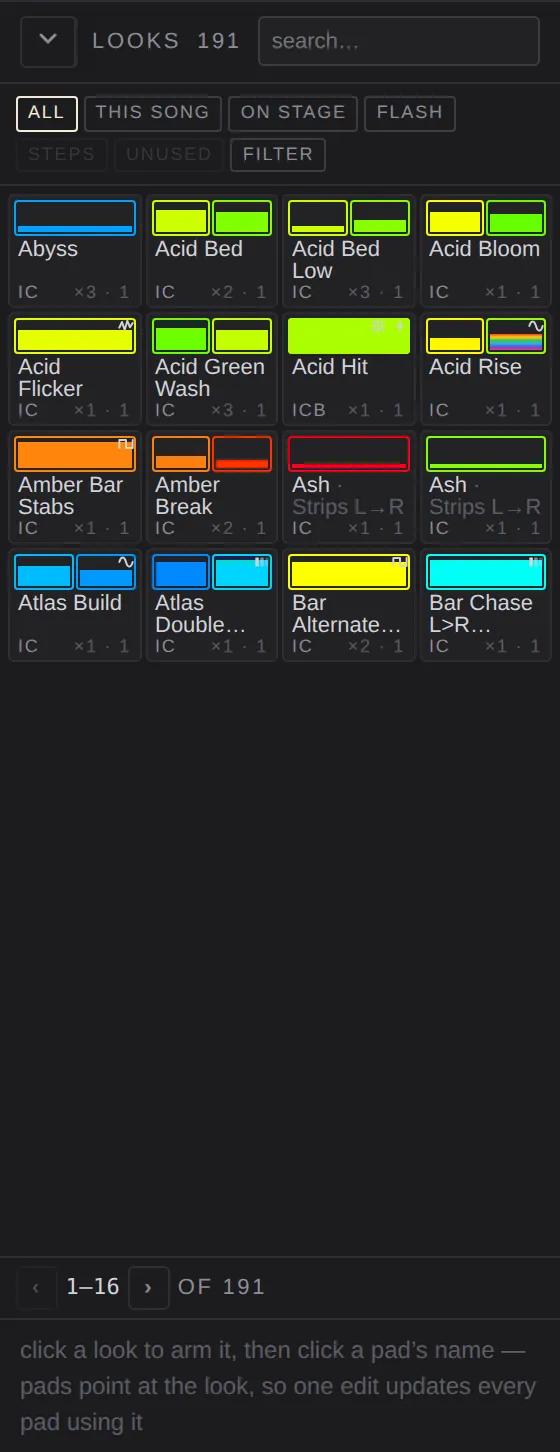
In the Pads view, click looks ‹ at the right edge to open the library. Close it with ▾ at its top.
Search
search… filters the tiles by name as you type. The count beside LOOKS is how many looks the show has.
Filter chips
- all: every look in the show.
- this song: looks on a pad in the song the grid is showing.
- on stage: looks a layer is playing right now.
- flash: looks that play only while their pad is held.
- steps: looks that play a list of other looks in order.
- unused: looks on no pad in any song.
Filter
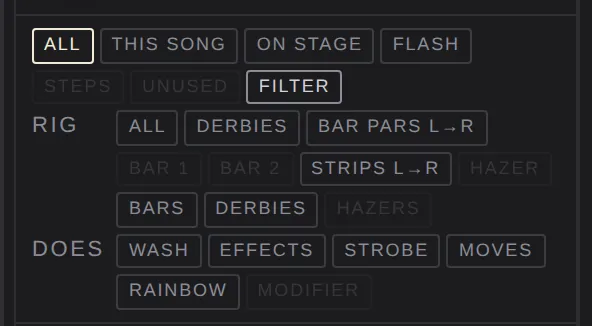
filter opens two more rows of chips. rig narrows to looks that drive a group or a kind of fixture. does narrows by what a look does: wash (sets a colour, brightness or white), effects, strobe, moves (aims, spins or runs an effect on pan, tilt or a shape), rainbow (an effect on hue) and modifier. While any of these is pressed the button reads filter · N and the rows stay open; clear releases them all and keeps your search.
Tiles
Each tile shows the look's name, a picture of its parts, and a footer:
- the letters I C P B: which of intensity, colour, position and beam it sets
- ×pads · songs: how many pads it is on, in how many songs, or unused
Tiles come in banks of sixteen. Use ‹ and › at the bottom to move between banks.
Place a look on a pad
Click a tile to arm it. Every empty pad now reads place here. Click a pad's name, or its body, to put the look there. The tile stays armed so you can place it on several pads. Press Esc or done to stop. You can also drag a tile onto a pad; that replaces whatever was on the pad.
Placing points the pad at the same look. To get a copy you can change on its own, use Duplicate.
Tile menu
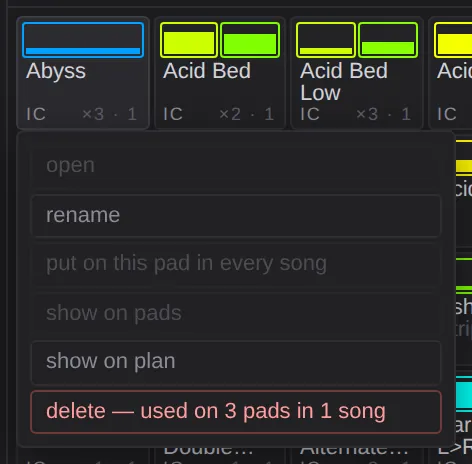
Right-click a tile (press and hold on a touch screen):
- open: select its pad and open it in the editor.
- rename: renames it everywhere it is used.
- put on this pad in every song: with a pad selected, puts the look on that pad in every song.
- show on pads: selects its pad and scrolls the grid to it. Nothing fires.
- show on plan: selects the fixtures it drives on the plan.
- delete — used on N pads in M songs: deletes the look and empties every pad that used it.
Look editor
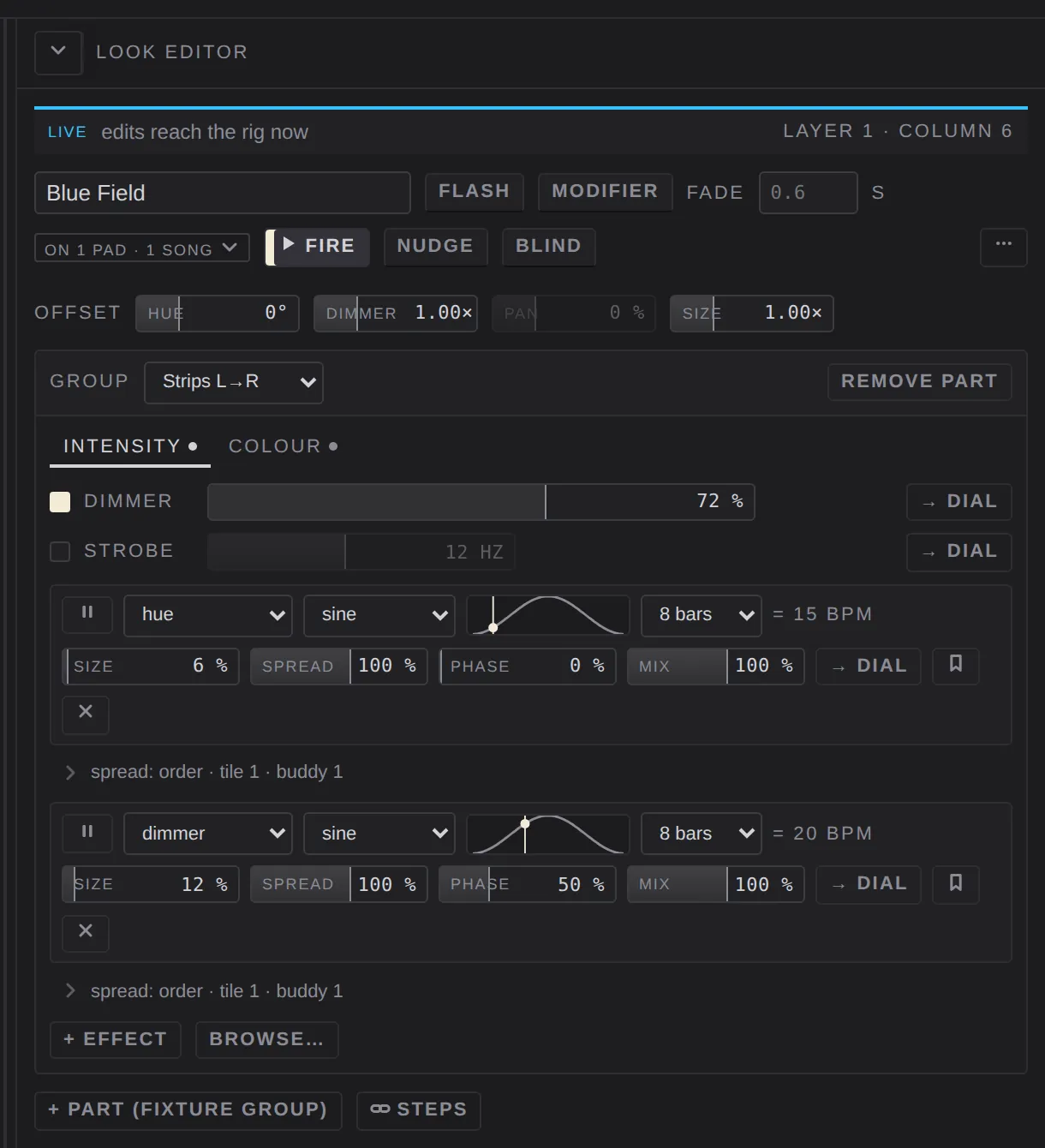
The editor shows the selected pad's look. In the Pads view it is the editor ‹ column at the right; in the Build view it is the Look tab under the pads.
Empty pad
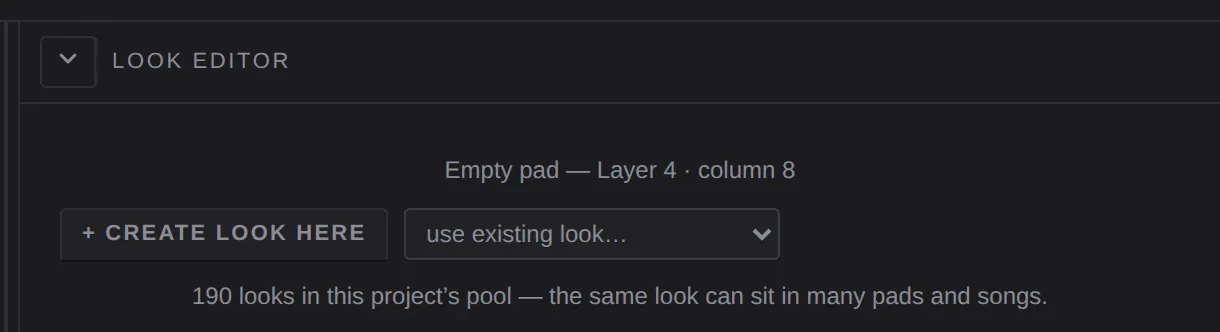
With an empty pad selected, the editor offers:
- + create look here: a new look called New look, with one part on the first group at full.
- use existing look…: put any look from the pool on this pad.
- With no groups yet, a Rig view button, because a look needs a group.
Status stripe
The coloured stripe across the top says whether edits reach the rig:
- LIVE — edits reach the rig now: this look is playing.
- HELD: freeze is on. Edits land when it is released.
- NOT ON THE RIG: the look isn't playing. Edits wait here until it fires, and the audition shows it.
The right end says which layer and column the pad is on.
Name
The field at the top. Renaming changes the name on every pad that uses it.
Flash
Makes the look momentary: it plays only while the pad is held down, and column cues leave it alone. Use it for hits, blinders and strobes.
Modifier
Makes the look shape what is under it instead of lighting anything by itself, whatever the layer's blend is. Brightness dims what is under it, colour turns it, aim and beam swing around it, strobe and white add. Over an empty layer it shows nothing. The layer's master scales only the dimming. Not available on a steps look.
Fade
The look's crossfade time in seconds. Leave it empty to use the layer's default, which shows as the greyed-out value. The fade master scales it.
Shared chip
on N pads · M songs ▾ says how many pads use this look; every edit reaches all of them. Click it and choose make this pad its own copy to split this pad off.
Fire
▶ fire fires the look on its layer, exactly as clicking the pad would.
Nudge
Turns on nudge mode: moving any fader in the editor drives the rig live without changing the show. See Nudging.
Blind
Nudges and dials show only in the audition, and the rig keeps the stored look. Use it to shape a look while the room sees the old one. Click again to let them through. ALL STOP ends it.
More menu
The ⋯ button at the right:
- put another look on this pad
- clear pad: empties the pad; the look stays in the pool
- delete look: removes it from the pool and from every pad in every song. LIGHT says how many pads and steps use it first.

Offsets
A row of four faders that change the whole look at once. Each is a nudge: it drives the rig live, Keep writes it into the look, Discard drops it. A fader is greyed out when the look has nothing it can reach.
Hue
Turns the colour of every part that sets one, from −180° to +180° round the wheel. The default is 0°.
Dimmer
Scales the brightness of every part that sets one, from 0 to 2×. The default is 1.00×.
Pan
Swings every head the look aims left or right of where it aims them, −50% to +50%. The default is 0.
Size
Scales how far every effect in the look swings, from 0 (flat) to 2×. The default is 1.00×.
Steps
⛓ steps turns a look into a list of other looks that play in order: hard cuts on the beat, looping, starting at step 1 each time it is fired.
- Each row picks a look and how many beats it lasts. ↑ and ↓ reorder, ✕ removes.
- + step adds a step. You need at least one plain look to pick.
- → plain look removes every step and turns it back into a plain look.
A step can't be another steps look.
Parts
A look has one or more parts. Each part is one fixture group and what that group does. + part (fixture group) adds another part with its own colour, position and effects.
Group
The group this part drives. The order of fixtures in the group is the order chases and spreads run in. See Groups.
Remove part
Deletes this part from the look.
Feature tabs
Intensity, Colour, Position, Beam and Haze. Only the tabs this group's fixtures can use are shown. A dot on a tab means the look sets something there; an amber dot means a nudge is driving it.
Enable boxes
Every parameter has a box on its left. A look only writes what it enables. Anything left unticked passes through from the layers below. That is how a colour-only look can sit on top of an intensity look.
Dial button
→ dial beside a parameter points a dial at it.
Intensity tab
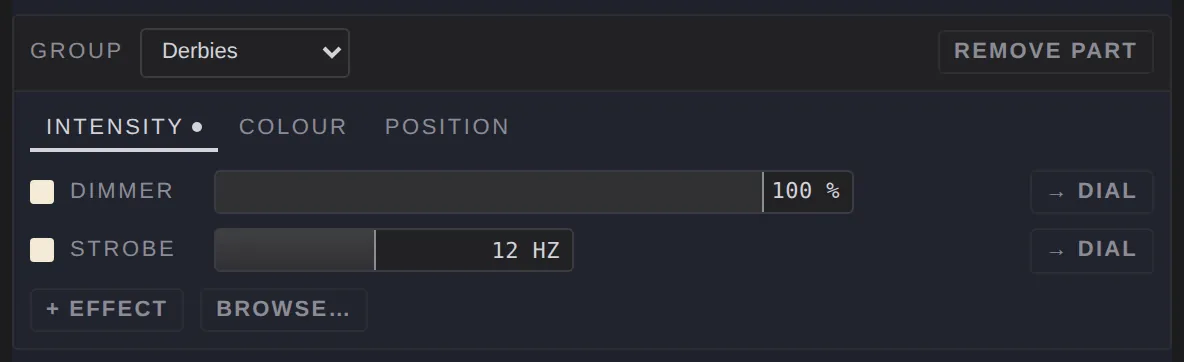
Dimmer
Brightness, 0 to 100%. Full when first enabled; double-click resets it to full.
Strobe
Strobe rate, from slow at the left to fastest at the right, shown in flashes a second (about 1 to 20 Hz). Where the fixture has built-in patterns, choose strobe (hard cuts), pulse (each flash ramps open and shut) or random (irregular flashes around the rate). A fixture without the pattern strobes plain.
Colour tab
White
On fixtures with a white LED: how much of it to add.
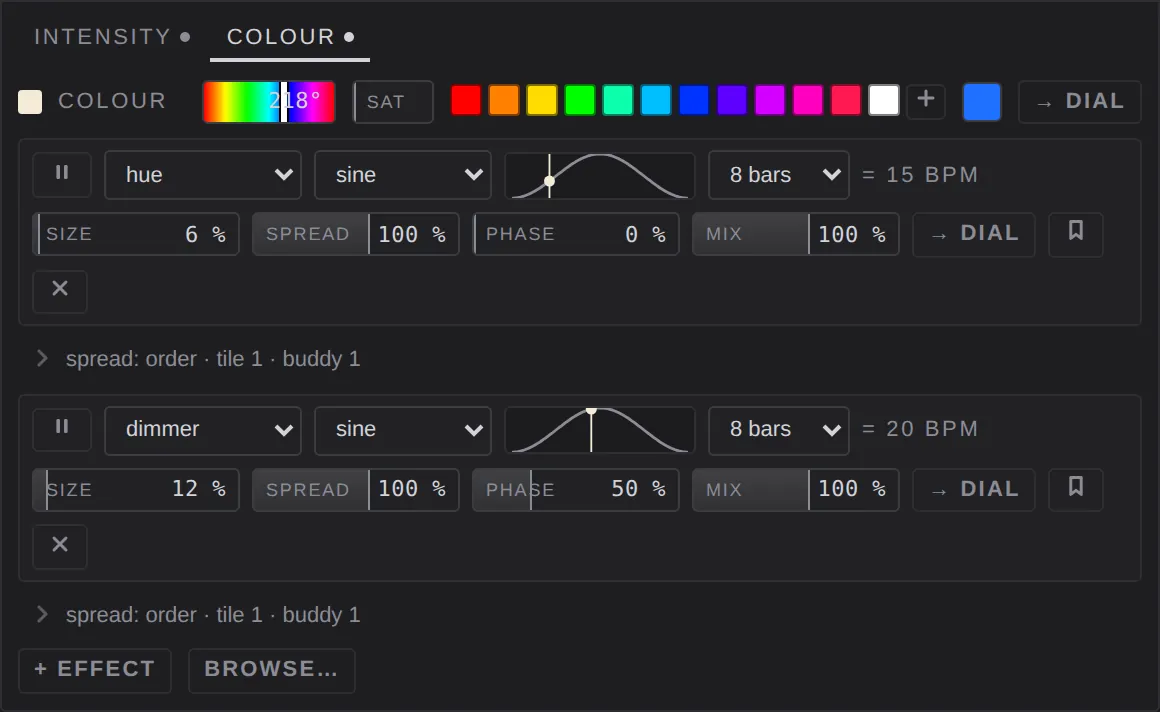
Colour
A hue (0 to 360°) and a saturation fader, with a palette of swatches beside them. Click a swatch to use it. Twelve come with every show: red, orange, amber, green, teal, cyan, blue, violet, purple, magenta, pink and white.
- + keeps the current colour as a new swatch.
- Right-click a swatch for Retune to this part's colour…, Rename… and Delete. Retuning changes every look that uses that swatch.
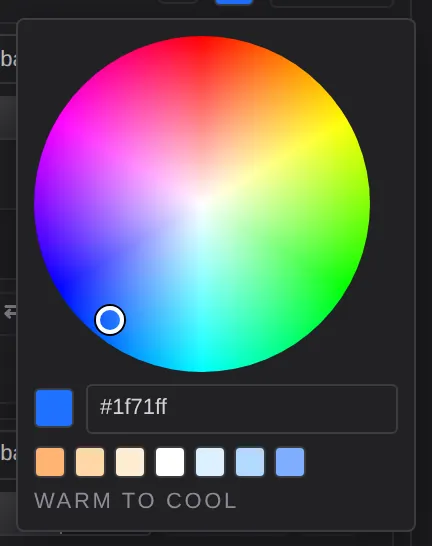
- Click the colour chip to open the colour picker: a wheel for hue and saturation and a field to type a value.
Derby colour
On derbies, which mix colour from fixed slots: auto — nearest to colour picks the slot nearest the colour above, or choose a slot yourself.
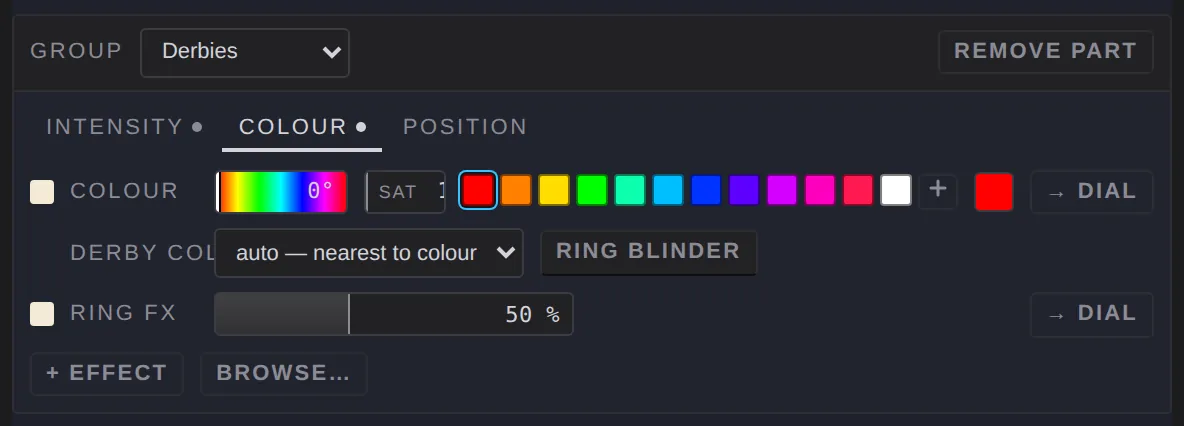
Ring blinder
On derbies with a white LED ring: the ring full on.
Ring fx
The fixture's own built-in ring effect, where it has one.
Position tab
Pan and tilt
On moving heads: where it points, 0 to 100% of the fixture's travel, 50% by default. Looks move around the fixture's aim (set in the Rig inspector) rather than from the centre of its travel.
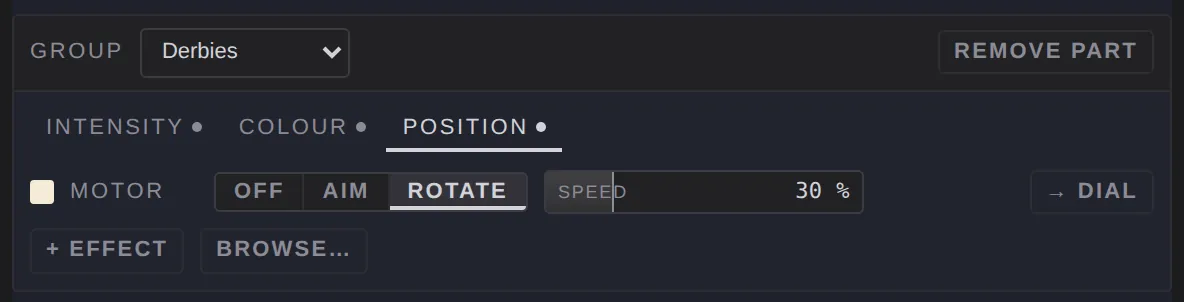
Motor
On derbies: off, aim (hold a position) or rotate (spin), with a position or speed fader. Rotate starts at 30%.
Beam tab
On fixtures with the channels for it:
- zoom, focus, beam size, soften, and warmth (shown in kelvin where the fixture's range is known). Each starts at 50%.
- gobo and prism: pick the fixture's own slot. 0 is open (no gobo, no prism). Unticked leaves the wheel wherever the fixture parks it.
- gobo spin, prism spin and flower spin.
A warning appears when a fixture has beam channels its profile doesn't drive.
Haze
A part for a hazer has no tabs, just one haze row:
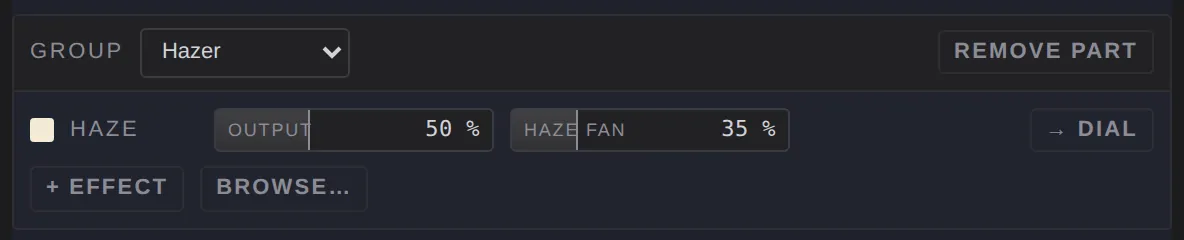
- output: how much haze, 50% when enabled.
- haze fan: the fan, 35% when enabled.
The top bar's haze fader adds a manual level on top.
Effects
Under the tabs, each part has its effects and three buttons: + effect, browse… and apply from pool…. Everything about them is on the Effects page.