Crewbox 1.0
Admin panel
Everything in the admin panel - unlocking it, crew PINs, channels, the box's readiness list and settings, networks, updates, the licence, crash reports and export.
The admin panel is where the operator runs the event: crew PINs, channels, event settings, networks, updates, the licence and the post-event export. Open it from the cog beside your name at the bottom of the sidebar. Anyone can open it, but it needs the admin password.
Unlocking
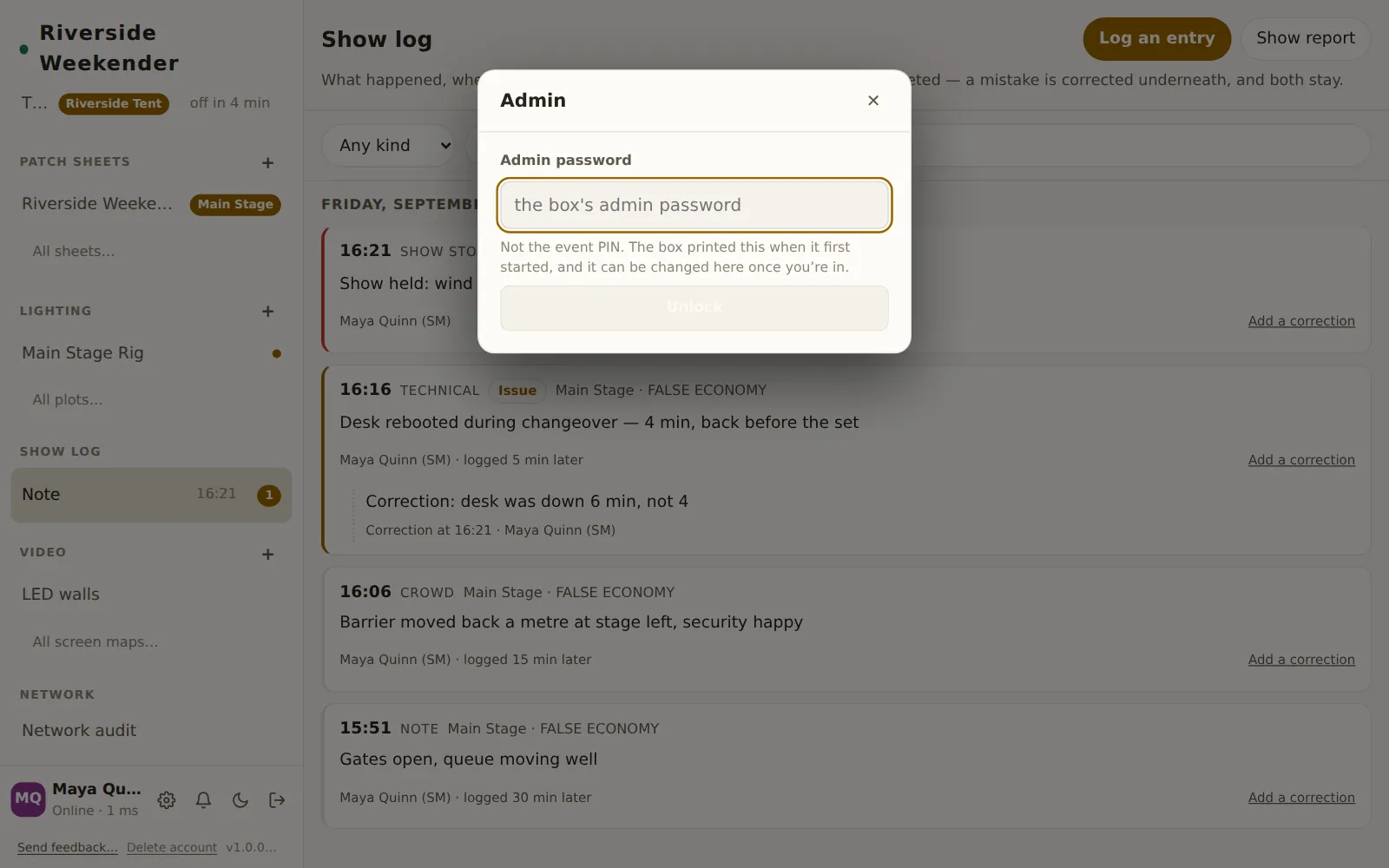
Enter the password
Type the box's admin password and press Unlock. It's not the event PIN. The box prints it in the terminal the first time it starts, or the operator set it on the setup page, and it can be changed in This box. Checking… shows while the box checks it.
How long it stays unlocked
Closing the panel with ✕ leaves it unlocked on this device, so you can keep going back to it during a shift. The unlock is held in memory only: reloading the page, closing the tab or the app, or the box restarting all lock it again.
Lock
In the panel's header. Locks the panel now, for example before you hand your phone to someone.
Banners at the top
Licence banner
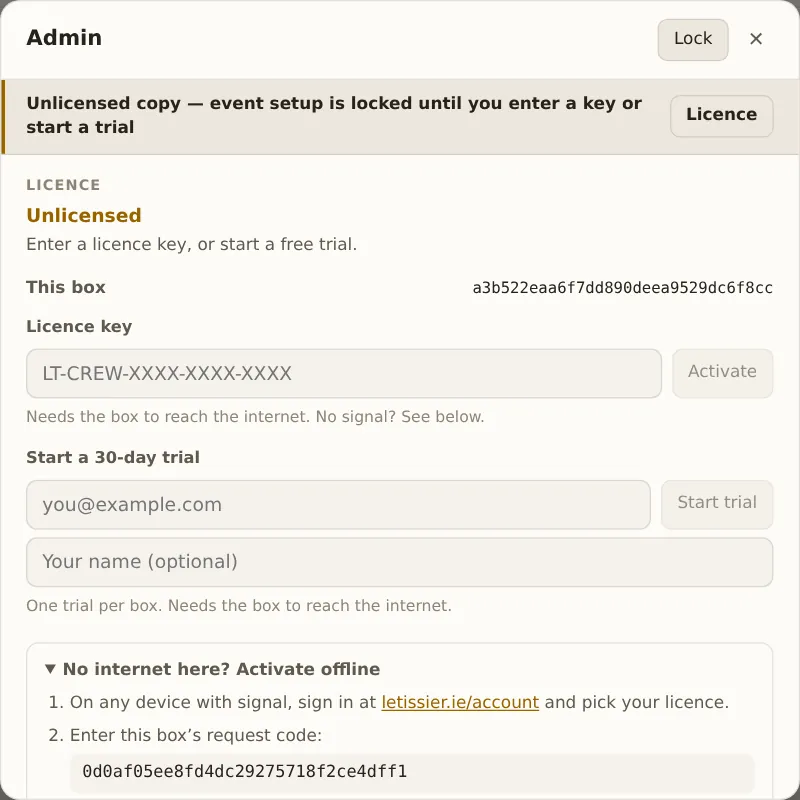
On a box without a licence or trial, a banner stays at the top of the panel: Unlicensed copy — event setup is locked until you enter a key or start a trial. Its Licence button scrolls to Licence.
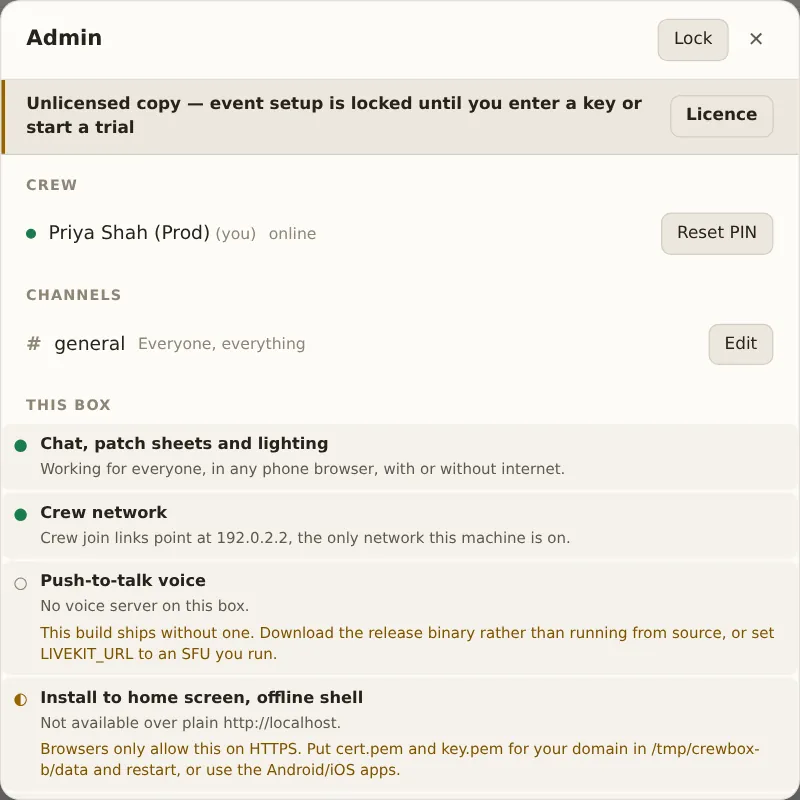
Send a crash report?
After the box has crashed and restarted, the panel asks once whether to send the report. Send queues it, Don't send deletes it, and ticking Always send crash reports turns on automatic sending. Nothing is sent unless someone presses Send.
Crew
Everyone who has joined, with a presence dot, online or offline, (you) beside your own name, and an admin tag where it applies.
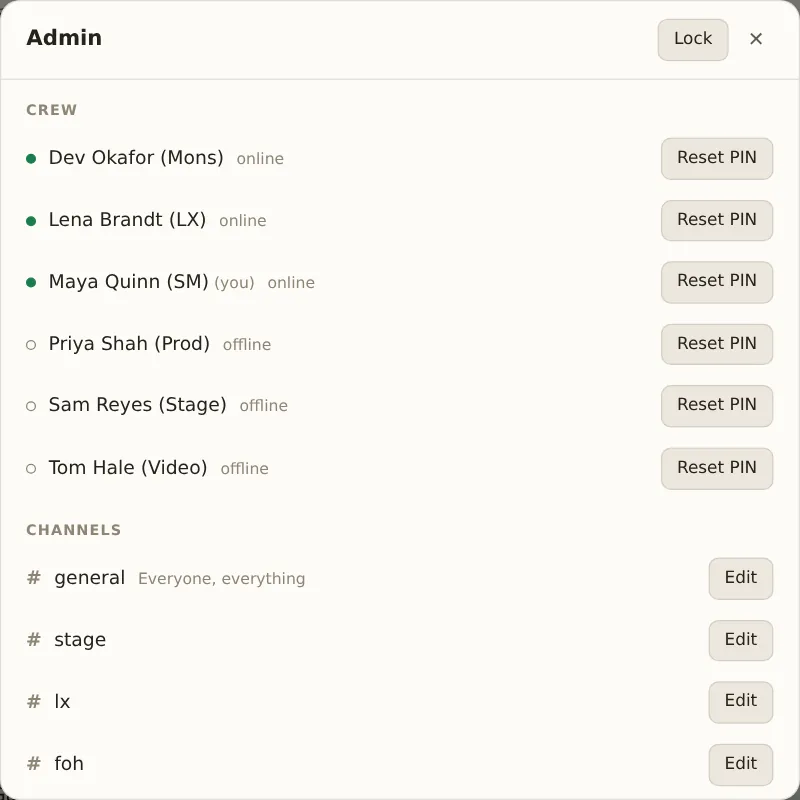
Reset PIN
For someone who has forgotten their PIN. Type a new PIN of 4 to 8 digits and press Save, then tell them the new PIN. Esc cancels.
Channels
Every public channel, with its topic.
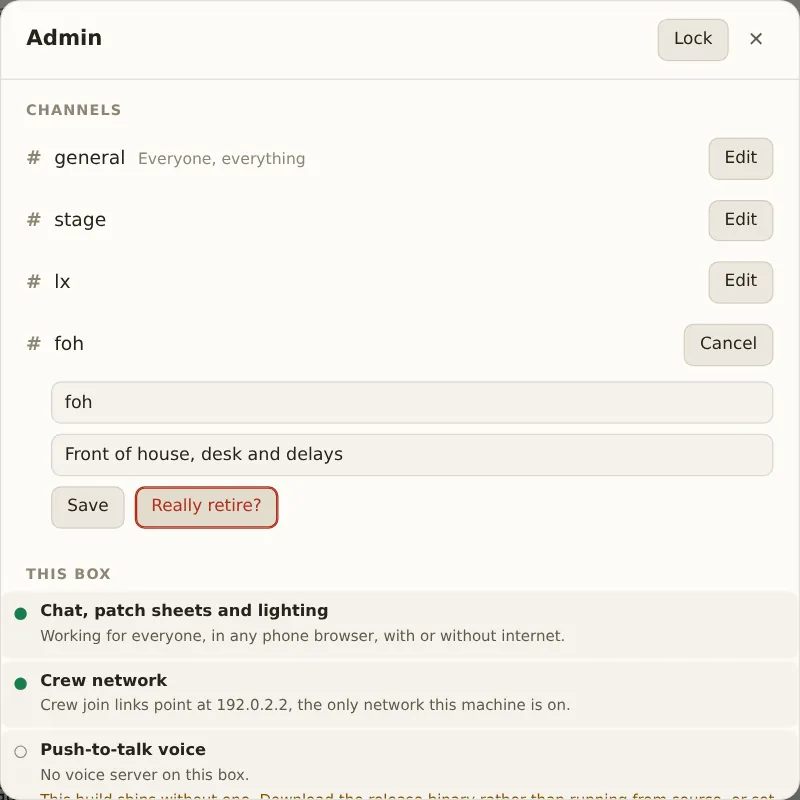
Edit
Opens the channel's name and topic. Cancel closes them without saving.
Name
Rename the channel. Names are lower-cased, spaces become hyphens, and the limit is 32 characters.
Topic
Shown under the channel's name in its header, up to 200 characters.
Save
Saves the name and topic for everyone.
Retire
Takes the channel out of everyone's list. Press it again at Really retire?
to confirm. The messages are kept and are still in the export.
#general can't be retired.
This box
What the box can do right now, and the event's settings.
Readiness list
Each row has a state (● Working, ◐ Limited, ○ Off or · For information), a sentence, and a fix wherever it isn't working.
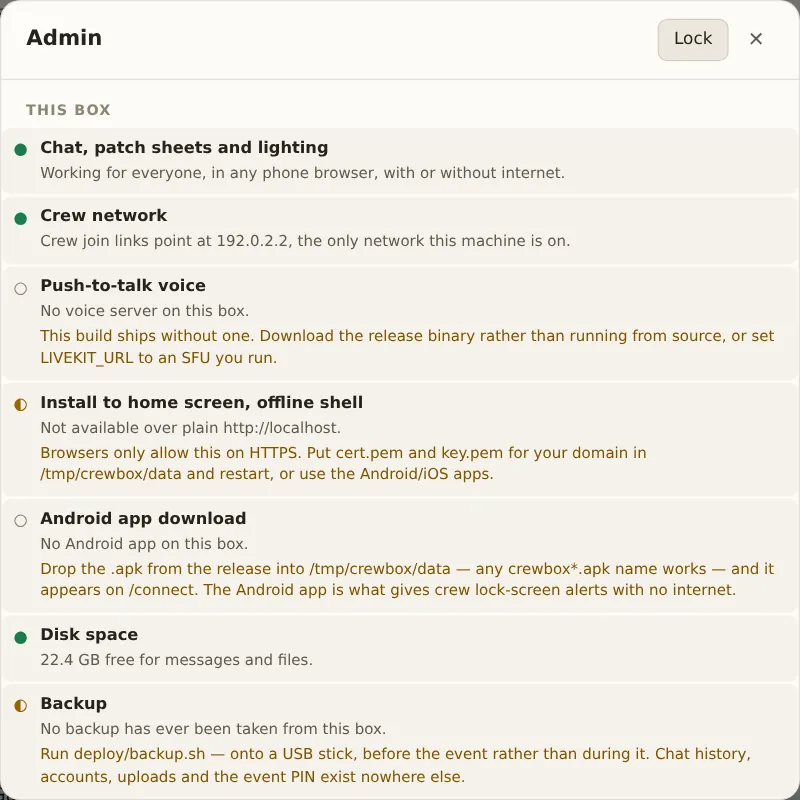
| Row | Tells you |
|---|---|
| Chat, patch sheets and lighting | The core app is working for everyone. |
| Crew network | The address crew join links point at. |
| Phones stay on this Wi-Fi | Whether phones, iPhones especially, will stay on a network with no internet. See Troubleshooting. |
| Push-to-talk voice | Whether this box has voice, and whether browsers can talk or only listen (the HTTPS rule). |
| How comms sound | How voice has actually sounded on crew devices. |
| Install to home screen, offline shell | Needs HTTPS. See HTTPS, names and certificates. |
| Android app download | Whether the box is serving the Android app (how). |
| Power | Mains or battery, and whether the machine will be kept awake. |
| Clock and timezone | The running order and the show log rely on the box's clock. |
| Disk space | Space left for messages and files. |
| Backup | When a backup was last recorded. |
| Crew joined | How many people have joined. |
Under it, two more lists appear when they apply: Lighting network (what the lighting listener hears) and Audio & media network (what the media watcher hears).
Download port 80 config
Shown only when the box couldn't take port 80 for its phone-check responder and
is using another port. It downloads crewbox-port80.conf, one forwarding rule
to run on the box machine.
Event name
Shown to crew in place of "Crewbox". Press Save to apply it.
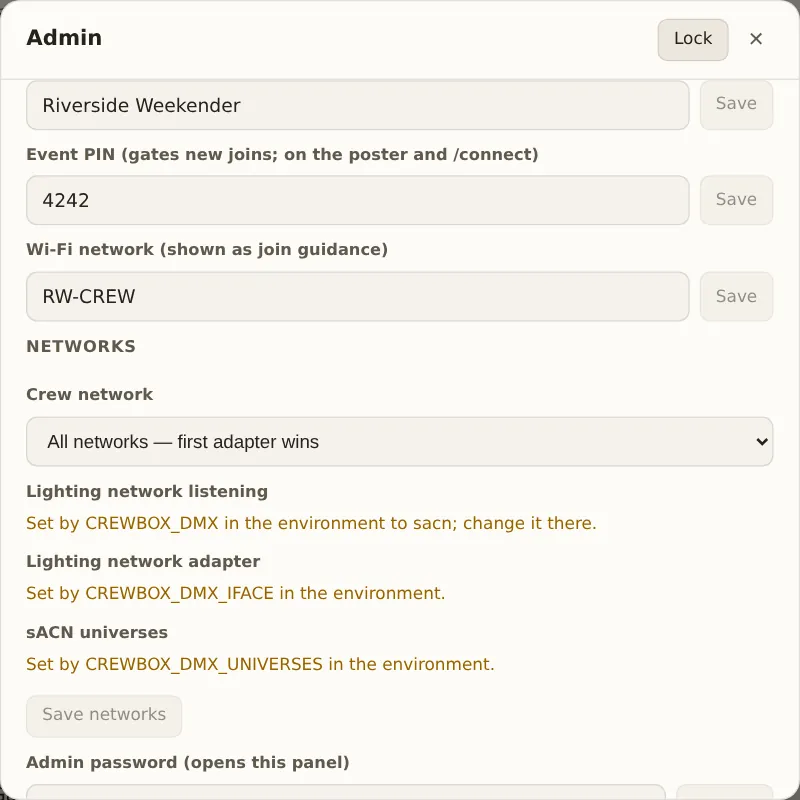
Event PIN
The PIN new crew need to join. It's printed on the poster and on /connect,
and must be at least 4 characters. Changing it doesn't affect people who have
already joined. Update the poster, or send crew to /connect.
Wi-Fi network
The Wi-Fi name shown to crew as joining guidance.
Networks
Which network adapters the box uses, chosen from the adapters the machine has. An adapter that was saved but is no longer connected (a USB adapter left in the van, for example) stays in the list, marked not connected.
- Crew network: the adapter that faces crew. All networks — first adapter wins is the default.
- Lighting network listening: Off, sACN, Art-Net or Both. This powers the lighting live bar and the network audit's lighting card.
- Lighting network adapter: which adapter to listen on, or Let the OS choose.
- sACN universes: which universes to join, such as
1-16.
Save networks updates the join links straight away. The rest takes effect when the box restarts, and the readiness list says so until then. A setting that comes from the box's environment shows Set by … in the environment and can only be changed there (see environment variables).
Admin password
Type a new password of at least 8 characters and press Change. Changing it
locks every other device that had the panel open. If the box was started with
ADMIN_PASSWORD, the panel says so, and the password can only be changed there.
Locked settings
Until the box has a licence or a trial, Event name, Wi-Fi and Networks are locked, and a note says so. The event PIN, the admin password, PIN resets, channel edits, updates and the export always work.
Update
Shown only when there's something to act on. The box checks once a day for a newer Crewbox (the first check comes 30 seconds after it starts). It never installs anything on its own.
- v… is available, with a What changed link. Download v… fetches the new version and checks that it was signed by letissier.ie. Downloading changes nothing on the box.
- Downloading … and checking its signature…
- … is downloaded and verified. Install and restart… opens a confirmation, Install … and restart?, that lists what a restart interrupts right now: the acts on stage and how long they have left, how many people will lose comms, and roughly how long the box will be down. Not now backs out. Install now goes ahead.
- Installing … The page watches for the box to come back, then says The box came back on …. The panel locks again, and Reload the panel loads it fresh.
The box copies its database before installing. If the new version won't start, the box puts the old one back on its own, and the panel shows what went wrong with Try again.
A box that can't update itself says why instead. For example, a box run from
source says this box runs from source — update it with git, not from here.
A box started with CREWBOX_UPDATE_CHECK=0 never checks, so this section
doesn't appear.
Box info
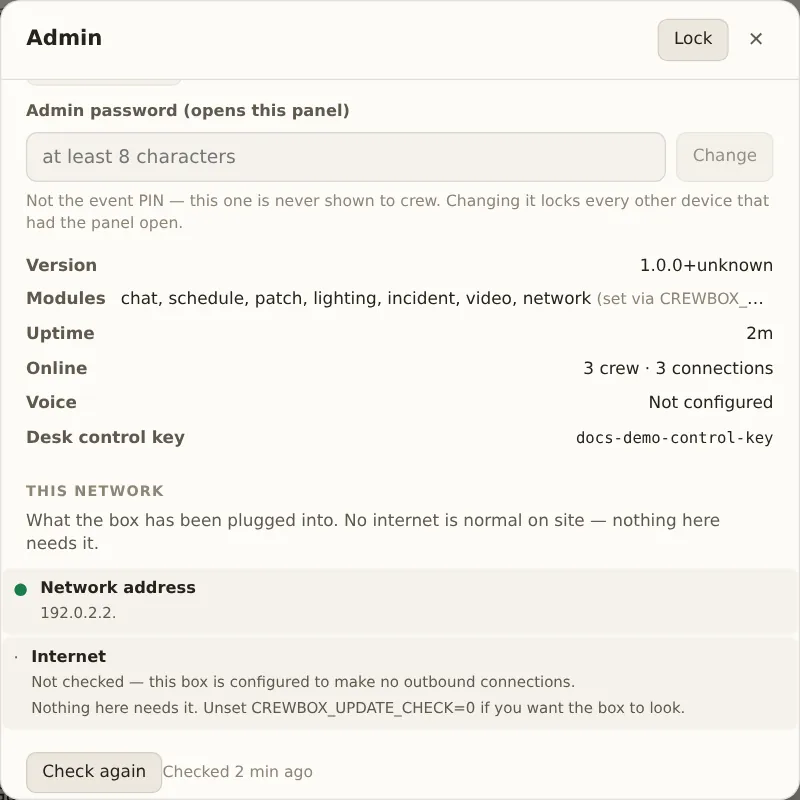
| Item | Shows |
|---|---|
| Version | The version running, with v… available when there's a newer one. |
| Modules | The modules turned on, set with CREWBOX_MODULES. |
| Uptime | How long the box has been running. |
| Online | N crew · N connections. |
| Voice | Enabled or Not configured. |
| Desk control key | The key a vision desk or Stream Deck uses. See Drive the box from a desk. |
This network
What the box has been plugged into. No internet is normal on site, and nothing here needs it.
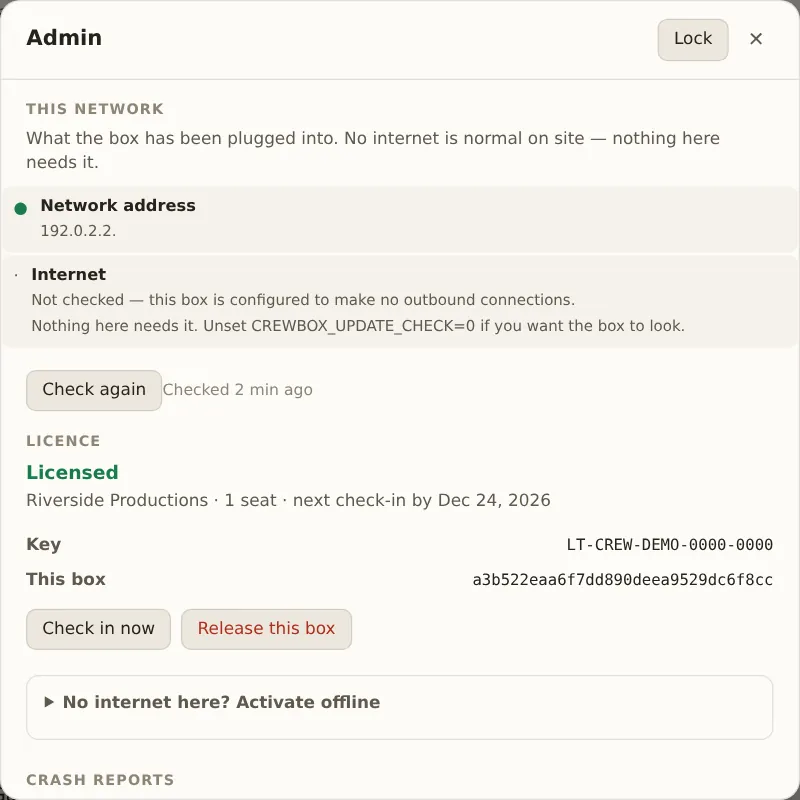
The rows are Network address, Internet, Crew can reach … by name, Certificate and Clock, each with the same states and fixes as the readiness list.
Check again
Checks again now. The checks run in the background because finding out that there's no internet means waiting for a timeout. Checked N min ago shows how old the result is.
Download DNS config
Shown only when crew can't reach the box by its name. It saves
crewbox-dns.conf to put on the venue router. See HTTPS, names and
certificates.
Licence
The licence's state, with the details under it.
| State | Means |
|---|---|
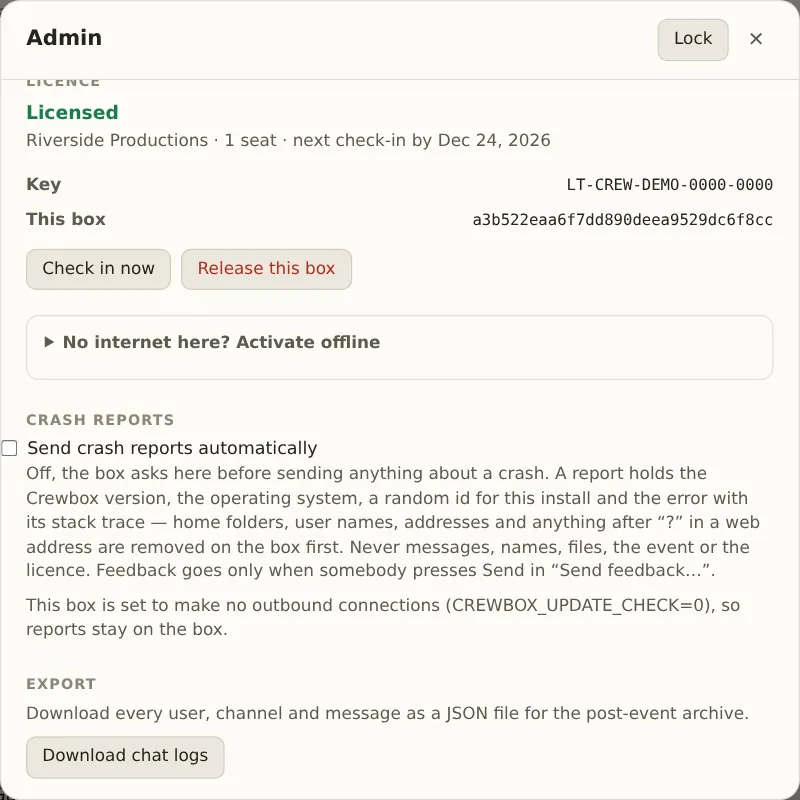
| Licensed | The licence holder's name, seats and the next check-in date. |
| Trial | The date the trial ends. Enter a key any time to keep going. |
| Licensed — check-in due | The box hasn't reached letissier.ie for a while. Nothing is restricted. |
| Licensed — update window ended | This version is newer than the updates the licence includes. It keeps working. Renew to keep updating. |
| Trial ended | Enter a key to keep setup unlocked. Crew features carry on. |
| Licensed to another box | The licence was activated on another machine, often after a backup was restored onto a new one. |
| Unlicensed | Enter a key or start a free trial. |
Key, This box (the machine's id) and Last check-in follow when they apply.
Check in now
Checks in with letissier.ie now, when the box has internet. It also checks in by itself.
Release this box
Frees the licence so it can be used on another machine. Press it again at Really release? to confirm. If the box can't reach letissier.ie, it removes the licence here and tells you to free the seat from your account page.
Licence key, trial and offline activation
On a box without a licence: Licence key with Activate, Start a 30-day trial with your email, and No internet here? Activate offline. The trial and your licence covers each one.
Crash reports
Send crash reports automatically
Off by default. When it's off, the panel asks after a crash. A report holds the Crewbox version, the operating system, a random id for this install, and the error with its stack trace. Home folders, user names, addresses and anything after "?" in a web address are removed on the box before sending. A report never includes messages, names, files, the event or the licence.
Waiting reports and Send now
The line under the setting says how many reports are waiting to go when the box
next has internet. Send now tries straight away. On a box started with
CREWBOX_UPDATE_CHECK=0, reports stay on the box.
Export
Download chat logs
Saves every user, every channel (retired channels and direct messages included) and every message as one JSON
file, crewbox-export-YYYY-MM-DD.json, for the post-event archive. The button
reads Preparing… while it builds the file.