Crewbox 1.0
Installing
Install the box on macOS, Windows or Linux, put the Android app on phones, start the trial or enter a licence key, update, and uninstall.
Crewbox has one thing to install: the box, on one machine on the event network. A laptop is fine. Crew install nothing; they open the app in their phone's browser (or the Android app, below).
Download from the Crewbox page or the releases page.
| Platform | File | Notes |
|---|---|---|
| macOS | Crewbox-<version>.dmg | Universal: Apple Silicon and Intel. A menu-bar app. |
| Windows | crewbox-win32-x64-<version>.exe | 64-bit. A tray app. |
| Linux | crewbox-linux-x64-<version> | 64-bit, one file. |
| Android | crewbox-<version>.apk | The crew app, for phones. |
The box doesn't need the internet once it's installed, so install it before you leave for site.
macOS
- Download
Crewbox-<version>.dmgand open it. - Drag Crewbox into Applications.
- Open it from Applications.
The .dmg is signed and notarised by Apple and the notarisation is stapled to
it, so it opens with no warning, even with no internet. Crewbox runs as a
menu-bar item beside the clock and has no Dock icon, because it is a server
rather than a window. While it runs it keeps the Mac awake, lid shut included:
a box that sleeps takes the whole crew's comms with it.
Windows
- Download
crewbox-win32-x64-<version>.exe. - Double-click it.
- Windows SmartScreen warns about an unrecognised app. Click More info, then Run anyway.
The Windows build isn't code-signed in 1.0, which is why SmartScreen warns. The warning means Windows hasn't seen the file before, not that anything is wrong. Crewbox then runs from the system tray.
Linux
chmod +x crewbox-linux-x64-<version>
./crewbox-linux-x64-<version>
It runs in the terminal you start it from. Ctrl-C or crewbox --stop stops
it.
macOS or Linux in one line
curl -fsSL https://crewbox.letissier.ie/install.sh | sh
This downloads the right binary for the machine, clears the macOS quarantine
flag and starts it. On a Mac this gives you the bare binary rather than the
menu-bar app; use the .dmg if you want the menu bar.
First launch
The box opens your browser on its own address. On a machine that has never run
Crewbox that is the setup page (/setup); after that it's the app. The
terminal it runs in (if you can see one) prints the same things: the address
crew join, the event PIN, a QR code and, on the very first run, the admin
password it made up for you.
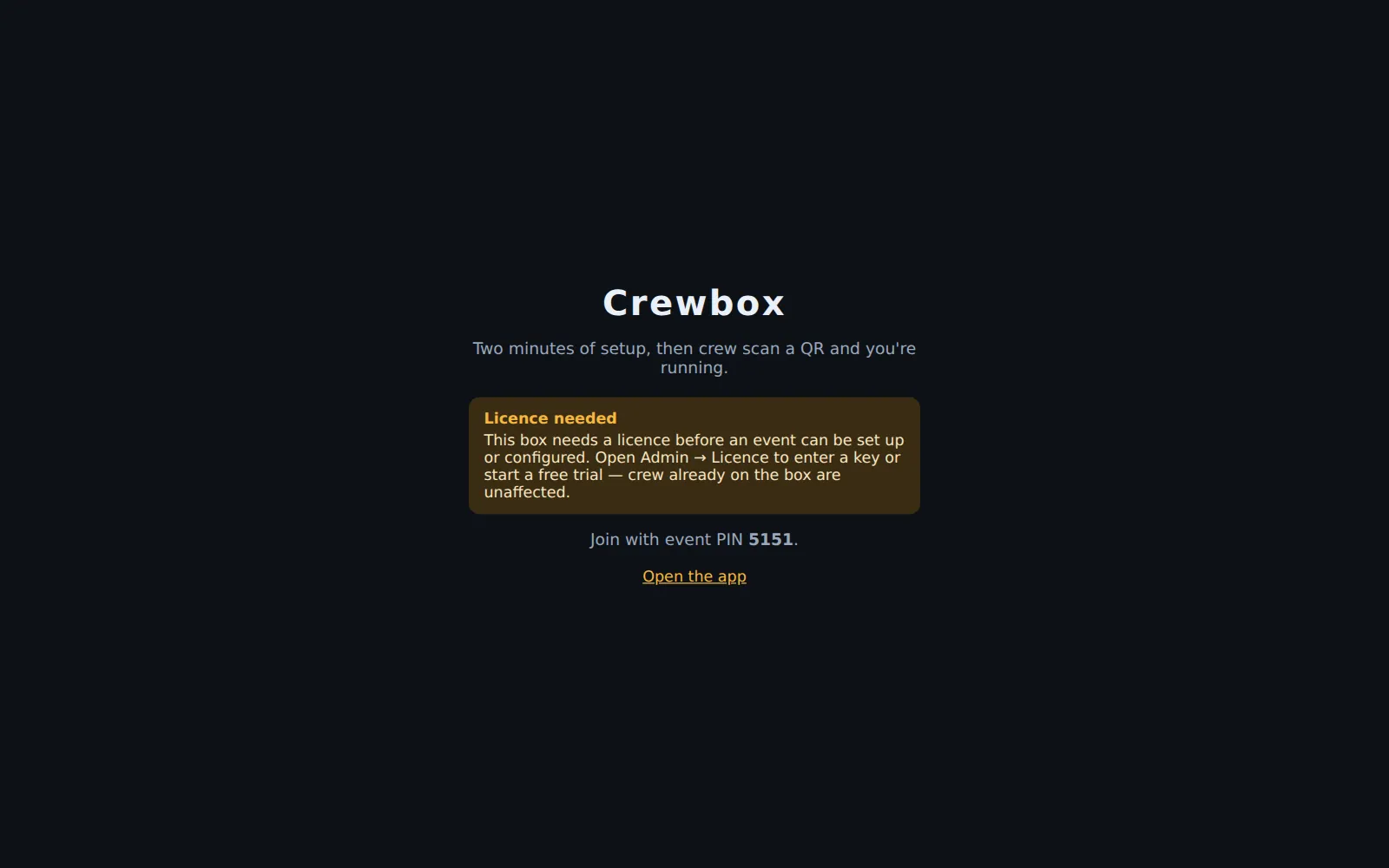
What happens next depends on the licence. A new box is unlicensed, so its setup page says Licence needed and shows only the event PIN and the admin password. Getting started walks through it: join, start the trial in the admin panel, then name the event.
Everything the box keeps (messages, files, documents, settings, the licence)
lives in one folder: ~/.crewbox/data in the home folder of the account that
runs it. Back that folder up and you have backed up the event.
The Android app
The Android app is the same app with two extras: it raises lock-screen alerts
with no internet on site, and it can use the microphone for voice over plain
http://. Give it to anyone who must not miss a call.
Two ways to get it onto phones:
- From the box. Put the
.apkfile (anycrewbox*.apkname) into the box's data folder. The box serves it at/crewbox.apk, and the/connectposter page adds a download link. That address never changes, so printed posters stay right across versions. - Directly. Download
crewbox-<version>.apkon the phone and open it.
Android asks once whether to allow installs from this source; that's the cost of not going through a store. On first run the app asks for notification permission and to be left out of battery optimisation. Say yes to both: they are what keeps alerts working with the phone locked.
The app's join screen has one extra field, Crew server, because unlike a browser it doesn't know which box it belongs to. Scanning the box's QR code fills it in.
There's no iPhone app in the 1.0 downloads. iPhones use the app in Safari,
which does everything except push-to-talk over plain http:// and alerts
while locked. See the FAQ.
The trial and your licence
Crewbox is paid, with a free 30-day trial. A licence covers 1 box, and any number of crew.
Crew features never stop. Chat, voice, the running order, patch sheets, lighting, the show log, video and the network audit all keep working on an unlicensed box, a box whose trial has ended, and a box that hasn't checked in for months. What a licence unlocks is the operator's event setup: the setup page, and the admin panel's event name, Wi-Fi and network settings. The event PIN, the admin password, crew PIN resets, channel edits, updates and the chat export always work.
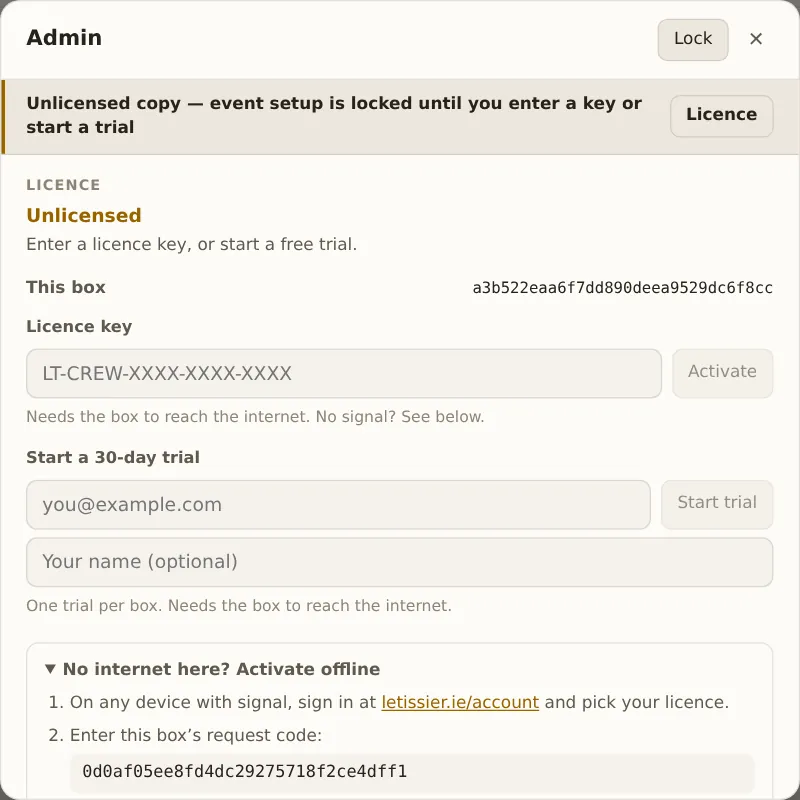
All of this is in Admin → Licence. Open the admin panel from the cog next to your name and unlock it with the admin password.
Start the trial
Under Start a 30-day trial, type your email (and your name, if you like) and press Start trial. The box needs the internet for this one moment. There's one trial per box.
Enter a licence key
Type the key into Licence key and press Activate. Keys look like
LT-CREW-XXXX-XXXX-XXXX. The box forgives the usual misreadings: I or L for
1, O for 0, U for V, and a missing LT-. A key for another
letissier.ie product is refused with a message saying which product it's for.
Activation needs the internet.
No internet at the venue
Open No internet here? Activate offline. It shows this box's request code and the steps: on any device with internet, sign in at letissier.ie/account, pick your licence and enter the box's request code; paste the token it gives you into Licence token on the box and press Use this token. The token is tied to this box, so it can't be reused on another machine.
Staying licensed
A licensed box checks in with letissier.ie when it has the internet: it tries about once an hour and a success holds for a day. A box that goes without internet stays fully licensed for 90 days. After that the licence status reads Licensed — check-in due, and nothing is restricted: the next time the box sees the internet it checks in by itself, or press Check in now.
Release this box gives the licence up so you can activate it on another machine. A licence copied to a different machine with the data folder shows Licensed to another box and locks setup, as if unlicensed.
Updating
The box checks once a day whether a newer Crewbox exists, and says so; it never installs anything by itself. When there's news:
- the menu-bar or tray item shows Update available: v…, which opens the admin panel;
- Admin → This box shows v… is available with a link to what changed.
Updating takes two presses in the admin panel. Download fetches the new version and checks its signature; nothing changes and nothing restarts. Install and restart… then shows what a restart would interrupt right now (the act on stage, how many people lose comms) and asks again. Install now takes the box off air for about twenty seconds. Phones reconnect by themselves, nobody rejoins and nothing queued is lost. The details are in Admin panel.
Behind that, the box copies its database first, keeps the old program, and keeps the old one running until the new one answers. If the new version never answers, the old one comes back by itself.
Crew phones notice a new version of the app and show a New version available · Reload pill. Tapping it reloads; nothing unsent is lost.
A box that must make no outbound connections at all: start it with
CREWBOX_UPDATE_CHECK=0. It then never checks for updates, never sends crash
reports, and the panel shows nothing about updates.
You can also update by hand: stop the box, replace the app or binary, start it.
Uninstalling
- Stop the box: Stop Crewbox and quit in the menu bar (Stop Crewbox and
exit in the Windows tray), or
crewbox --stop. - Delete the app (macOS), the
.exe(Windows) or the binary (Linux). - To remove the event's data as well, delete
~/.crewbox/data. Export the chat logs first if you need them (Admin → Export).
If you're moving the licence to another machine, press Release this box in Admin → Licence before you delete anything.