Crewbox 1.0
Around the app
The sidebar, your name row, the connection banners, themes, and the dialogs every crew member can open.
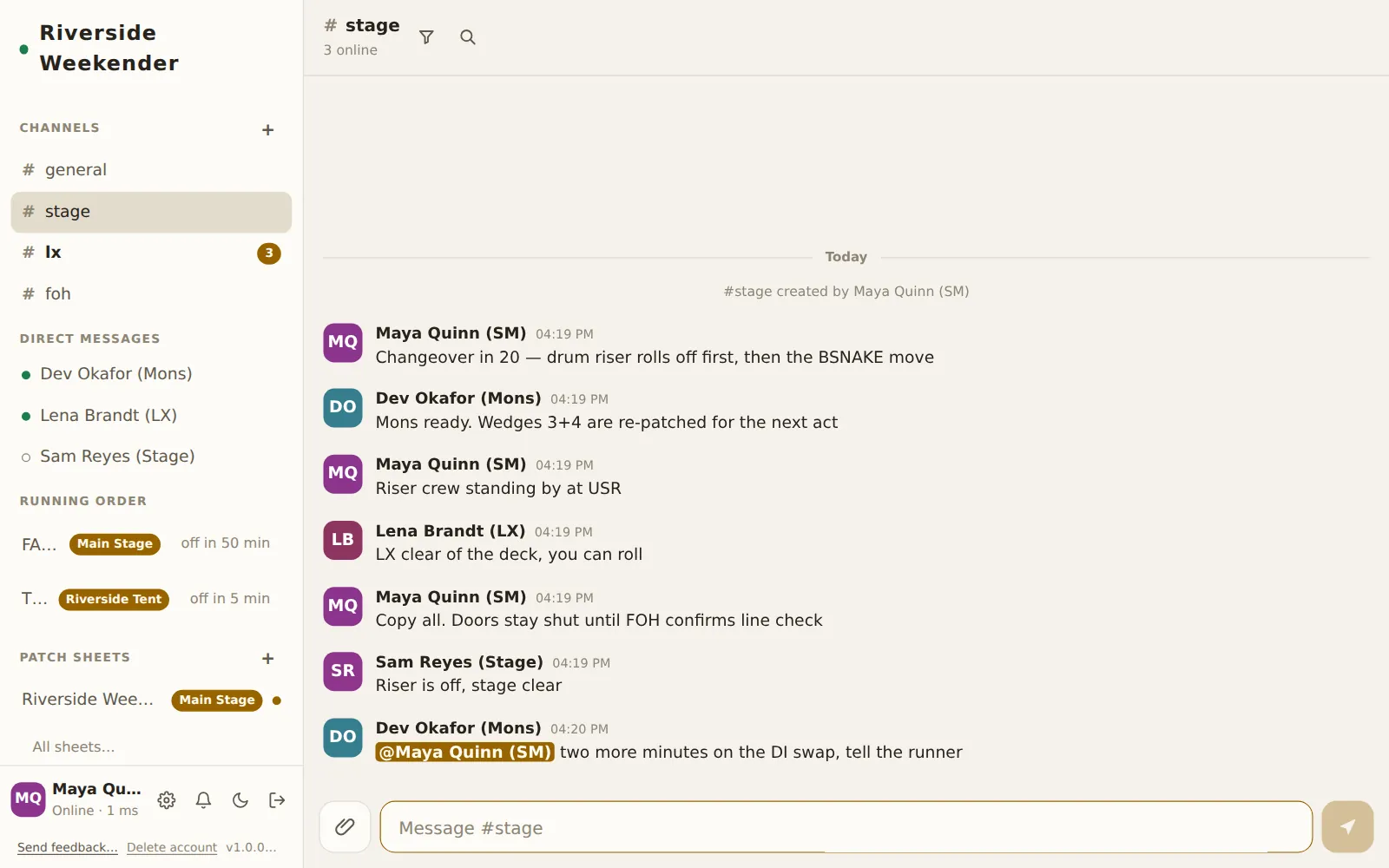
Every module shares one frame: a sidebar on the left (a drawer on a phone), and the channel or module you picked on the right.
The sidebar
Event name and connection dot
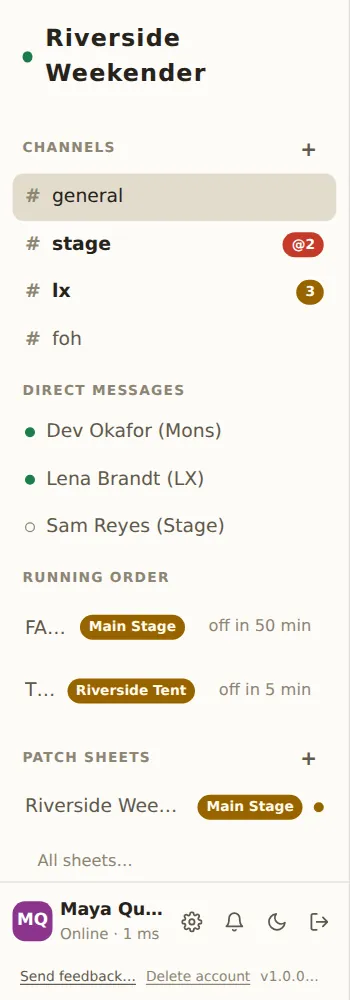
The top of the sidebar shows the event's name, set by the operator (it reads "Crewbox" until one is set). The dot beside it is the connection to the box:
| Dot | Means |
|---|---|
| Green | Connected, round trip 150 ms or less. |
| Amber | Connected but slow (up to 400 ms), or pulsing while connecting. |
| Red | Very slow (over 400 ms), or offline. |
Sections
Below that, one section per module, in this order: Channels, Direct messages, Running order, Patch Sheets, Lighting, Show log, Video, Network. Each section shows the few things you'd want at a glance (the next act, the latest log entry, recent sheets) with a link to the rest. Modules the operator switched off don't appear. Each section's controls are described on its own page: Chat, Running order, Patch sheets, Lighting, Show log, Video, Network.
Open channels (phones)
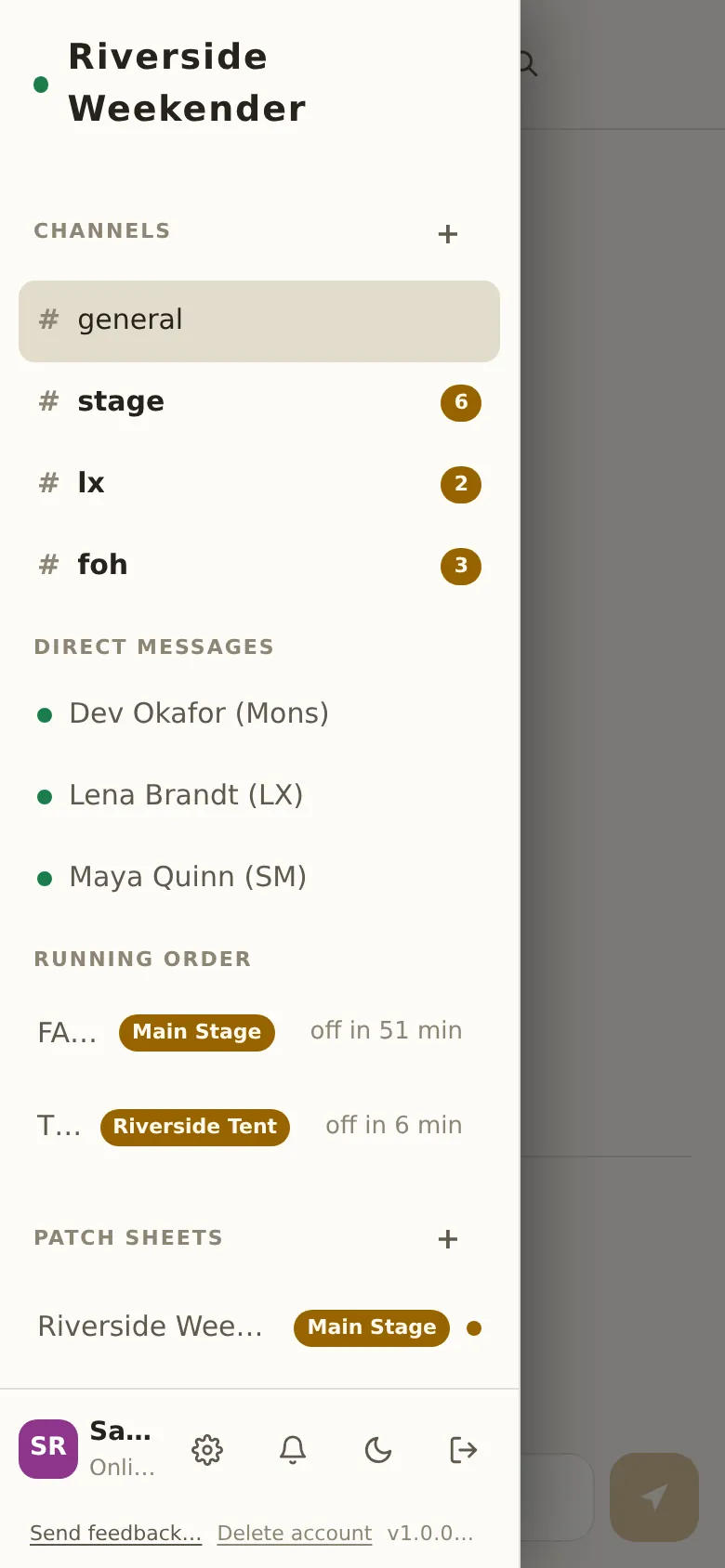
On a narrow screen the sidebar is a drawer. ☰ at the top left of every channel and module opens it. Tapping anything in the drawer goes there and closes it.
Your name row
The row at the bottom of the sidebar is you: your initials, your name, and a status line: Online · 12 ms (the round trip to the box), Connecting… or Offline. Then four buttons.
Admin panel
The cog. Opens the admin panel, which asks for the admin password. It's shown to everyone, so whoever runs the box can always find it; crew without the password can't open anything.
Mute alert sounds
The bell. Turns off this device's alert sounds for mentions and direct messages; the bell shows a line through it while muted. Press again to unmute. It affects this device only.
Switch theme
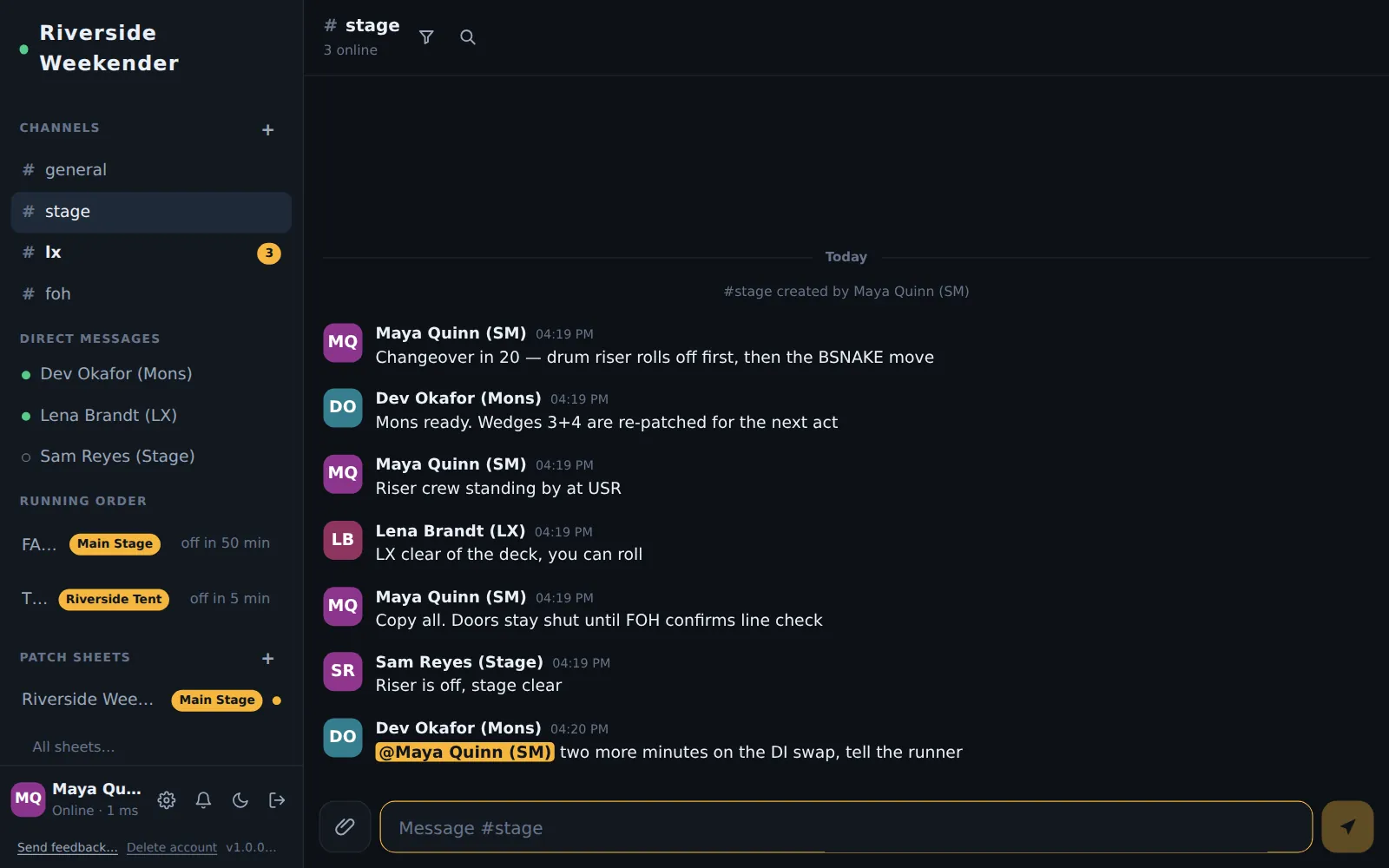
The sun or moon. Switches between the light theme (for daylight) and the dark theme (for a dark tent or front of house). Until you press it, the app follows the device's own light or dark setting, and keeps following it as it changes. Once pressed, your choice sticks on this device.
Sign out
The arrow. Signs this device out. Sign back in any time with your name and your PIN (how).
The footer
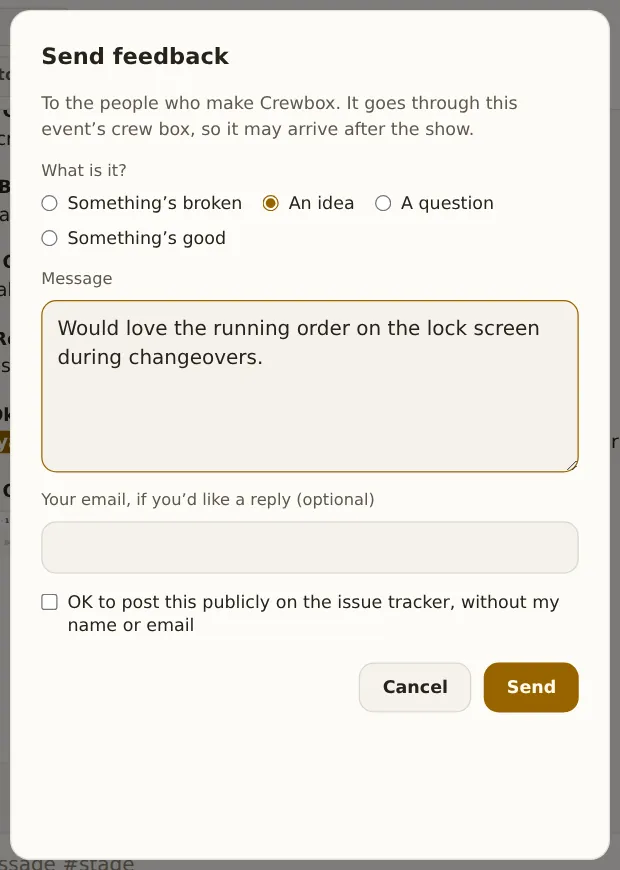
Send feedback…
Opens a form to send feedback to the people who make Crewbox, through the box (so it may arrive after the show, when the box next has internet).
- What is it?: Something's broken, An idea, A question, or Something's good.
- Message.
- Your email, if you'd like a reply (optional).
- Include my licence so you know who I am: only shown to someone with the admin panel unlocked on a licensed box.
- OK to post this publicly on the issue tracker, without my name or email: off unless ticked.
Send sends it, or saves it on the box to send later if the box has no internet; the dialog says which. Cancel closes it.
Delete account
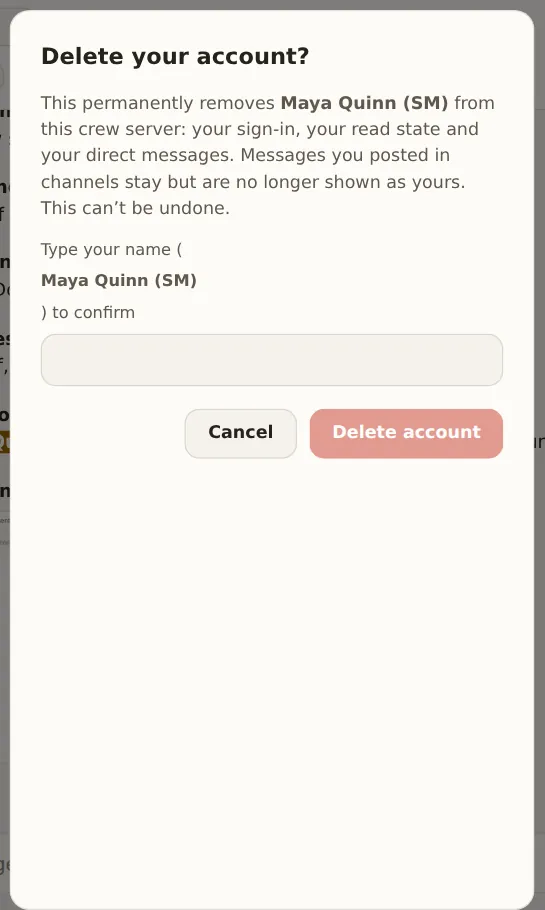
Deletes you from this box. Type your name to confirm. It removes your sign-in, your read state and your direct messages. Messages you posted in channels stay, because they're part of other people's conversation, but they no longer show as yours.
Unlicensed
Shown only when the box has no valid licence. It's a mark, nothing more: it blocks and slows nothing a crew member does. The operator deals with it in Admin → Licence.

Version
The version the app is running, like v1.0.0. It opens the licences of the
open-source software Crewbox includes.
Banners across the top
Connecting and Offline
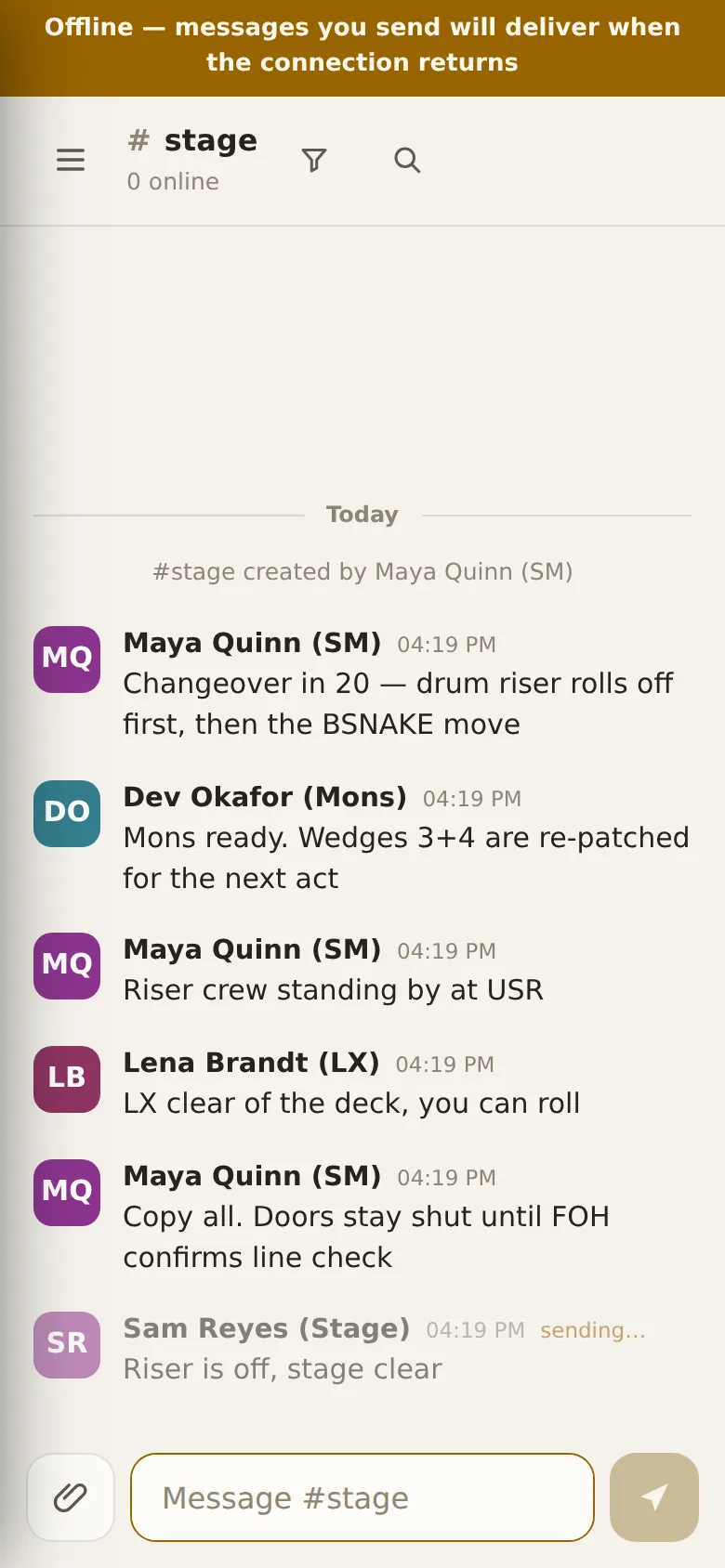
When the box drops out of reach, a banner says Connecting… or Offline — messages you send will deliver when the connection returns. You can keep reading and writing: what you send is queued on the device and delivered later. Nothing is lost if you close the app.
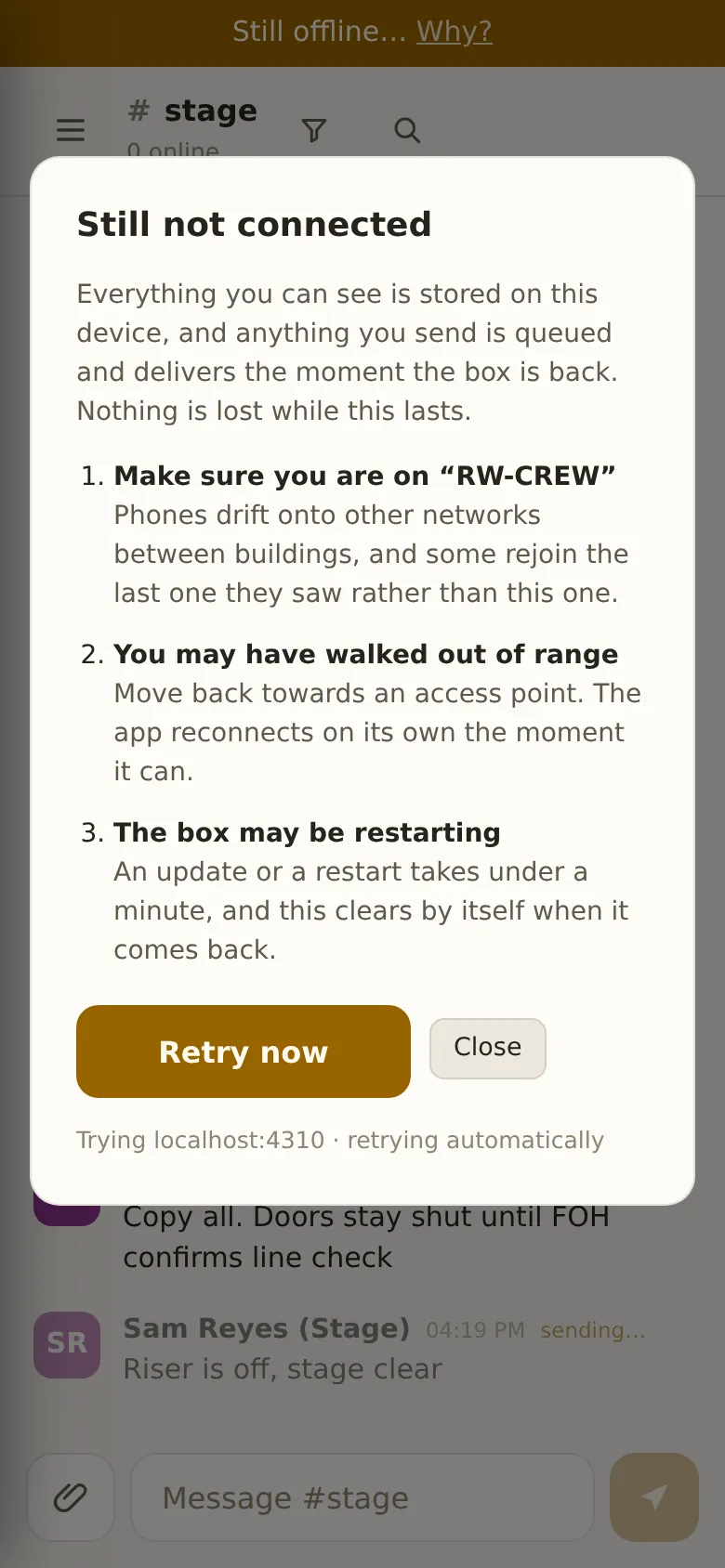
After about 25 seconds the banner becomes Still connecting… Why? or Still offline… Why?. Tapping it opens Still not connected: the likely causes for your phone, starting with the event Wi-Fi's name, with Retry now and Close.
Can't reach the crew server
If the app has never loaded anything from this box and can't reach it, it shows Can't reach the crew server instead of the app, with Retry now and the address it's trying. It retries by itself.
New version available · Reload
The box has been updated and this device is running the old app. Reload loads the new one. Anything unsent survives the reload.
On air
On air: name across the top of every screen means a desk has raised the tally for that crew member; they see ON AIR — you are live. It's raised and cleared from a desk, not from the app (how).
Add Crewbox to your home screen
On an iPhone, a one-time tip: Share → Add to Home Screen. ✕ dismisses it for good.
If a screen breaks
If a screen hits an error, the app replaces just that screen with Something went wrong on this screen, and Try again or Reload the app. Below them, Send a crash report lets you add a note and press Send report; it goes through the box, and only if you press it.