Crewbox 1.0
Chat
Channels, direct messages, the composer, mentions, files and photos, the message filter and search.
Chat is always on. Every message goes through the box and is kept there; each device keeps a copy of what it has loaded, so chat opens and works with the box out of reach, and anything sent meanwhile is delivered when it's back.
Channels
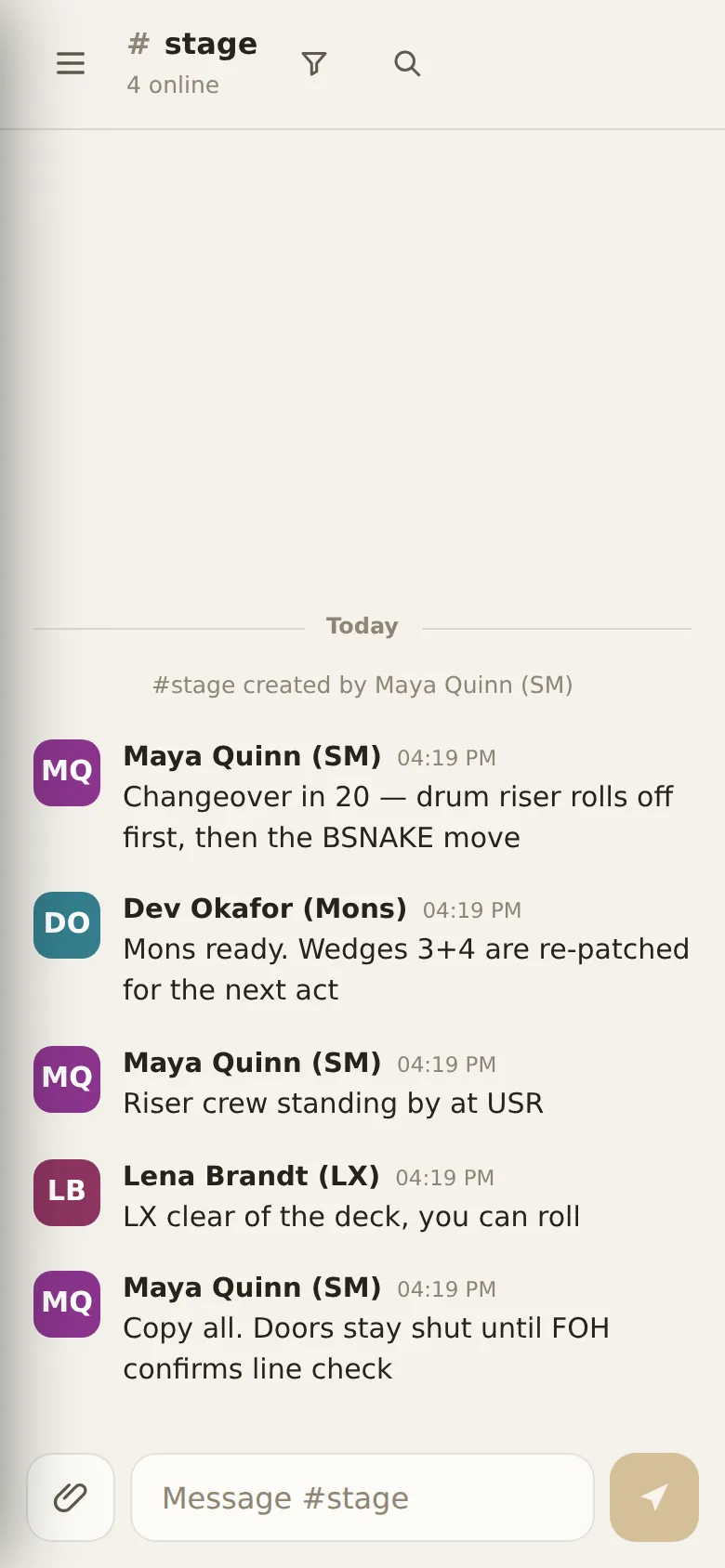
Channel list
Channels in the sidebar lists every public channel on the box. Everyone is
in every channel; there's nothing to join. #general always exists. A number
badge counts unread messages (up to 99+). A badge showing @ means a
message mentions you.
New channel
+ beside Channels opens a name field. Type a name and press Enter.
Names are lower-cased, spaces become hyphens (Front of house becomes
#front-of-house), and the limit is 32 characters. Anyone can make a channel;
renaming, setting a topic and retiring one are done in
Admin → Channels.
Direct messages
Direct messages lists everyone else who has joined, people online first, each with a presence dot (filled when online). Tap a name to start or open a private conversation between the two of you. Before anyone else joins it says No one else has joined yet.
Off-site badge
off-site beside a name means that person is connected from outside the event network (through a remote tunnel the operator set up, for example), not from the site.
The channel header
Channel name and topic
The channel's name, with its topic under it, or how many people are online if it has none.
Weak signal
Signal bars with a number of milliseconds appear when your connection to the box is slow: amber over 150 ms, red over 400 ms. Messages still arrive; they take longer.
Join voice intercom
A headset button, shown only when the box has voice. Joins this channel's push-to-talk line. See Voice.
Filter messages
The funnel. Opens the filter bar.
Search
The magnifier, or ⌘K / Ctrl+K anywhere. Opens search.
Messages
- Today and Yesterday divide the days; older days show the date.
- Your own message shows sending… until the box has it. It stays in the channel, and on your device, until it's delivered, even across a restart.
- Links to other parts of Crewbox (a shared patch sheet, plot or network audit) show an Open ↗ chip that opens them in the app.
- Jump to latest ↓ appears when you've scrolled up; it reads New messages ↓ when something new has arrived below.
- Name is typing… shows under the list while someone types.
- An empty channel says No messages yet — say hello 👋.
The composer
Message
Type in the box at the bottom. On a computer, Enter sends and Shift+Enter starts a new line. On a phone or tablet, Enter starts a new line and the send button (the paper plane) sends. Messages can be up to 4000 characters. A half-written message is kept per channel while the app is open, so you can switch channels and come back to it.
Attach a file or photo
The paperclip picks a file or photo to send, up to 100 MB. You can also paste an image or file into the message box, or drag files onto the message list (Drop to share appears). Anything you type is sent as the caption. Attachments need a connection to the box; offline, the app says so rather than queueing them.
Mentions
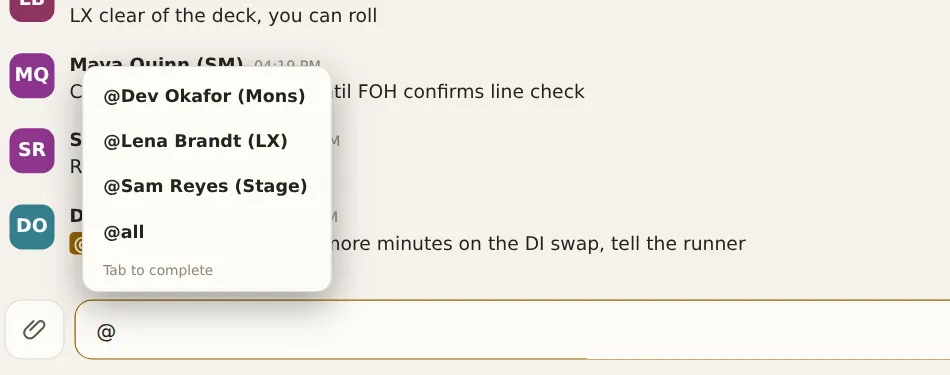
Type @ to open a list of names plus @all. Keep typing to narrow it, then Tab or Enter puts the name in (Tab to complete). A mention of you counts as a mention in your unread badge and alerts you. @all, @everyone and @channel mention everyone in the channel.
Files and photos
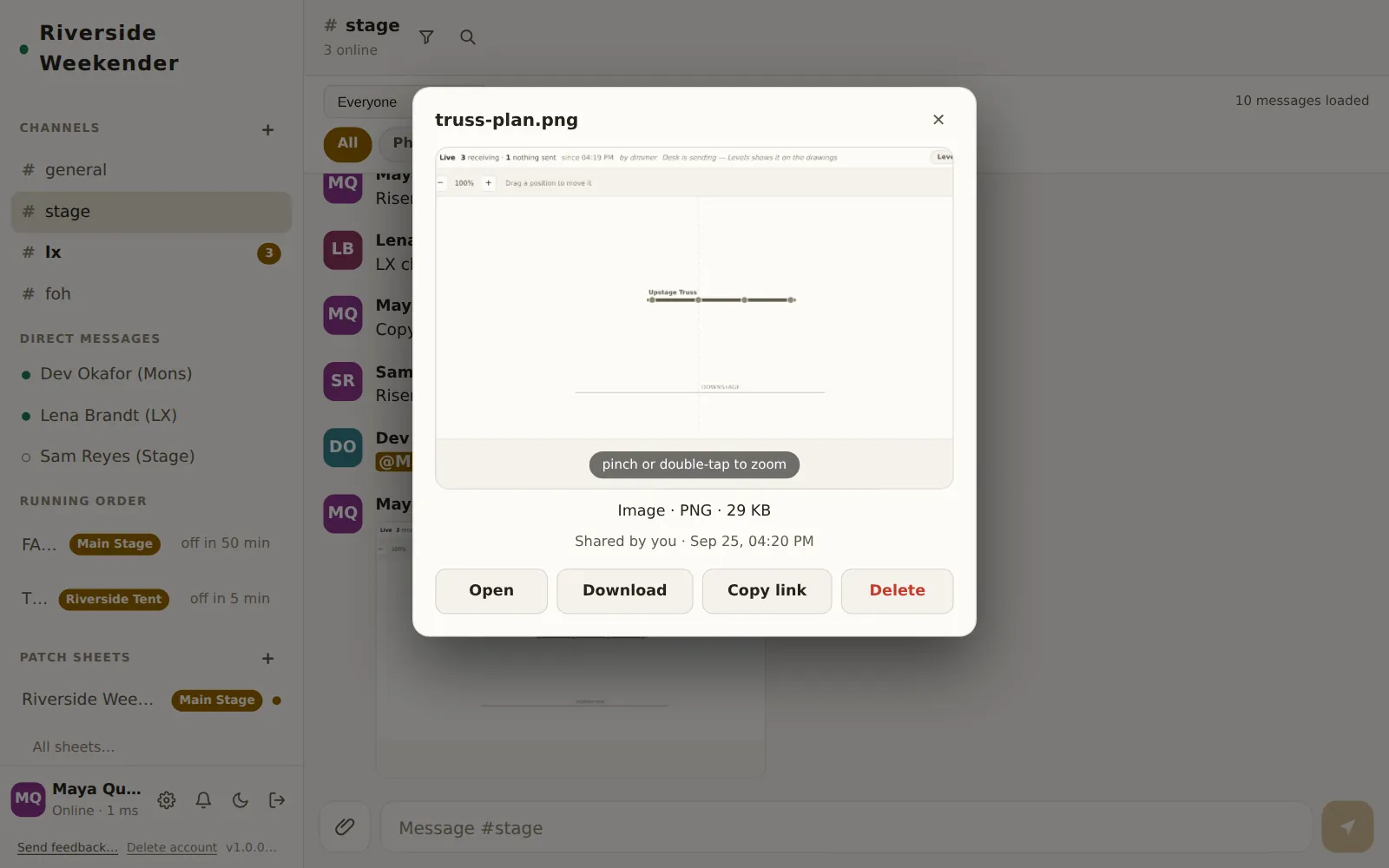
Photos show as a preview in the conversation; other files as a card with their name and size. Tap one for its details.
Open
Opens the file in a new tab (or the phone's viewer).
Download
Saves it to the device. In the Android app, files go to the share sheet instead.
Copy link
Copies a link to the file on the box, for pasting elsewhere. It reads Copied ✓ for a moment.
Share
On devices that support it (most phones), hands a link to the file to the system share sheet.
Delete
Shown on files you shared, and on every file to someone with the admin panel unlocked. The button turns into Really delete?; press it again to remove the file from the box for everyone.
Photos can be zoomed: pinch or double-tap to zoom.
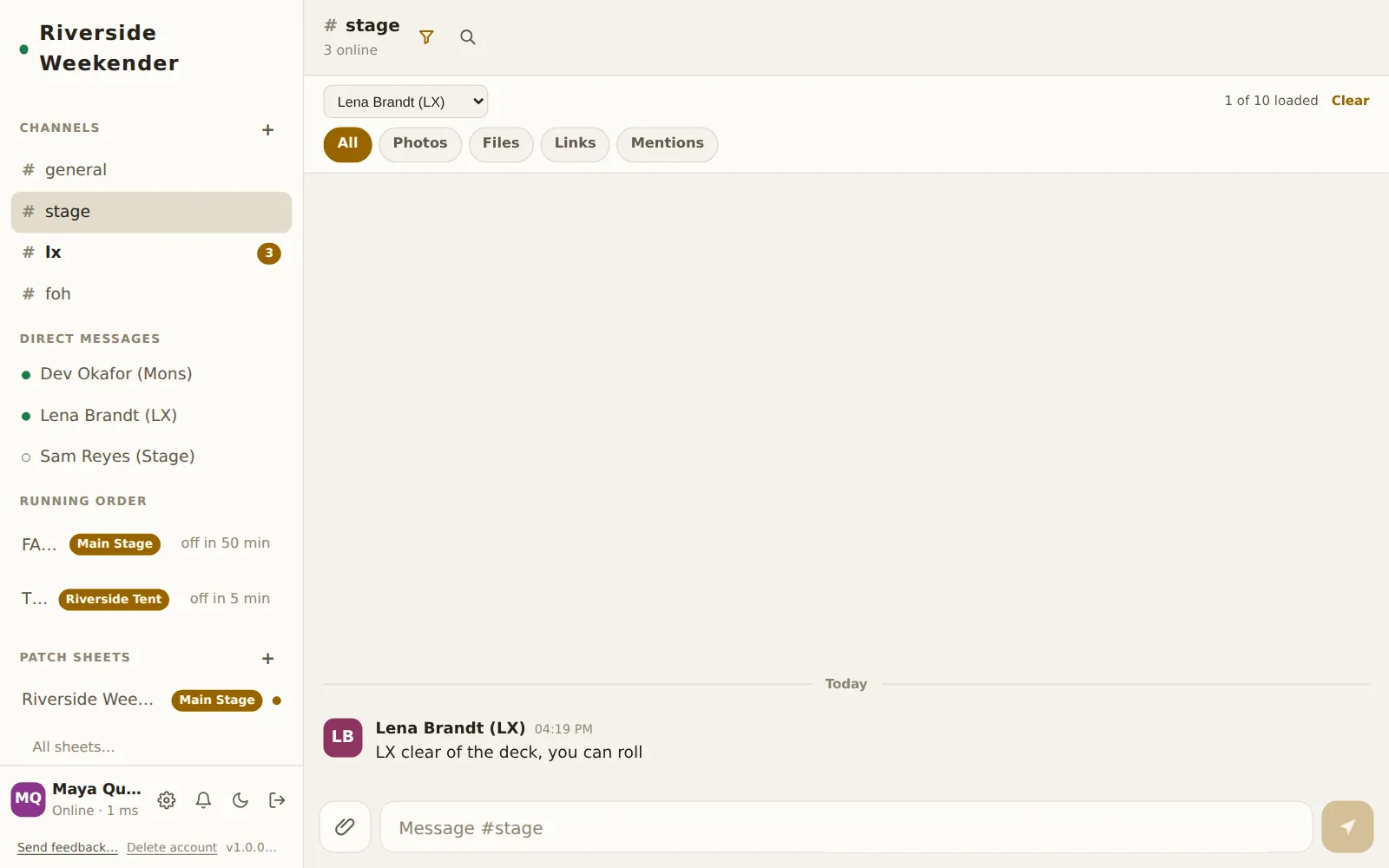
The filter bar
The funnel opens a bar that narrows the channel to what you're looking for, among the messages loaded on this device.
Person
Everyone, or one person's messages.
Kind chips
All, Photos, Files, Links or Mentions.
Count
N of M loaded: how many of the loaded messages match. The filter only sees what this device has loaded.
Load older
Fetches older messages from the box so the filter can see further back.
Clear
Resets the filter to everything. The filter also resets when you change channel or close the bar, so a filtered channel never looks empty by accident.
Search
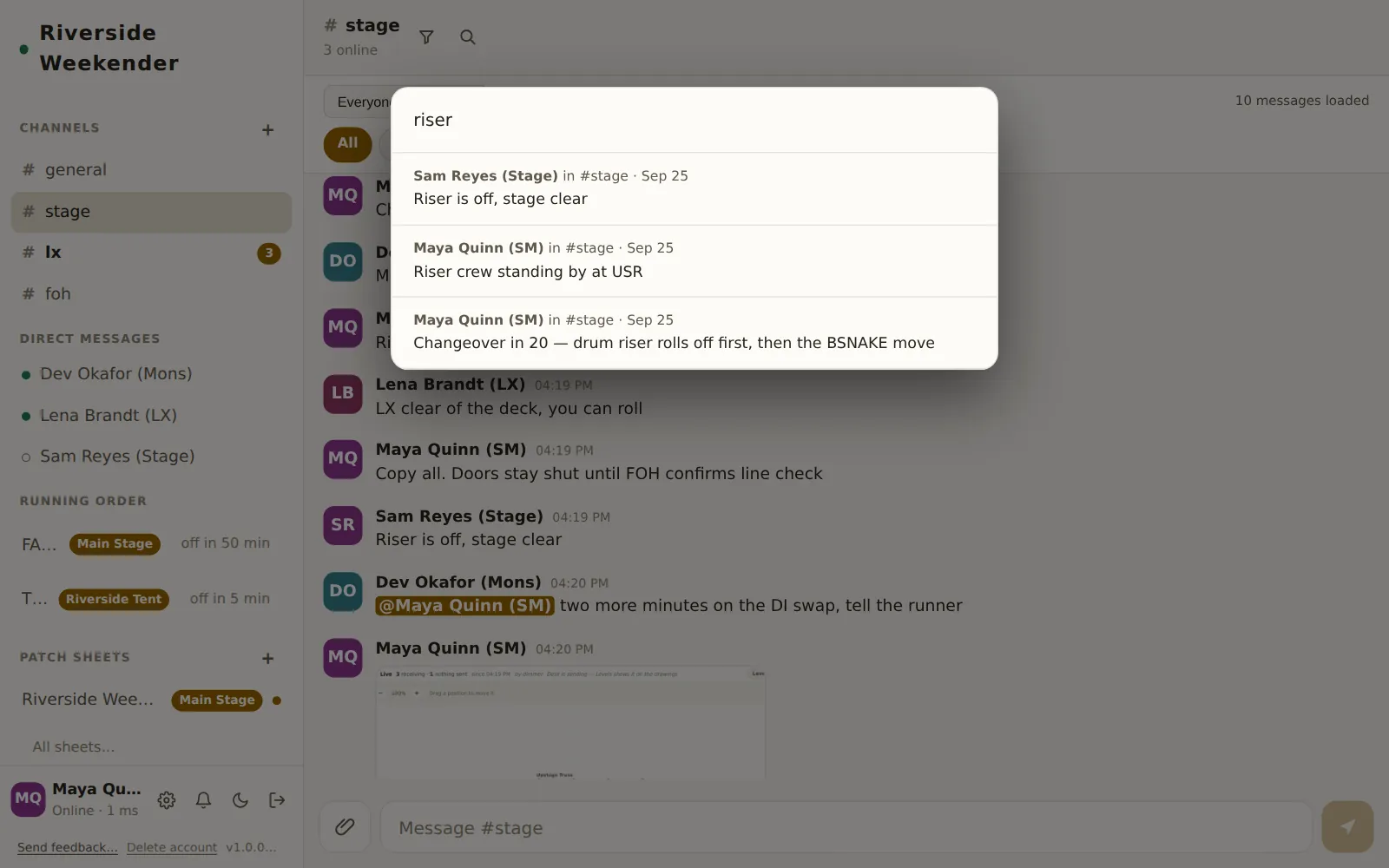
⌘K (Ctrl+K) or the magnifier opens search. It asks the box, so it covers every channel you can see and all of their history, not just what's loaded. Type in Search messages…; results show the author, the channel and the date. Pick one to jump to it. Esc or ⌘K again closes it.