Crewbox 1.0
Setup, connect and the box
The setup page, the /connect poster, the terminal banner, the menu bar and tray, the command line, and every environment variable.
This page covers what's around the app: the pages the box serves for setting up and joining, the box's own controls, and the settings it reads when it starts.
The setup page
When a new box starts for the first time, it opens a browser at /setup. On a
machine with no screen, the terminal prints the address as Set up:. The page
stays open until someone joins or it's saved, and after that /setup goes to
the poster instead. Everything on it can be changed later in the
admin panel.
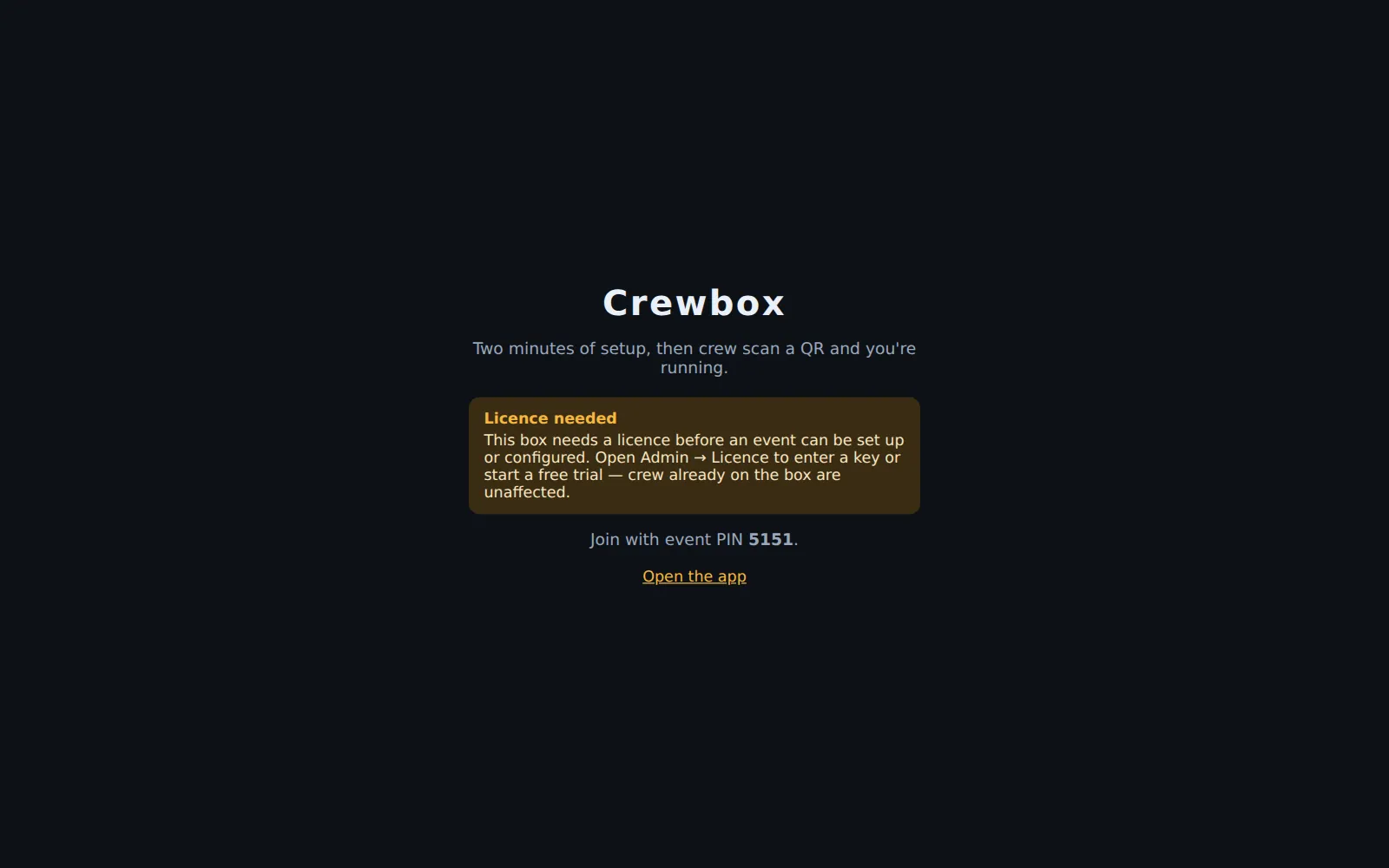
On an unlicensed box
A new 1.0 box has no licence yet, so the page shows Licence needed in place of the form. It gives you the event PIN to join with, and the admin password if the box generated one. Write the password down, because it isn't shown again. Open the app takes you to the join screen. Start the trial or enter a key in Admin → Licence, as in Getting started.
On a licensed box
If the box already has a licence when it first starts, the page shows the form:
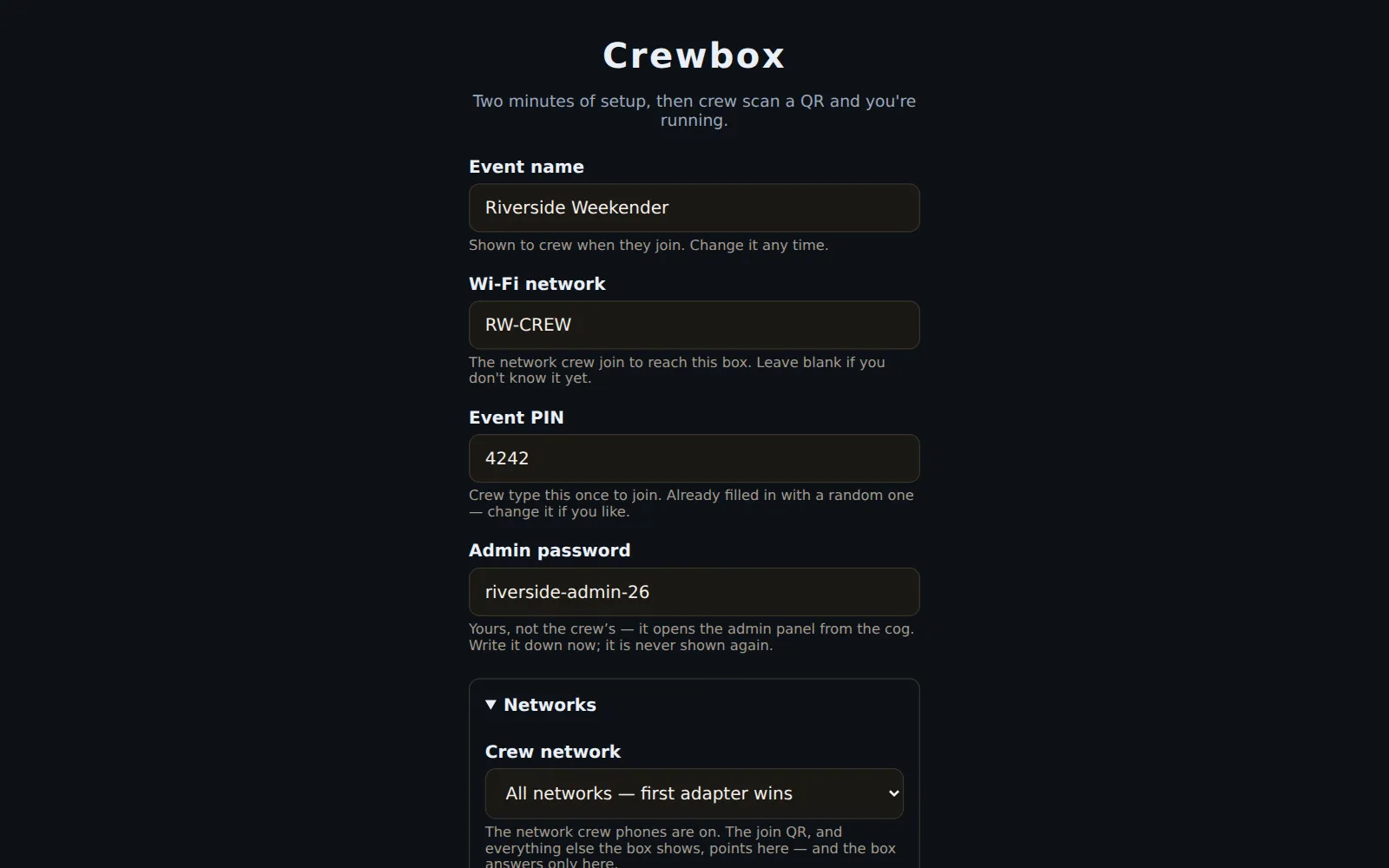
- Event name: shown to crew when they join.
- Wi-Fi network: the network crew join to reach the box. Leave it blank if you don't know it yet.
- Event PIN: already filled in with a random 4-digit PIN. Change it if you like. It must be at least 4 characters.
- Admin password: opens the admin panel. It must be at least 8 characters. Write it down, because it's never shown again.
- Networks: the same settings as Admin → This box → Networks. This section is open by default on a machine with more than one network adapter. Changes to it apply the next time the box starts; everything else applies straight away.
Save and show the QR saves and opens the poster. Skip — I'll set this up later in the app goes straight to the poster. Crew will use … shows the address phones will use.
The /connect poster
Open /connect on the box's address, or use Open the QR poster page in the
menu bar or tray. It's the page to print, or to leave on a screen at the crew
entrance.
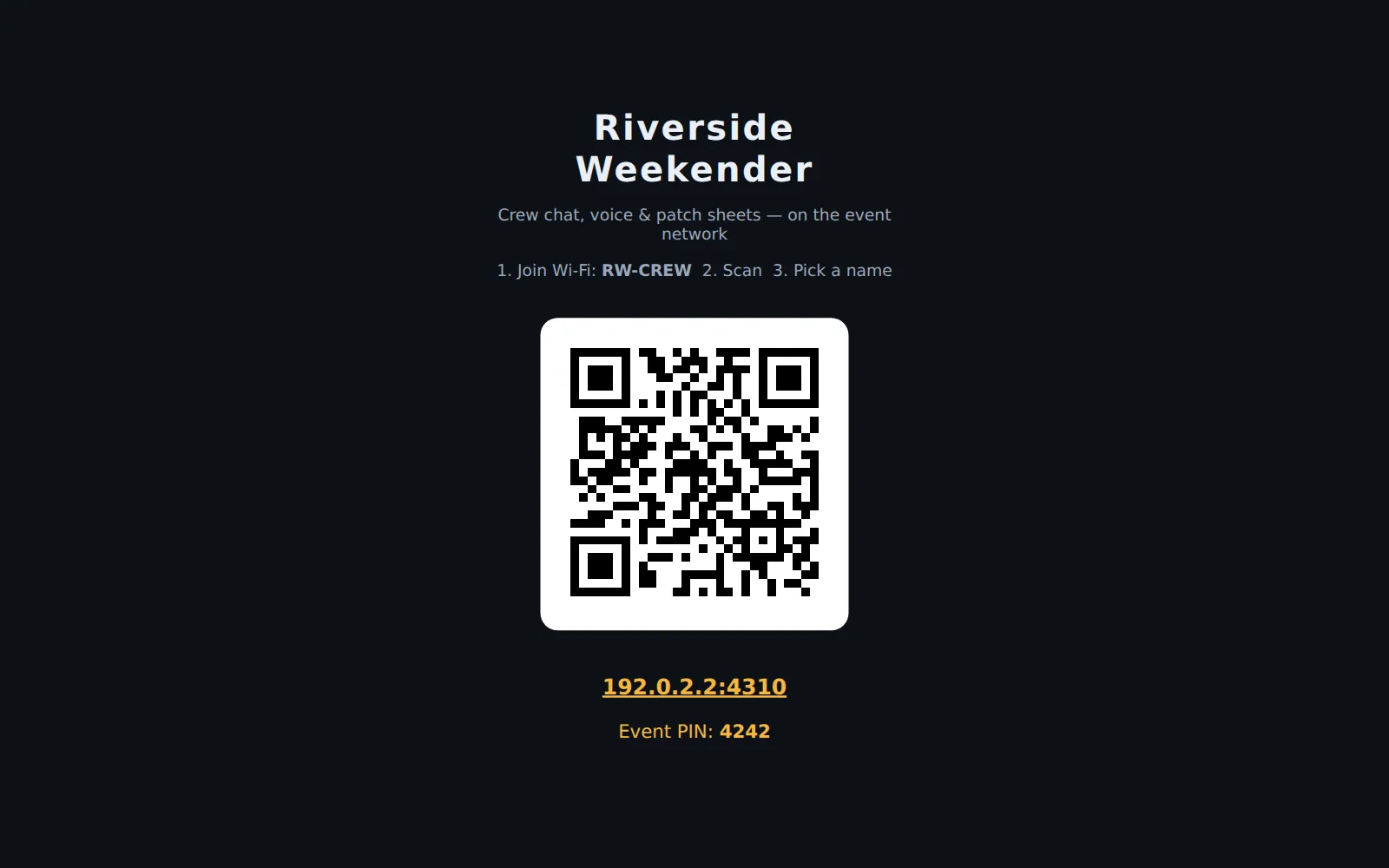
The poster shows the following:
- the event name
- 1. Join Wi-Fi: … 2. Scan 3. Pick a name, if a Wi-Fi network is set
- a QR code with the join address under it, which is itself a link, so tapping it on a phone works like scanning
- Event PIN: …
- Android lock-screen alerts: download the Crewbox app, when the box has the Android app to serve (how)
The PIN is part of the QR code, so crew who scan it don't type the PIN. That only applies when the page is opened from a private network, such as the event Wi-Fi. If the page is opened from the internet (through a tunnel, for example), the QR code carries no PIN, and the page says Ask the production office for the event PIN.
The terminal banner
When the box starts from a terminal, it prints this:
  ┌─────────────────────────────────────────────┐
    Riverside Weekender is running

    Join:      http://192.168.1.20:8787
    Event PIN: 4242
    Onboarding page (QR + PIN + Android app):
               http://192.168.1.20:8787/connect
  └─────────────────────────────────────────────┘
A new box also prints Set up: with the setup page's address. If it generated an admin password, it prints that too. A box with more than one network lists its other addresses under Join. In an interactive terminal, a QR code follows.
The menu bar and tray
On a Mac, Crewbox has an item in the menu bar. On Windows, it has an icon in the system tray. On Linux, use the command line.
| Item | Does |
|---|---|
| Event name — running | Shows the box is up. |
| Version … | The version running. |
| Update available: … | Only when there's a newer version. Opens the admin panel, where the update is two presses. Nothing installs from the menu. |
| Open the join page | Opens the app in your browser. |
| Open the QR poster page | Opens /connect. |
| Copy the join link | Copies the address crew use. |
| Copy the event PIN (…) | Copies the PIN shown in brackets. |
| Other addresses | Only on a machine with more than one network. Pick an address to copy it. |
| Open the data folder | Opens the folder holding the database, files and licence. |
| Stop Crewbox and quit | Stops the box properly and removes the item. On Windows it's Stop Crewbox and exit. |
When the box isn't running, the item reads Crewbox — not running. On a Mac it reads Crewbox — starting… while the box starts, and offers Start Crewbox after a stop. If the box exits unexpectedly on a Mac, a notice says Crewbox stopped.
The command line
crewbox            # start the box
crewbox --status   # is it running: the event, its pid, join addresses, event PIN
crewbox --stop     # stop the running box cleanly
--status says No box is running. when none is running. A second copy
refuses to start while one is already running, so it can't take over the live
box's port. Both commands work over SSH on a machine with no screen.
Environment variables
The box reads these when it starts. A setting from the environment wins over the same setting saved in the admin panel, and the panel shows Set by … in the environment beside it. Changing an environment variable means restarting the box.
| Variable | Default | What it does |
|---|---|---|
CREWBOX_PORT | 8787 | The port the app is served on. |
DATA_DIR | ~/.crewbox/data | Where the database, uploads, certificate and licence live. |
EVENT_PIN | a random 4-digit PIN | The event PIN. |
WIFI_SSID | none | The Wi-Fi name shown to crew. |
ADMIN_PASSWORD | set at setup | The admin password. When it's set here, the panel can't change it. |
CREWBOX_IFACE | all networks | The address of the crew-facing adapter. The box listens only there, and every address it shows points there. |
CREWBOX_MODULES | schedule,patch,lighting,incident,video,network | Which modules to turn on. Chat is always on. |
CREWBOX_DMX | off | Lighting network listening: sacn, artnet, both or off. |
CREWBOX_DMX_IFACE | chosen by the OS | The adapter on the lighting network. |
CREWBOX_DMX_UNIVERSES | 1-16 | The sACN universes to join, for example 1-8,101. |
CREWBOX_DMX_ARTNET_BASE | 1 | The plot universe that Art-Net universe 0 corresponds to. |
CREWBOX_WATCH | off | 1 watches the audio and media network (PTP, Dante, NDI, AES67) for the network audit. |
CREWBOX_WATCH_IFACE | chosen by the OS | The adapter on the media network. |
CREWBOX_VIDEO_IFACE | none | The box's address on the video network. Needed only for the LED processor sweep. |
CREWBOX_VIDEO_SNMP_COMMUNITY | public | The SNMP community used to read LED processors. |
CREWBOX_UPDATE_CHECK | on | 0 makes no outbound connections at all: no update check, no licence check-in and no crash reports. |
CREWBOX_TZ | the machine's | The timezone for the running order and the desk control API, such as Europe/London. |
CREWBOX_CAPTIVE | on | 0 turns off the responder that answers phones' "is there internet?" checks. |
CREWBOX_CAPTIVE_PORT | 80 | The port for that responder. |
CREWBOX_CONTROL_KEY | generated | The desk control key. When set, it's used in place of the generated one. |
CREWBOX_TRUST_PROXY | off | 1 when the box runs behind a reverse proxy or tunnel, so rate limits see real addresses. |
SESSION_TTL_DAYS | 60 | Days a sign-in lasts without being used. |
LIVEKIT_URL | the built-in voice server | Points voice at a LiveKit server you run instead, with LIVEKIT_KEY and LIVEKIT_SECRET. |
On a box run from source rather than from a release download, DATA_DIR
defaults to ./data, EVENT_PIN defaults to 1234, and voice, the update
check and the captive responder are off unless set.