Crewbox 1.0
Video
Every control in the video module - LED walls, adding and watching processors, the sweep, screen maps, feeds and test cards.
The video module has two parts. LED walls reads NovaStar LED processors. Screen maps shares Resolume Arena's Advanced Output presets. Crewbox only reads processors and can't control them: nothing in the box can change brightness, recall a preset or black out a screen. The steps are in Monitor LED walls and screen maps.
In the sidebar
Import a screen map
+ beside Video opens the screen map list, ready to import.
LED walls
Opens the processor pane.
Screen maps
Up to six recently changed maps, each with a badge showing its number of screens and a dot if it has changed since you last opened it.
All screen maps…
Opens the list of maps.
LED walls
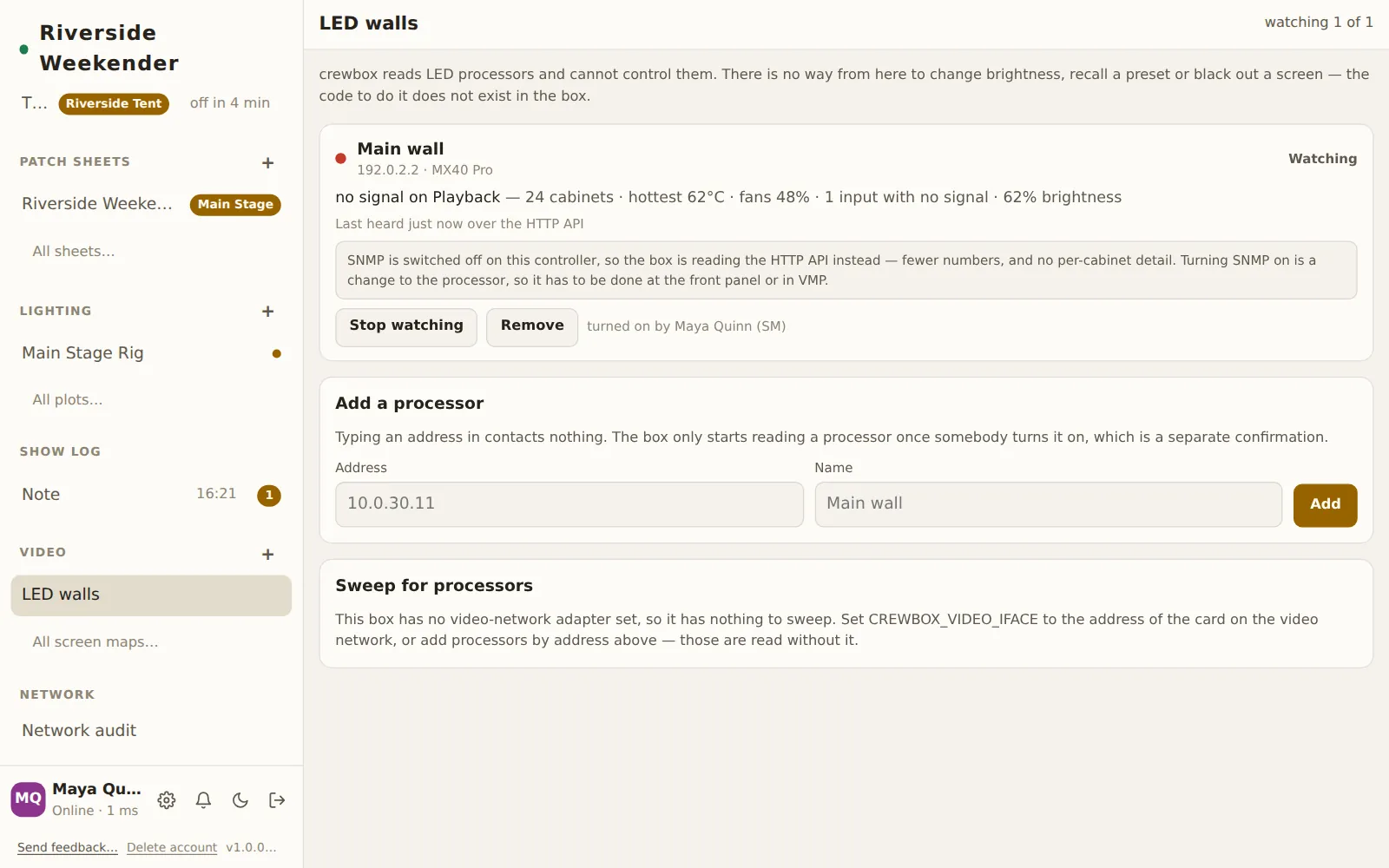
The header counts watching N of M, or nothing being watched. The pane refreshes every 10 seconds while it's open. The box itself keeps polling watched processors every 20 seconds even when nobody has the pane open, so a wall that fails while everyone's phone is asleep is still recorded. If the box doesn't answer, a line says The box did not answer: and the pane keeps showing what it had.
Processor rows
Each row shows the name you gave the processor and its address. If the controller calls itself something else, calls itself "…" follows, then its model. The rows most in need of attention come first.
| State | Means |
|---|---|
| Not watched | Listed only. The box has never contacted this address and won't until someone turns watching on. |
| Watching | Being read. Last heard … over SNMP (or over the HTTP API) says how recently and how. |
| No answer | Watched, but it stopped answering. |
| Nothing to read | Nothing answered on port 8001 or 161. Either there's no processor at that address, or it's a model Crewbox can't read without opening a control session (a VX4S or a NovaPro UHD Jr.). Crewbox won't open one while someone may be using the processor. |
Under the name, a summary gives the signal, cabinets, temperature, fans and brightness when the processor reports them. Notes may follow:
- SNMP is switched off on this controller: the box is reading the HTTP API, which gives fewer numbers and no per-cabinet detail. Turning SNMP on is a change to the processor, made at its front panel or in VMP.
- Didn't answer: …: parts of the last read that failed.
- This firmware doesn't have … — the box has stopped asking: endpoints this firmware doesn't have, mentioned once and then left alone.
Watch this…
Shows a confirmation first. Anyone signed in can watch a processor, because watching only sends addressed read requests.
Stop watching
Stops all traffic to the processor immediately.
Remove
Takes the processor off the list.
turned on by
Shows who started watching this processor, so any traffic on the show network has a name against it.
Add a processor
Address
The processor's IPv4 address, such as 10.0.30.11. It has to be a single
device: group (multicast), broadcast and loopback addresses are refused.
Name
Your name for it, such as "Main wall". The name stays even if the controller calls itself something else.
Add
Adds the processor to the list without contacting it.
Sweep for processors
A sweep sends one broadcast packet to find processors on a network. It's the same discovery packet that NovaLCT sends. The sweep runs once each time you ask for it, never on a timer. A broadcast reaches every device on the network, so starting one is a decision about the venue's network and needs an admin.
- If the box has no video-network adapter set, this section explains how to set
CREWBOX_VIDEO_IFACEto the address of the box's network card on the video network. Processors added by address are read without it. - With the admin panel unlocked on your device, Sweep for processors… shows the confirmation and then sends the broadcast.
- Otherwise it says an admin can run one from their device.
After a sweep, Last sweep by …, N answered lists each line that was sent, and each address that replied. Addresses not yet on the list have an Add button; the others say already listed. Anything a processor sent back is shown raw, because what it means isn't known.
The confirmation
Before anything goes on the video network, a dialog titled Start watching …? or Sweep for LED processors? shows exactly what the box will send, in words that can be checked against a packet capture. For watching, that means SNMP reads on port 161, with the HTTP API on port 8001 as a fallback, about every 20 seconds.
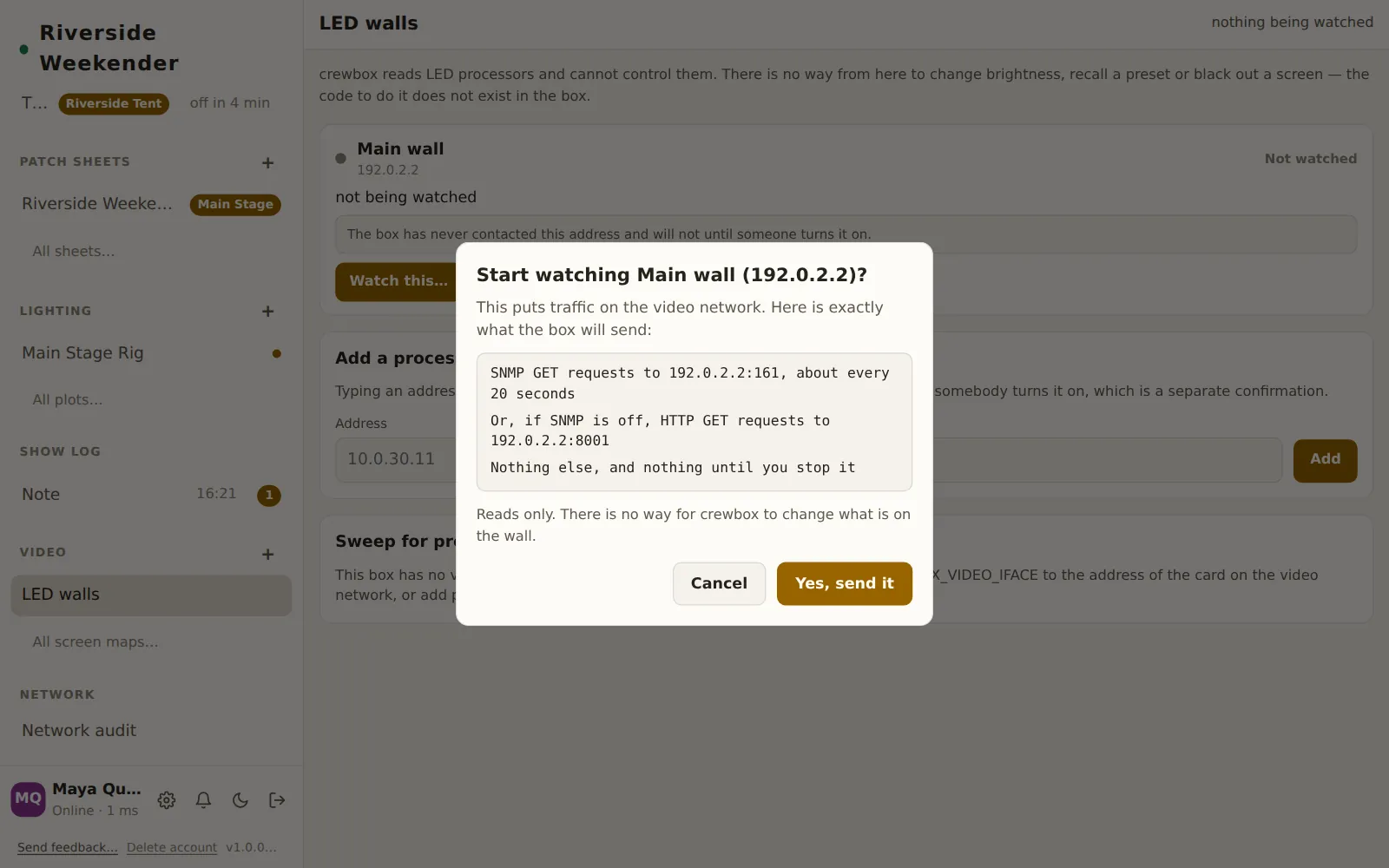
Yes, send it starts it; Cancel sends nothing. The box checks the request again when you confirm, so the dialog can't be used to send anything it hasn't listed.
Screen maps
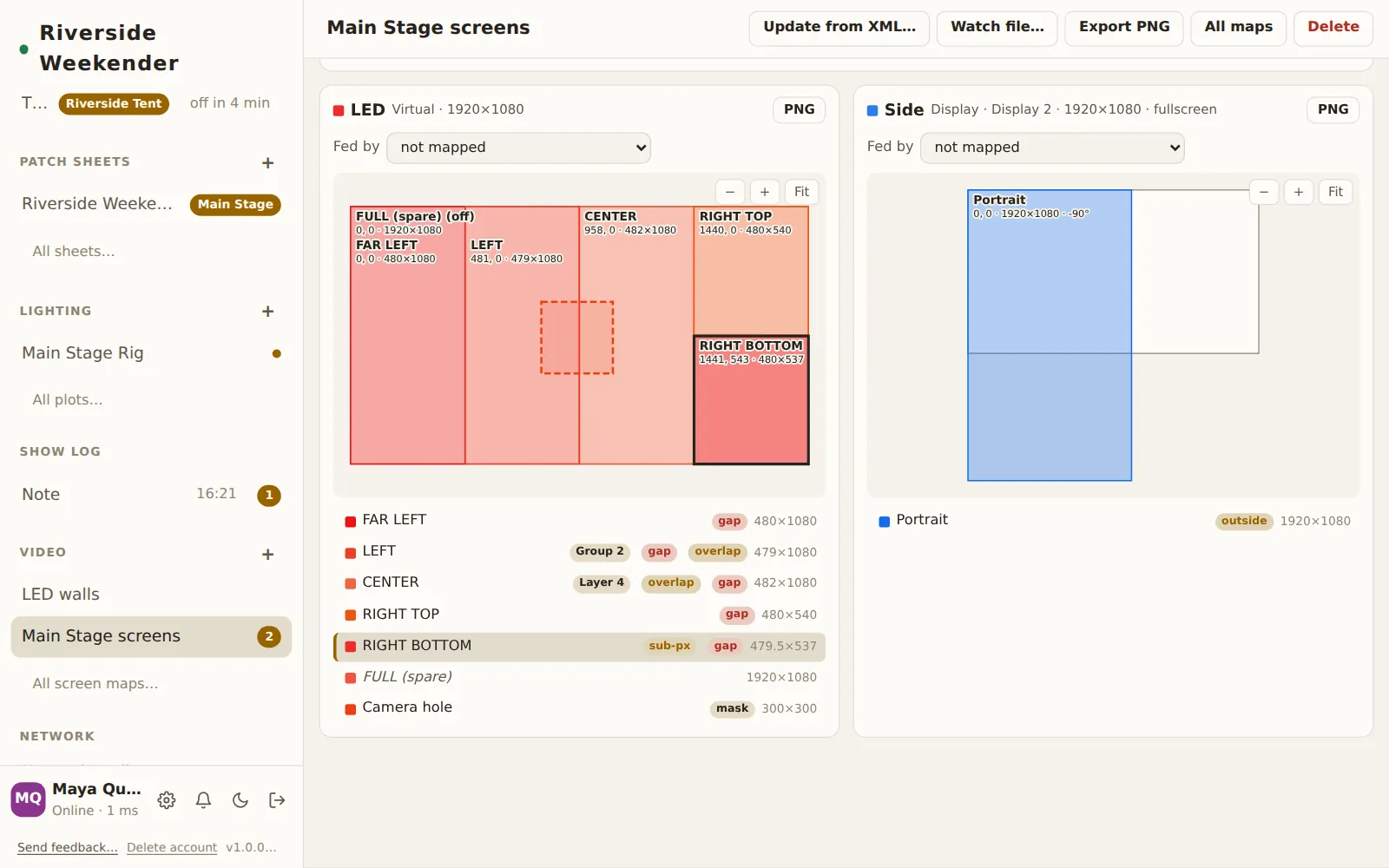
A screen map is a Resolume Arena Advanced Output preset, imported once and shared with everyone on the box. It shows where each slice takes its pixels from and where they land on every screen. The file is read on the device that imports it. Nothing is sent to Resolume.
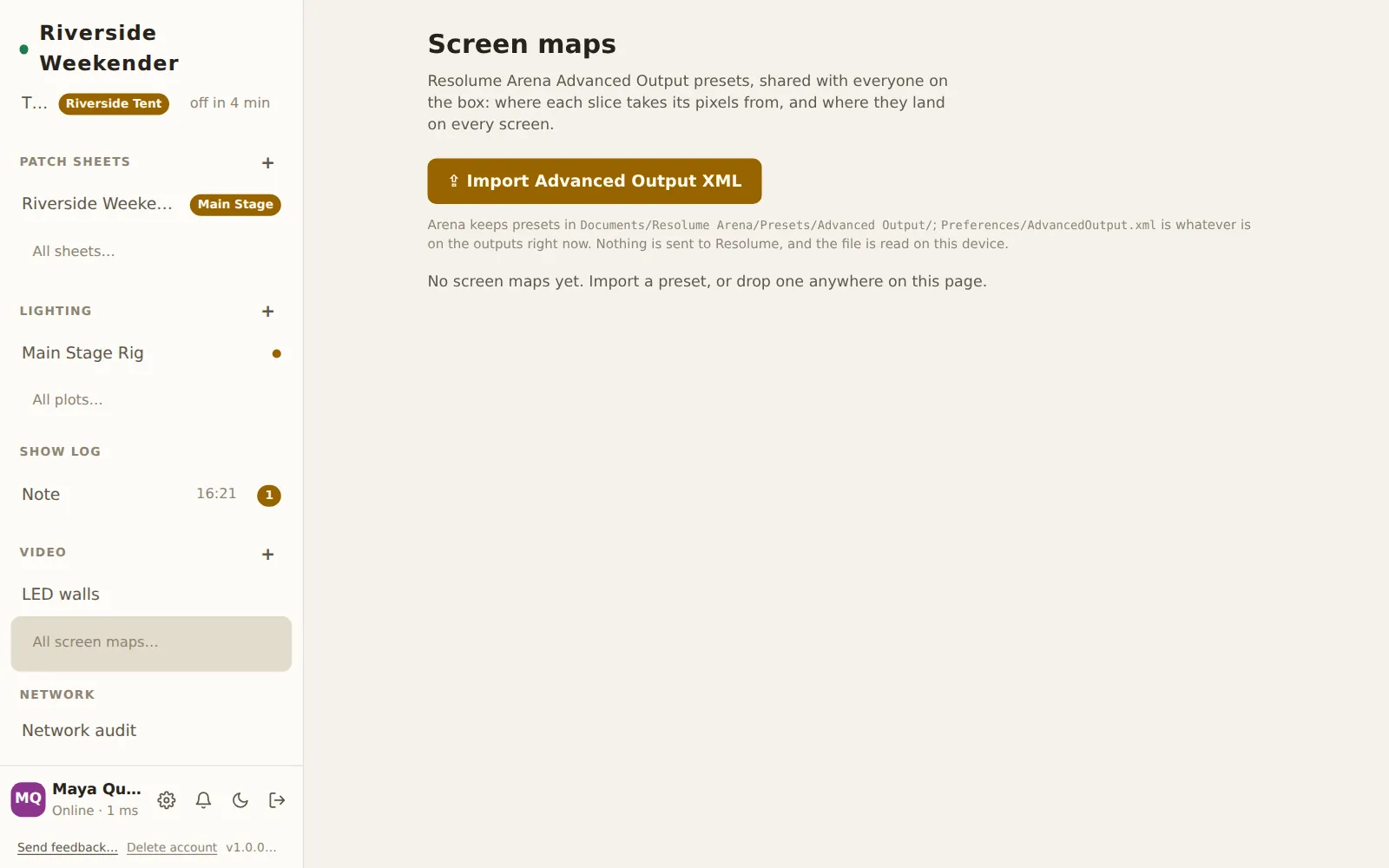
⇪ Import Advanced Output XML
Choose the preset's .xml file, or drop it anywhere on the page. Arena keeps
presets in Documents/Resolume Arena/Presets/Advanced Output/.
Preferences/AdvancedOutput.xml holds whatever is on the outputs right now.
Map cards
Each card shows the map's name, its screens and updated … ago. Tap a card to open it. × deletes the map after Delete "…" from this device and the shared index?.
A screen map
Name
Click the name to rename the map. Enter saves and Esc cancels.
Update from XML…
Replaces the map with a newer save of the preset.
Watch file…
Shown in Chrome and Edge, which can keep a file open. Use it on the Resolume machine and pick the preset: Crewbox checks the file every second and re-reads it whenever Resolume saves it. Updated from … confirms each re-read. The button then reads Stop watching.
Export PNG
Saves a test card of the input map at the composition's own resolution. Each slice gets a checkerboard with its name, position and size in the middle, like a content template sent to a designer.
All maps
Goes back to the list of maps.
Delete
Deletes the map from this device and the shared list, after a confirmation.
Who and when
Under the name: who imported the map and when, who last updated it, and the source file's name.
Summary and checks
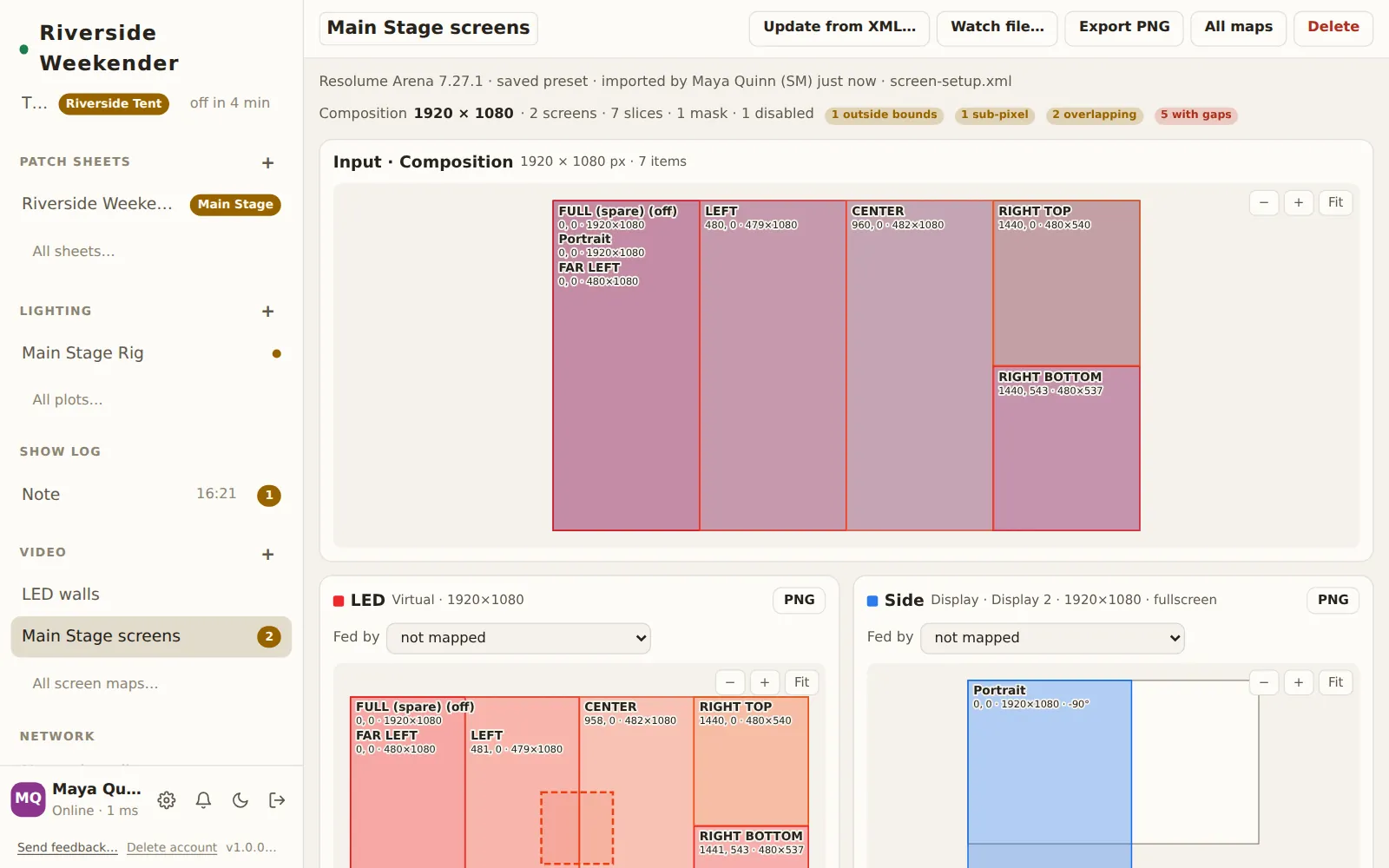
Composition 1920 × 1080 · N screens · N slices, plus any masks or disabled slices. Chips then flag what a screens tech would otherwise check by eye:
| Chip | Means |
|---|---|
| outside bounds | Enabled slices outside the composition or their screen. |
| scaled | Output size differs from input size. |
| warped | Slices with a warp or corner pin. |
| sub-pixel | Not on whole pixels, so it resamples softly on LED. |
| overlapping | Enabled slices whose outputs overlap on one screen. |
| with gaps | Enabled slices with a gap of 8 px or less to a neighbour. |
| composition size derived from slices | The preset didn't state its size, so it was worked out from the slices. |
Input map
The composition, with every slice drawn where it takes its pixels from.
Screen cards
One card per output, showing its type (virtual, or which display), its size, and disabled or hidden if Resolume says so. PNG saves that screen's output as a test card. The drawing shows where each slice lands. The list under it has each slice's chips (gap, overlap, sub-px, outside, mask) and its size.
Fed by
Which processor input feeds this screen, chosen from the processors on the LED walls list. It then shows that input's state: signal present, NO SIGNAL or not connected. Other states are is not being watched, no reading yet and input not reported. When the signal is lost, dark: lists the slices that go black.
Slice details
Hover over a slice, or click it to pin it, to see its Type, whether it's Enabled, its Input and Output rectangles, scale, warp, options such as flip, and what the checks found in words (for example overlaps "CENTER" by … or 4 px to "LEFT" (left)), or no issues.
Zoom
Each drawing has −, + and Fit. ⌘ or Ctrl with the mouse wheel zooms too.