Crewbox 1.0
Monitor LED walls and screen maps
Watch LED processors read-only from any phone, share the Resolume screen map, and see which screens go dark when an input loses signal.
The Video module does two things for the screens crew:
- LED walls: reads NovaStar LED processors and shows signal, temperature, fans, brightness and cabinets on every phone. It only reads. There is no code in the box that can change brightness, recall a preset or black out a screen.
- Screen maps: a Resolume Arena Advanced Output preset, imported once and shared, showing where each slice takes its pixels from and where they land.
Put the two together and a screen map says which screens go dark when a processor input loses signal. Every control is in Video.
Watch a processor
- Open Video → LED walls in the sidebar.
- Under Add a processor, type its Address (for example
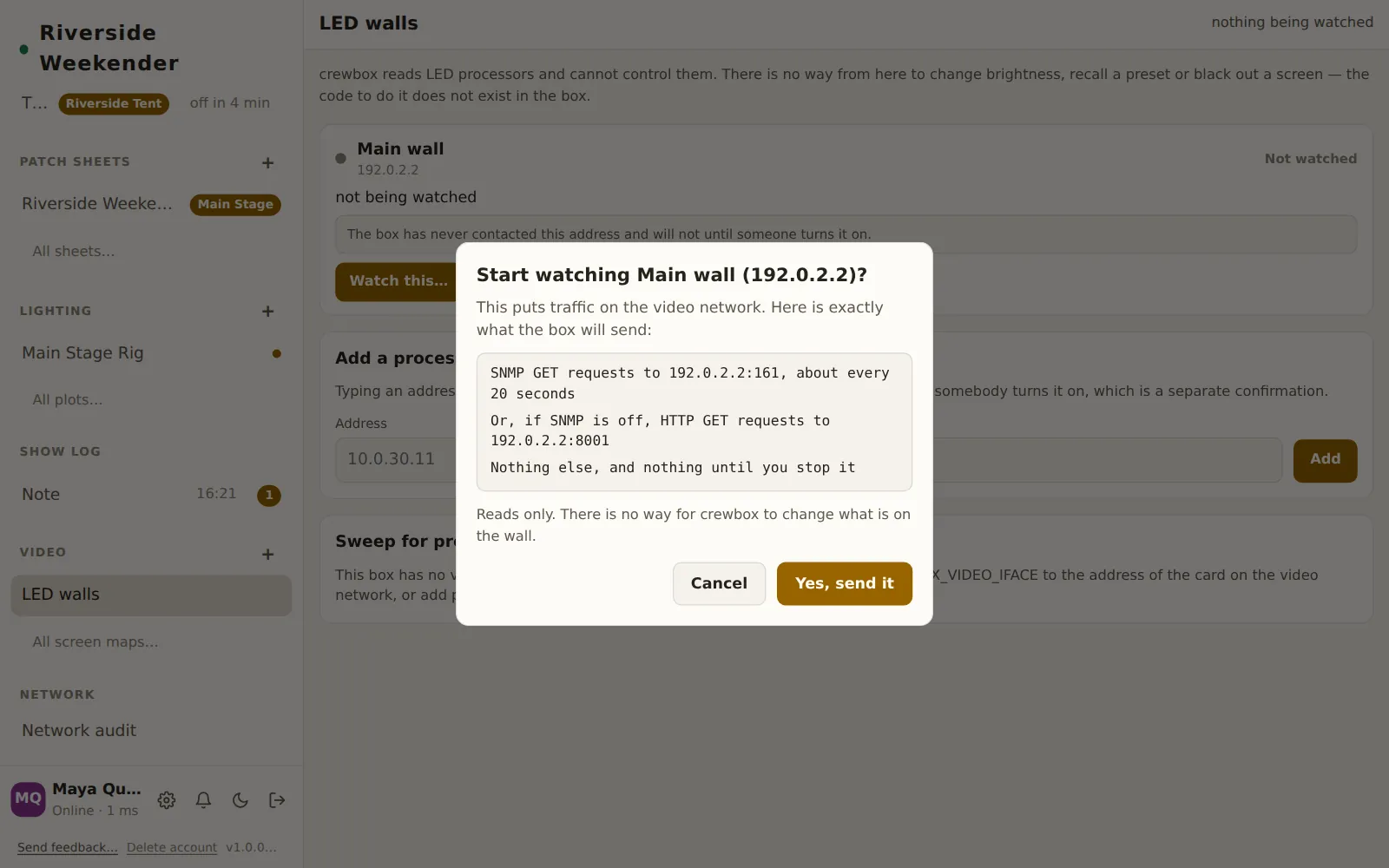
10.0.30.11) and a Name ("Main wall"), and press Add. Adding contacts nothing. - On its row, press Watch this…. A confirmation lists exactly what the box will send, and to where: SNMP GET requests to port 161 about every 20 seconds, or HTTP GET requests to port 8001 if SNMP is off on the controller.
- Press Yes, send it.
Within a poll or two, the row fills in:
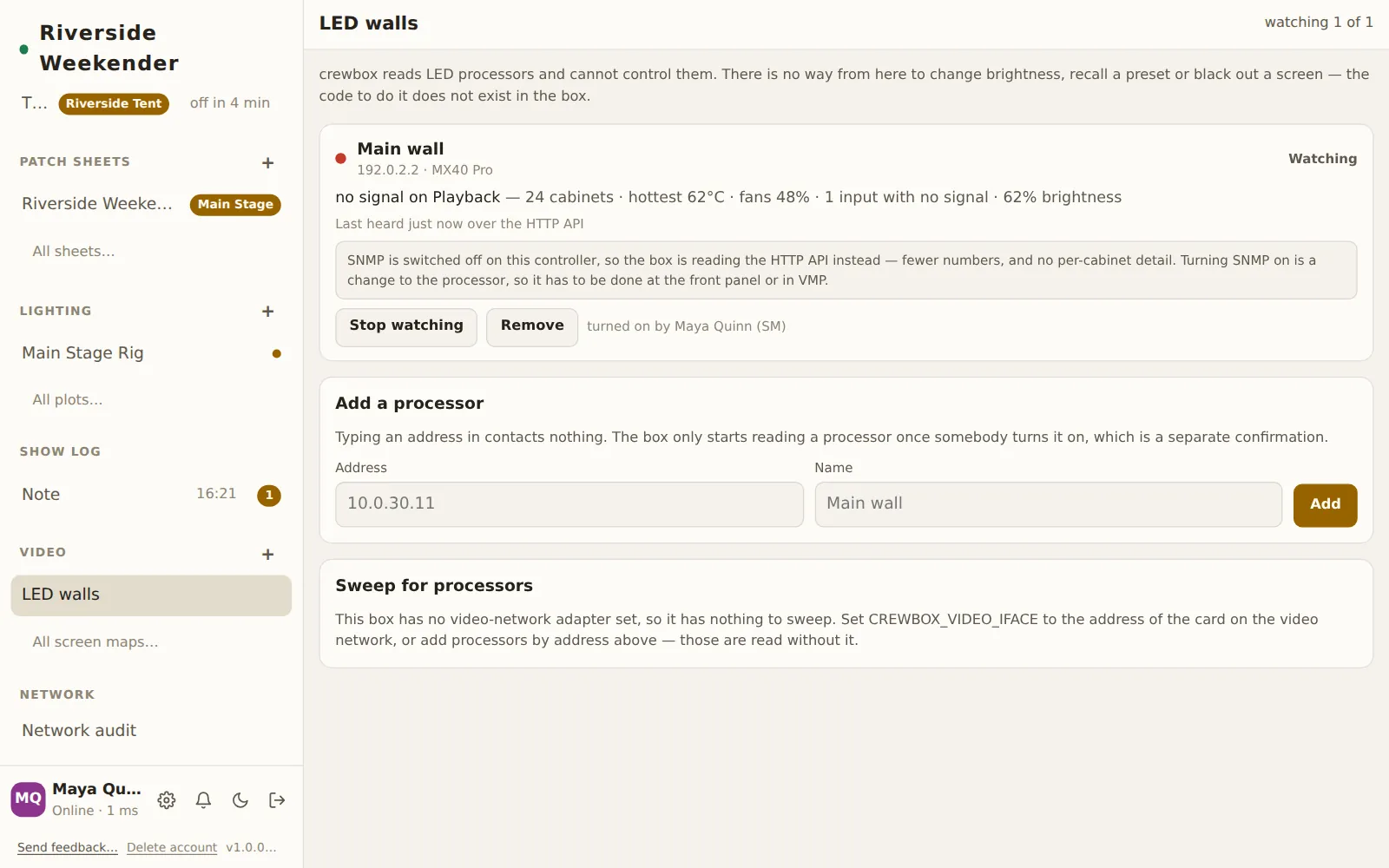
The address must be one processor: group, broadcast and loopback addresses are refused. Stop watching stops all traffic to it; Remove takes it off the list.
Sweep for processors
If you don't know the addresses, an admin can sweep one network for them. It
needs the box started with CREWBOX_VIDEO_IFACE set to the address of its
adapter on the video network, and an unlocked admin panel on the device. Sweep
for processors… shows the one broadcast it will send (the same discovery
packet NovaLCT sends), then sends it once when you confirm. Each processor that
answers gets an Add button.
Share the screen map
- On the Resolume machine, find the preset: Arena keeps them in
Documents/Resolume Arena/Presets/Advanced Output/, andPreferences/AdvancedOutput.xmlis whatever is on the outputs right now. - In Crewbox, open Video → All screen maps… and press ⇪ Import Advanced Output XML, or drag the file onto the page.
The file is read on that device; nothing is sent to Resolume. The map is on every device on the box a moment later.
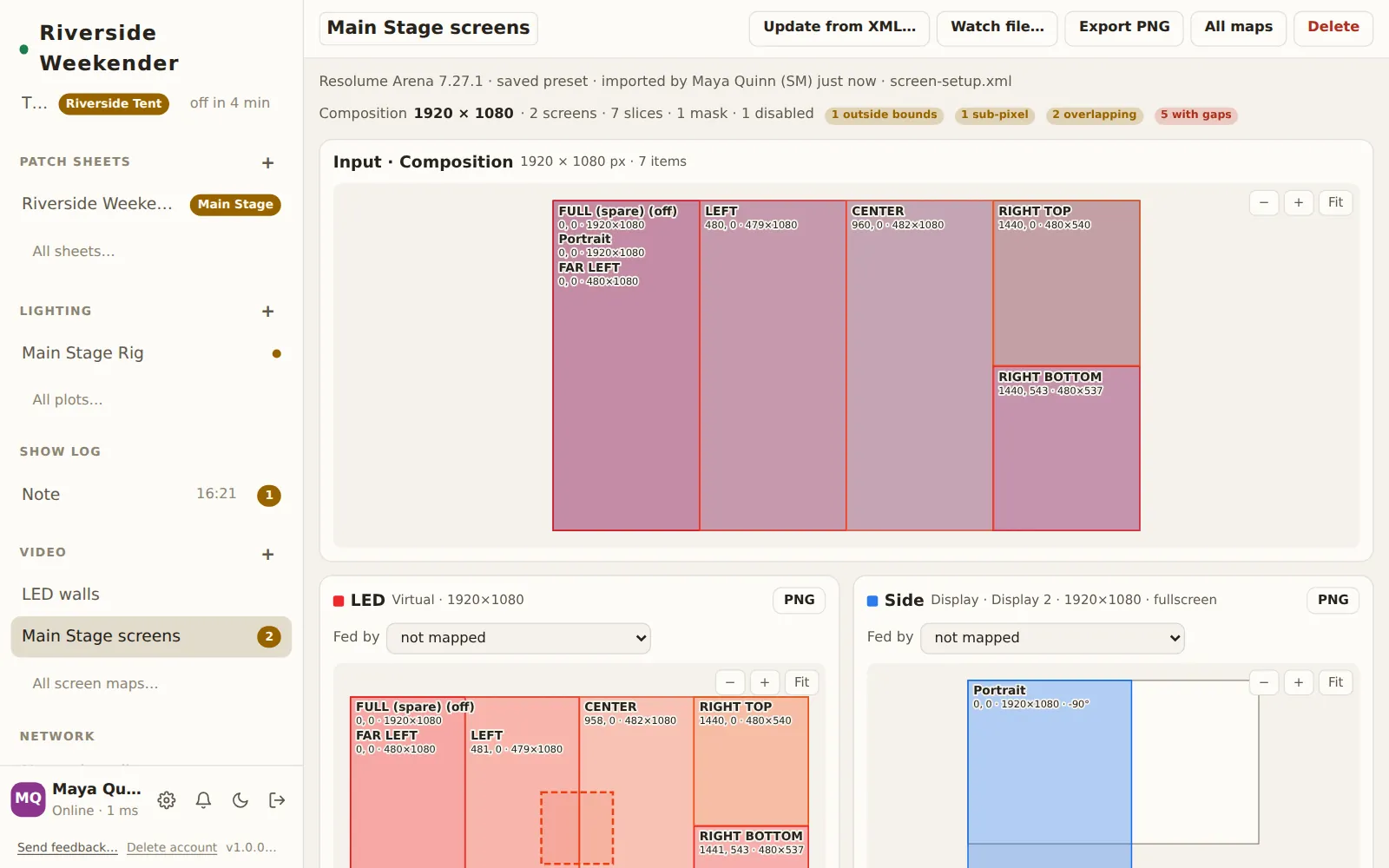
The chips at the top are the checks a screens tech does by eye: slices outside bounds, scaled, warped, sub-pixel (not on whole pixels), overlapping, and with gaps. Click a slice to see what the checks found about it, in words.
Keep it current
On the Resolume machine, in Chrome or Edge, press Watch file… and pick the preset. Crewbox re-reads it every time Resolume saves it. Elsewhere, Update from XML… re-imports by hand.
Link screens to processor inputs
On each screen's card, set Fed by to the processor input that feeds it. The list comes from the processors being watched. From then on the card shows that input's signal, and when it drops, dark: lists the slices that go black.
Test cards
Export PNG in the map's header saves a test card of the input map at the composition's own resolution: a checkerboard per slice with its name, position and size in the middle, the way a content template goes to a designer. PNG on a screen's card does the same for that screen's output.