Crewbox 1.0
Join the crew by QR
For crew: scan the code, pick a name and a PIN, and sign back in later on any device.
Joining takes one scan and three fields. There's no account to make in advance and no email. Send this page to anyone joining a box.
Join for the first time
- Join the event Wi-Fi named on the poster. The box is only reachable on the event network.
- Scan the QR code on the poster, on the box's screen or on the
/connectpage. It opens the join screen with the event PIN already filled in. - Fill in:
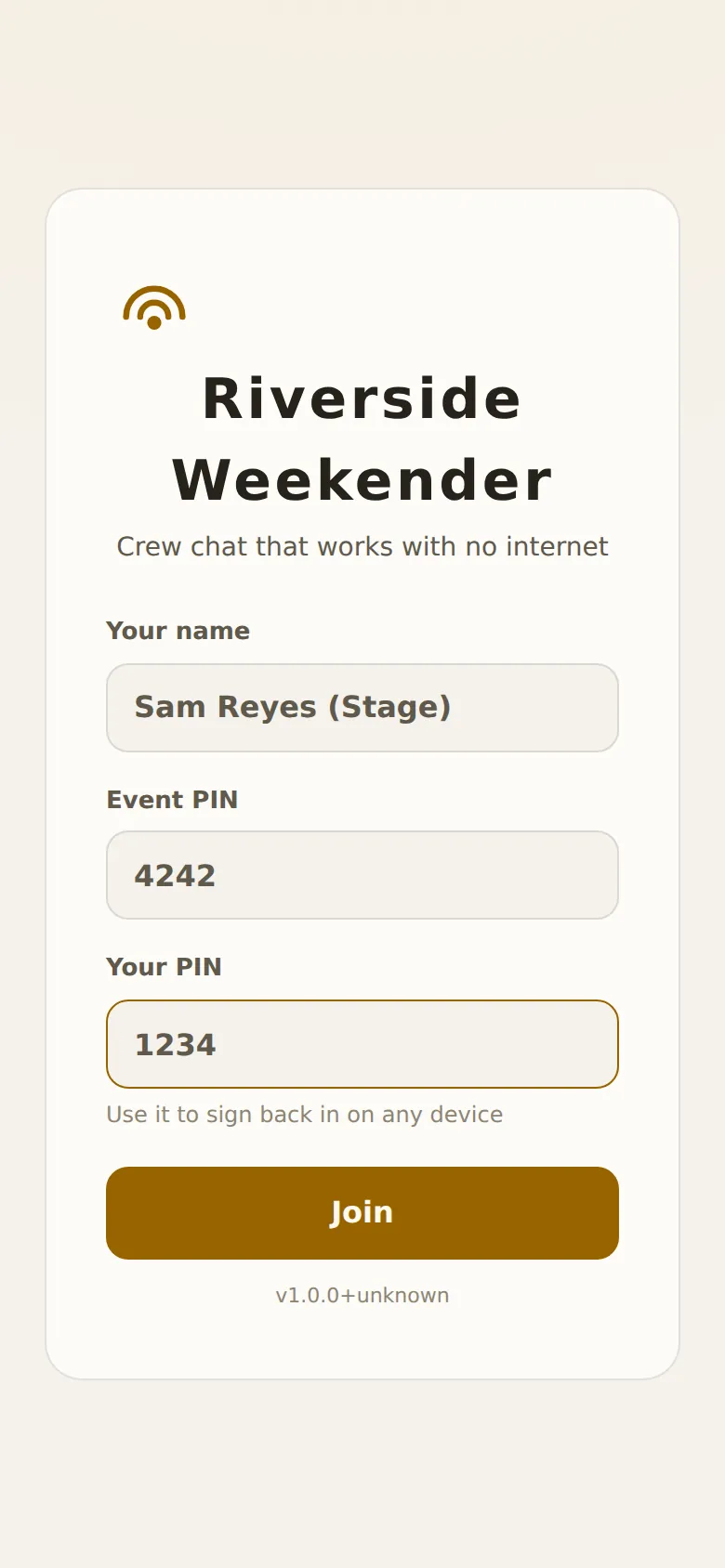
- Your name: what the crew see, up to 24 characters. Adding your role or stage helps: "Sam Reyes (Stage)".
- Event PIN: printed next to the QR code. Filled in if you scanned.
- Your PIN: 4 to 8 digits you make up now. Remember it: with your name, it's how you sign back in.
- Press Join. You're in
#general.
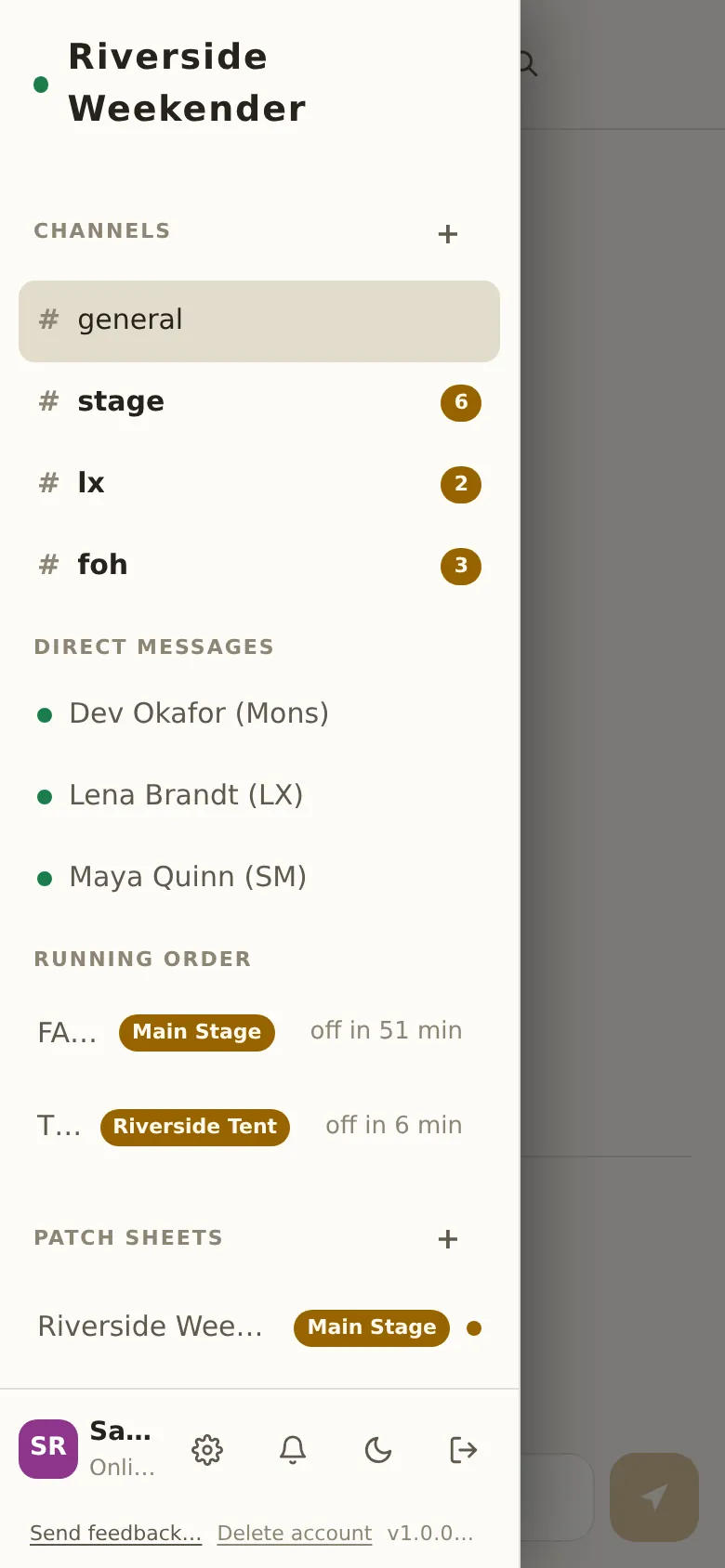
On a phone, the sidebar is a drawer. Tap ☰ (Open channels) at the top left to open it, and tap a channel or module to go there; the drawer closes itself.
The three codes
Every crew mixes these up once:
| Code | Who uses it | What for |
|---|---|---|
| Event PIN | Everyone, once | Lets a new person join this event. It's on the poster; it isn't very secret. |
| Your PIN | Just you | Signs you back in as you, on any device. You made it up when you joined. |
| Admin password | The box's operator | Opens the admin panel. It is not the event PIN, and crew never need it. |
Sign back in
Joining and signing in are the same screen. Type the same name and your PIN; you don't need the event PIN again. You're back with your channels, unread counts and direct messages, on this device or any other: a phone at the barrier and a laptop at front of house can both be you.
A device stays signed in for weeks. Sign out (the arrow at the end of your name row) signs this device out.
If the name exists and the PIN doesn't match, the box says so. Either you've mistyped your PIN, or someone else already has that name. Pick another name, or ask the operator to reset your PIN in the admin panel. After too many wrong tries the box says Too many attempts — wait a minute and try again.
On the Android app
The Android app's join screen has one more field, Crew server: the box's address. Scanning the QR code fills it in; otherwise type the address from the poster. Everything else is the same. See Installing for getting the app onto a phone.
On an iPhone
Use Safari. For the best experience, add Crewbox to your home screen (Share → Add to Home Screen); the app reminds you once with a tip you can dismiss. Adding to the home screen needs the box to be on HTTPS. iPhones can't be alerted while locked on a site with no internet: that's Apple's rule, not Crewbox's.
If it won't connect
- The join screen never loads. You aren't on the event Wi-Fi, or your phone has fallen back to mobile data. Join the Wi-Fi on the poster; turn mobile data off for a minute if the phone won't let go of it.
- "Can't reach the crew server". The phone can see the network but not the box. The screen retries by itself; Retry now tries straight away.
- A "Connecting…" or "Offline" banner once you're in. You can keep reading and writing. Anything you send is queued on the phone and delivered when the box is back. After half a minute the banner becomes Still offline… Why?, which explains the likely causes.
More in Troubleshooting.