Crewbox 1.0
Getting started
From a freshly installed box to crew chatting on their phones, in ten steps.
This walks through a brand-new box: licence it, name the event, put the QR code up, and get the first crew in. Allow fifteen minutes the first time. You need the box machine on the Wi-Fi (or cable) the crew will use, and, for step 4 only, an internet connection. No internet on site? Step 4 has an offline route.
1. Start the box
Install and open Crewbox (Installing). It opens your browser on the setup page.
2. Note the two codes
A new box is unlicensed, so the setup page says Licence needed and gives you two things to keep:
- the event PIN, which every crew member types once to join, and
- the admin password, if the box made one up for you. Write it down now; it's never shown again.
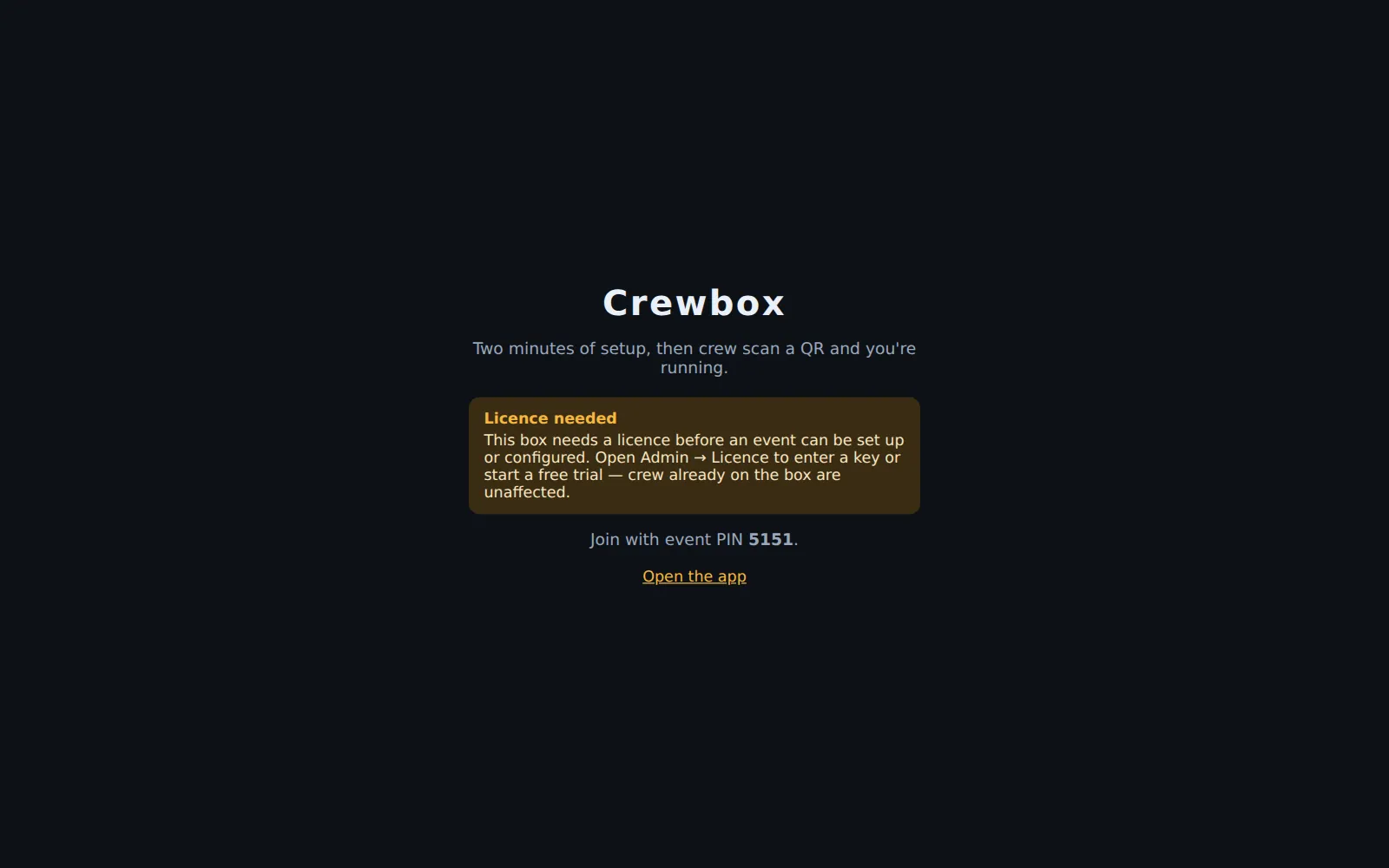
Press Open the app.
3. Join as yourself
On the join screen, type:
- Your name: what the crew will see. Adding a role helps, like "Maya Quinn (SM)".
- Event PIN: from the setup page.
- Your PIN: 4 to 8 digits you make up now. It signs you back in on any device.
Press Join. You're in #general. Joining closes the setup page for good;
everything on it lives on in the admin panel.
4. Start the trial
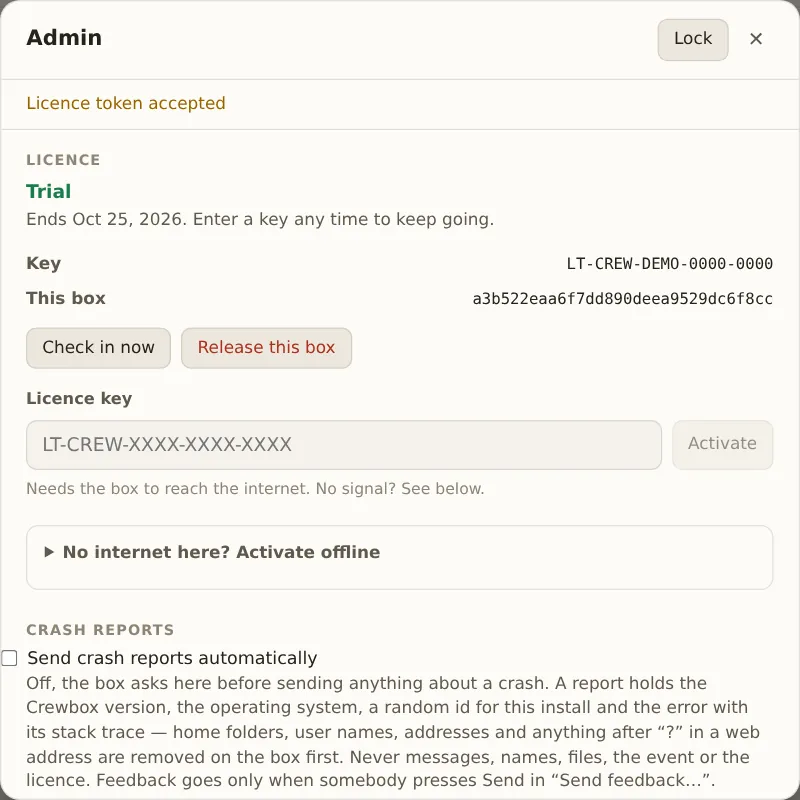
Press the cog next to your name at the bottom of the sidebar. Type the admin password and press Unlock. The panel opens with a banner saying event setup is locked. Press Licence in that banner.
Under Start a 30-day trial, type your email and press Start trial. Or, if you've bought one, type your key into Licence key and press Activate.
With no internet at the box, open No internet here? Activate offline and follow its three steps on any phone with signal (details).
5. Name the event and the Wi-Fi
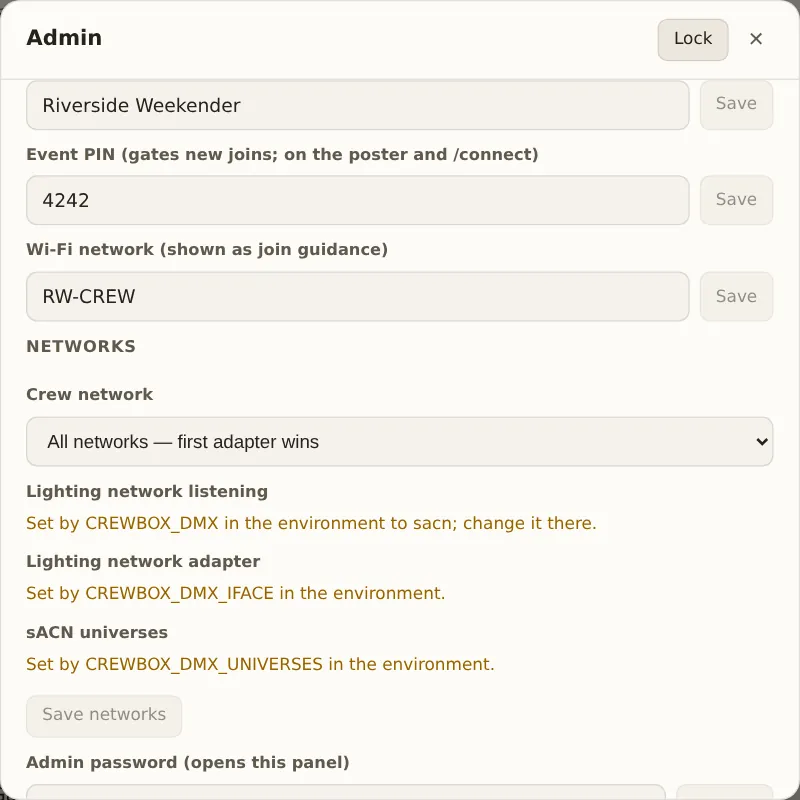
Scroll up to This box in the same panel. Fill in and Save each of:
- Event name: shown to crew instead of "Crewbox", on the join poster and at the top of the sidebar.
- Wi-Fi network: the network crew should join. It's shown as guidance on the poster and in the app's connection help. The box doesn't change any Wi-Fi.
If the box machine has more than one network adapter, set Crew network under Networks to the one the crew are on, then Save networks and restart the box. Admin panel explains every setting.
6. Read the readiness list
The top of This box is a list of what works on this machine right now, each row marked Working, Limited, Off or For information, and each problem with its fix. Read it once. The two rows that matter most:
- Crew network: which address phones will use.
- Push-to-talk voice: whether voice is available, and whether browsers can talk or only listen (browsers need HTTPS for the microphone; the Android app doesn't).
Close the panel with ✕. It stays unlocked on this device until you press Lock or reload.
7. Put the QR code up
Open the box's address followed by /connect (for example
http://192.168.1.20:8787/connect), or choose Open the QR poster page from
the menu-bar or tray item. It shows the event name, the Wi-Fi to join, a QR code
and the event PIN. Leave it on a spare screen, or print it.
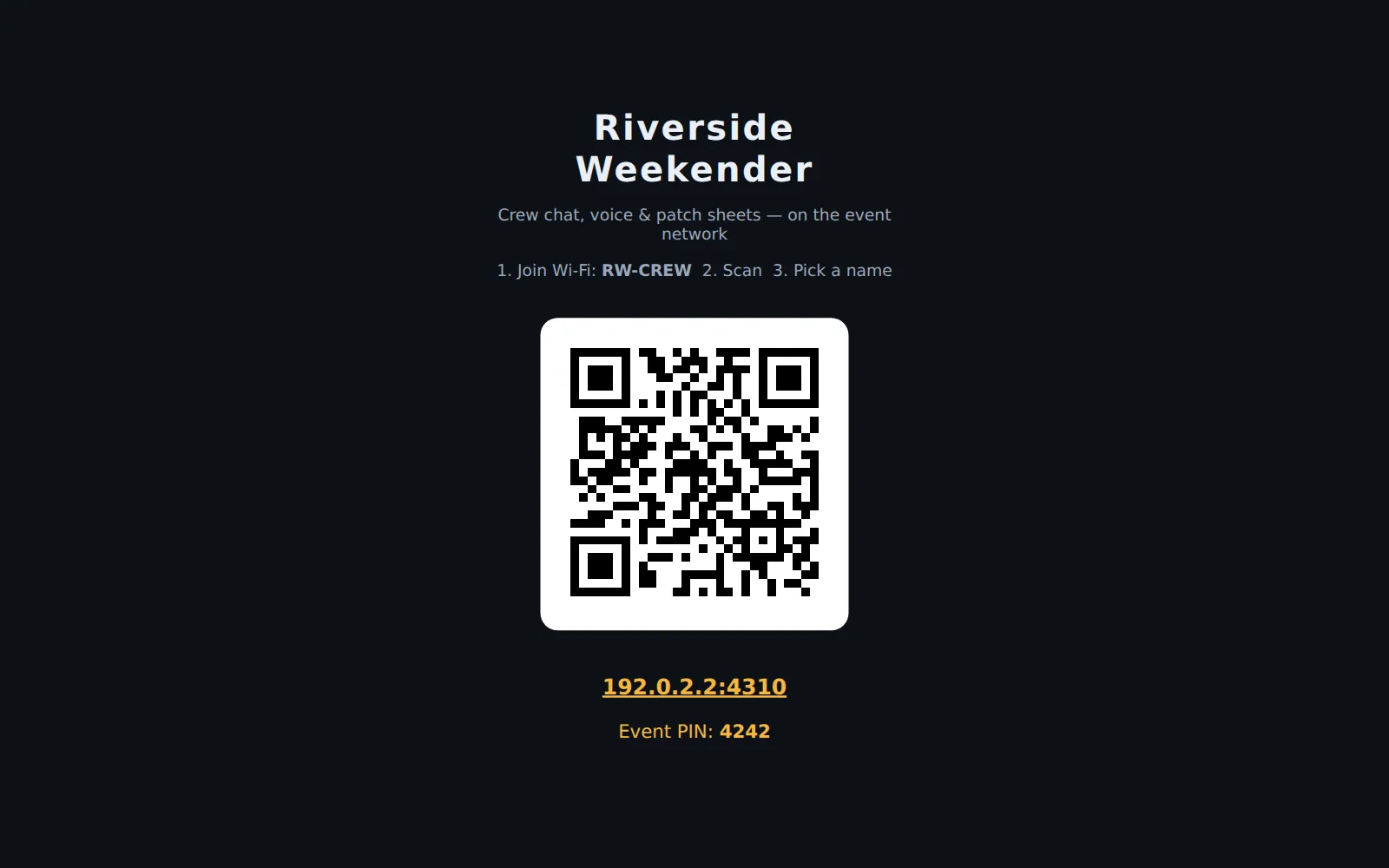
The QR code carries the event PIN, so crew who scan it don't have to type it.
8. Make a few channels
In the sidebar, press + beside Channels, type a name like stage and
press Enter. Most crews want one per department or area: stage, lx, foh,
production.
9. Let the crew in
Crew join the Wi-Fi, scan the QR code, type a name and a PIN of their own, and press Join. Join the crew by QR is the page to send them.
10. Add the paperwork
- Drop the festival's patch CSV on Patch Sheets → All sheets… (Import a patch sheet). Its acts and times become the running order everyone sees.
- Drop the lighting designer's MVR on Lighting → All plots… (Import a lighting rig).
That's a working box. Before the show, read Run the box on show day.
If the box already has a licence
On a box that's already licensed (a new event on the same machine with a fresh
data folder, for example), the setup page asks four questions instead: Event
name, Wi-Fi network, Event PIN and Admin password, with a
Networks section when there's more than one adapter. Save and show the
QR takes you straight to the /connect poster.