Crewbox 1.0
Import a lighting rig
Bring a rig in from an MVR (with GDTF profiles) or a CSV from Lightwright or a console, and what each route gives you.
Rigs arrive as files: an MVR from the designer's software, a Lightwright export, or a patch dump from the desk. Crewbox reads all of them. The short version: a CSV gets you the list; an MVR gets you the rig.
1. Import
Open Lighting → All plots… in the sidebar, then press ⇪ Import CSV / MVR or drag the file onto the page. A new plot is made, named after the file, and opens. Large MVRs take a few seconds; the button says Reading… while it works.
To add a file to a plot that already exists, open the plot and press Import in its toolbar, or drag the file onto it.
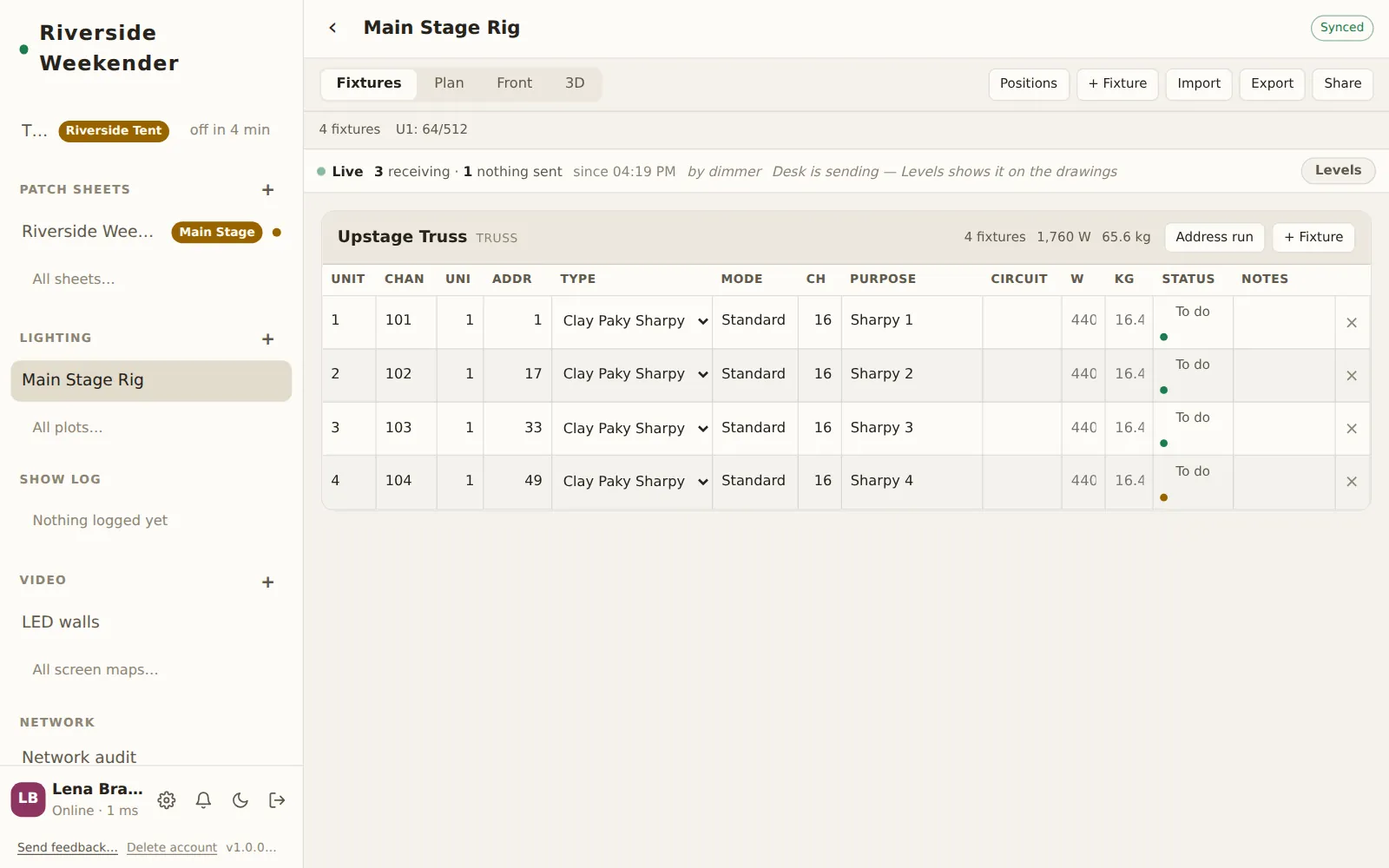
When it's done, a line under the toolbar says what happened, for example
Imported 4 fixtures across 1 position, and names any CSV columns it didn't
recognise.
2. Check the addressing
The summary line above the list counts fixtures and shows each universe's use,
like U1: 64/512. Any clash shows as ⚠ N addressing problems, and each
problem fixture says why on its own row: DMX clash with …, or Runs past
channel 512. Fix the address in the row and the warning clears.
3. Set trims and lengths
Open Positions. Set each position's Trim m (height), and check its Length m against the estimate Crewbox makes from the fixtures on it ("Needs 9.8 m (measured) · 2 × 4 m + 1 × 2 m"). Set to … takes the estimate.
What each route gives you
| CSV | MVR with GDTF | |
|---|---|---|
| Fixture list, addressing, clash warnings | yes | yes |
| Positions | created from names in the file | created from the file's layers, with real positions and order |
| Footprint per mode | if the file has it | from the manufacturer's profile |
| Watts and weight | if the file has them | from the profile |
| Truss-length estimate | fixture widths assumed | widths from the profiles |
| Live check "by dimmer" | no: any activity in the footprint | yes |
| Channel-by-channel readout | no | yes |
| Colour haloes and 3D beams with Levels on | no | yes |
That table is the answer to "why does their plot show more than mine": it's never a setting, it's whether the fixtures carry profiles.
CSV
Headers are matched by meaning, so exports from Lightwright, Eos, grandMA and Hog come in without editing:
| Field | Headers |
|---|---|
| Channel | channel, chan, ch, chan# |
| Universe | universe, uni, univ |
| Address | address, addr, patch, dmx, dmx address, dimmer, dim |
| Type | type, fixture type, instrument type, fixture |
| Mode | mode, dmx mode, fixture mode |
| Footprint | contains footprint, or chan count, dmx ch |
| Purpose | purpose, label, name, description |
| Position | position, pos, location |
| Unit | unit, unit#, u#, unit number |
| Circuit | contains circuit, or ckt, cct |
| Watts | contains watt, or power, w |
| Weight | contains weight, or kg, lbs |
| Notes | contains note, or remarks, comment |
Positions named in the file are created. A status column is read too: ok,
working and good become Working, rigged and hung become Rigged, fault
and dead become Fault. Importing a CSV again adds its fixtures again; it
doesn't merge.
MVR
An MVR carries the rig's geometry and the GDTF profile of each fixture type. Crewbox reads:
- Positions from the layers, with fixtures in their true order along a fitted bar. A layer that isn't a physical bar (a "Spots" group spread across several trusses) becomes a grouping with no drawn bar.
- Unit numbers in order along each bar, so the paperwork matches what someone counting along the truss sees.
- Profiles: authoritative footprints, channel maps, watts, weight, size and beam angles.
Importing a newer MVR of the same rig updates it rather than adding it twice: fixtures are matched by the IDs the design software gave them, moved and repatched, and the crew's own Status and Notes are kept. Fixtures in the plot that the new file doesn't have are left alone and counted in the summary; deleting them is your call.
Getting it out again
Export downloads the plot as CSV: the list, addressing, positions and notes, readable by the tools the rig came from. Share posts a link to the plot in a channel.
Seeing the desk
With the box listening to the lighting network, each fixture shows whether data is reaching its address, and Levels draws what the desk is sending. That's set up by the operator in Admin → This box → Networks → Lighting network listening; see Lighting.